- 23 -
1. Receive a television broadcast signal.
2. Normalize the picture setting.
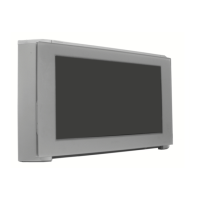
3. Adjust the focus control located on the flyback transformer
to obtain the best focus at the centre of the screen.
Bring only the centre area of the screen into focus, the
magenta-ring appears on the screen. In this case, adjust the
focus to optimize the screen uniformly.
3-4. Screen (G2), White Balance
[Adjustment in the service mode using the remote
commander]
G2 adjustment
1. Input a dot signal from the pattern generator.
2. Set the Picture, Brightness and Colour to minimum.
3. Apply 175V DC from an external power supply to the R,G and
B cathodes of the CRT.
4. Whilst watching the picture, adjust the G2 control [SCREEN]
located on the Flyback Transformer to the point just before the
flyback return lines disappear.
Layout of each control
1. Input an all-white signal from the pattern generator.
2. Program the Remote Commander for operation in Service Mode.
[ See Page 24 ]
3. Enter into the ‘Service Mode’ by pressing ‘VIDEO’, ‘VIDEO’
and ‘MENU’ ‘MENU’ on the Remote Commander.
4. Select ‘Device Register Setting’ > ‘Backend’ from the on screen
menu display.
5. Set the ‘Contrast’ to MAX.
6. Set the ‘R-Drive’ to 25.
7. Adjust the ‘G-Drive’ and the ‘B-Drive’ so that the white
balance becomes optimum.
8. Press the ‘OK’ button to write the data for each item.
9. Set the ‘Contrast’ to MIN.
10. Adjust the ‘G-Cutoff’, and the ‘R-Cutoff’ with the left and
right buttons on the remote commander so that the white
balance becomes optimum.
11. Press the ‘OK’ button to write the data for each item.
White balance adjustment for TV mode
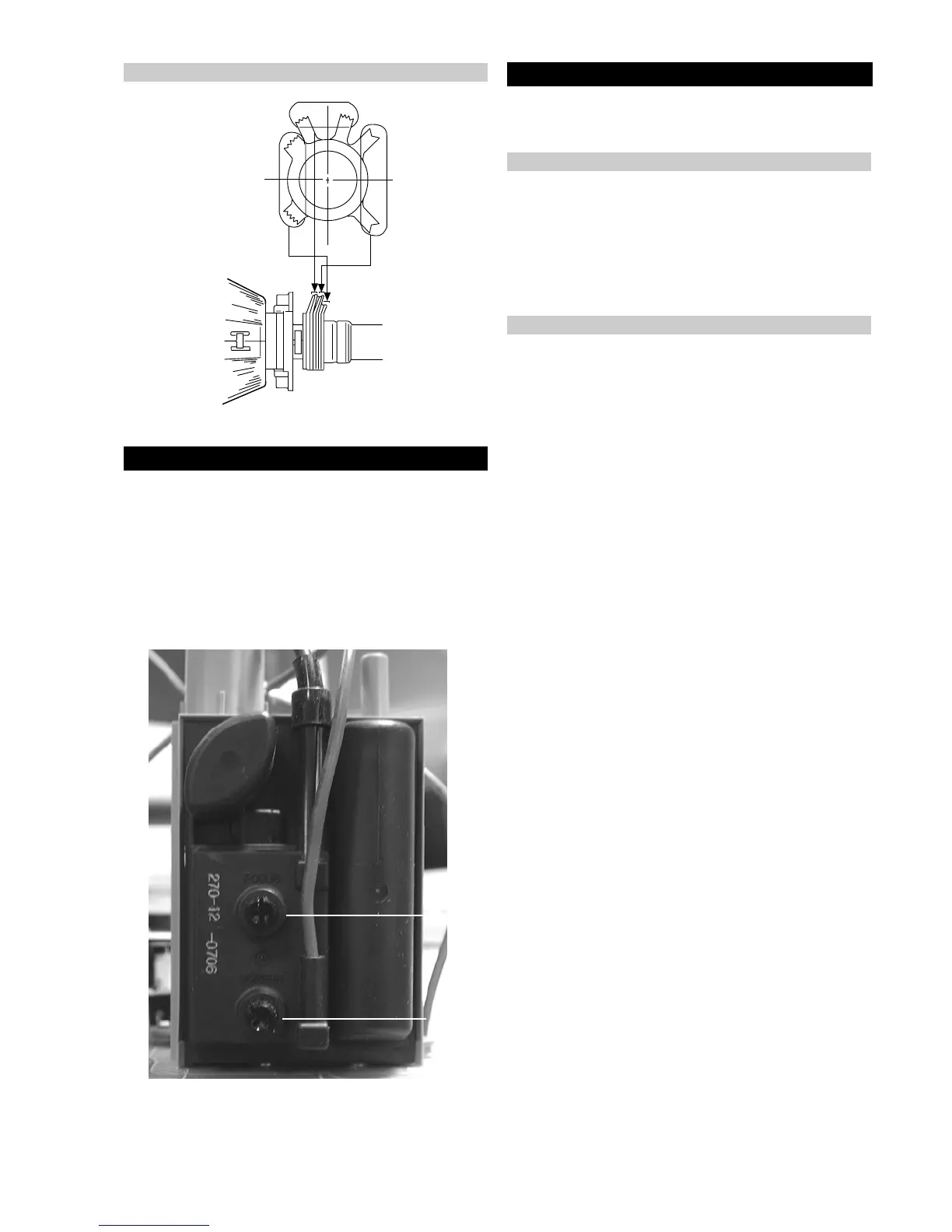
V.STAT
BMC (Hexapole)
Purity
3-3. Focus Adjustment
Screen
Focus



 To Next Page