1-19
80
Various play mode functions (Programme play, Shuffle play, Repeat play)
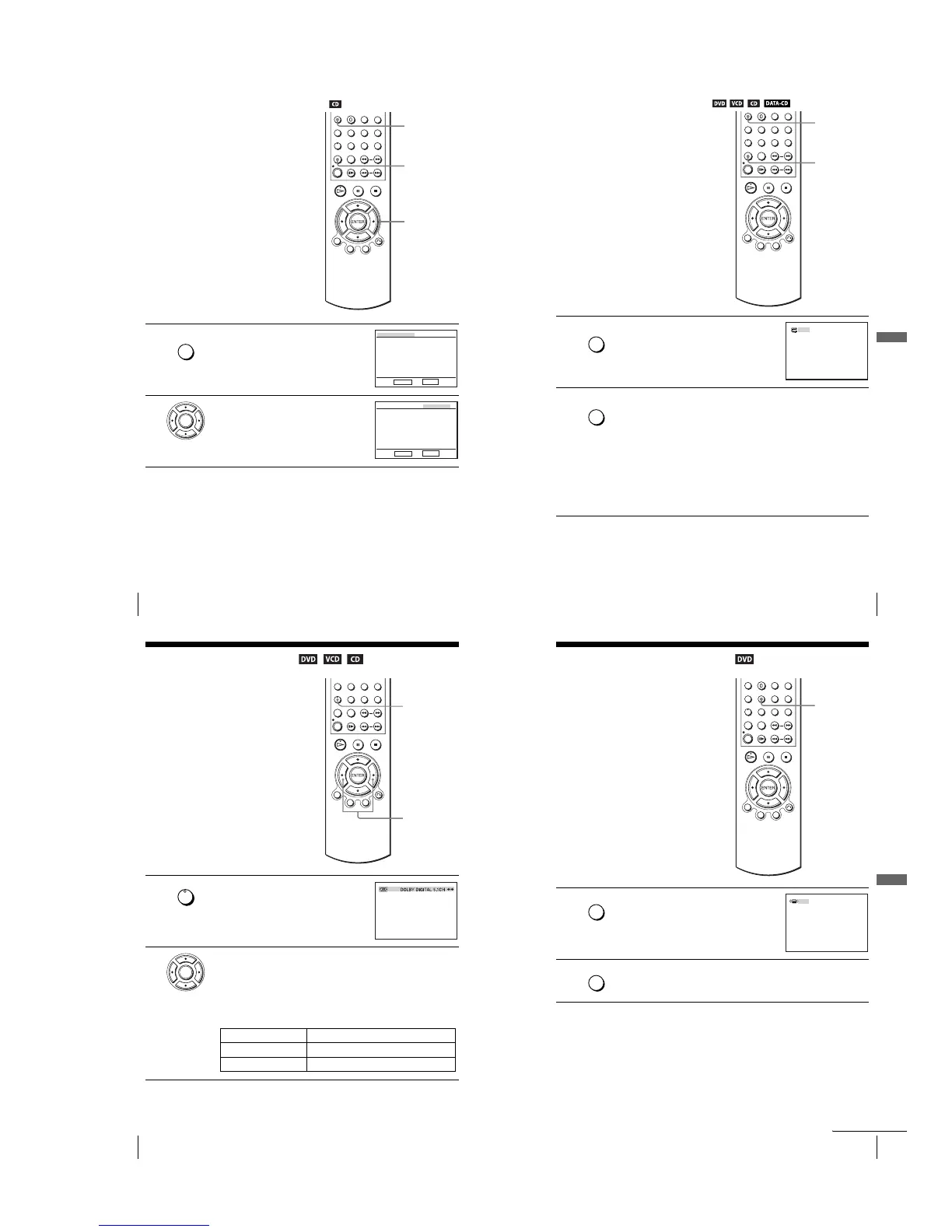
Playing in random order (Shuffle play)
To return to normal play
Press CLEAR during shuffle play.
You ca n shuffle the playback order of tracks.
Subsequent “shuffling” may produce a
different playing order.
1
Press PROGRAM when the DVD player is in
stop mode.
2
Press B/b to select “ALEATOIRE”, then press
ENTER.
B/b
ENTER
PROGRAM
CLEAR
REPEAT/
PROGRAM
PROGRAMMATION
B b ALEATOIRE
ENTER
RETURN
ENTER
PROGRAMMATION
B b ALEATOIRE
ENTER
RETURN
81
Various play mode functions (Programme play, Shuffle play, Repeat play)
DVD Additional Operations
Playing repeatedly (Repeat play)
To return to normal play
Select “Non” in step 2 or press CLEAR during repeat play.
Tip
•When playing a DATA CD, press REPEAT again to cancel repeat play.
Yo u can play all of the titles or tracks on a
disc or a single title, chapter, or track
repeatedly.
1
Press REPEAT during playback.
2
Press REPEAT to select the item to be repeated.
When playing a DVD
•Chapter: repeats the current chapter.
•Title: repeats the current title on a disc.
When playing a VIDEO CD or CD
•Track: repeats the current track.
•Disc: repeats all of the tracks.
When playing a DATA CD (MP3 audio)
•Track: repeats the current track.
REPEAT
CLEAR
REPEAT/
PROGRAM
Non
REPEAT/
PROGRAM
82
Changing the sound
Changing the sound
When playing a DVD recorded in multiple
audio formats (PCM, Dolby Digital, MPEG
or DTS), you can change the audio format. If
the DVD is recorded with multilingual
tracks, you can also change the language.
With CDs, DATA CDs, or VIDEO CDs, you
can select the sound from the right or left
channel and listen to the sound of the
selected channel through both the right and
left speakers. For example, when playing a
disc containing a song with the vocals on the
right channel and the instruments on the left
channel, you can hear the instruments from
both speakers by selecting the left channel.
1
Press AUDIO during playback.
2
Press B/b repeatedly to select the desired language/audio setting.
•When playing a DVD
Depending on the DVD, the choice of language varies.
Refer to “DVD Audio/Subtitle Language” on page 126 for the
abbreviation of the language.
•When playing a VIDEO CD or CD
The default setting is indicated in bold print.
AUDIO
B/b
AUDIO
FRA
ENTER
Stereo
The standard stereo sound
Gauche The sound of the left channel (monaural)
Droite The sound of the right channel (monaural)
83
Virtual surround setting
DVD Additional Operations
Virtual surround setting
To cancel the setting
Select “Non” in step 2.
When you connect a stereo TV or 2 front
speakers, SURROUND lets you enjoy
surround sound effects by using sound
imaging to create virtual rear speakers from
the sound of the front speakers without using
actual rear speakers.
This function is designed to work with the
OUT AUDIO L/R jacks.
1
Press SURROUND during playback.
2
Press SURROUND repeatedly to select “Oui”.
SURROUND
SURROUND
Non
SURROUND
continued



 To Next Page