44
Table 4.6. Menu Items in NETWORK Setup Screen
Item Description
NETWORK TYPE DHCP: DVR will automatically retrieve an IP address.
STATIC: Network information must be manually configured.
IP Enter IP address that is assigned for the DVR
SUBNET MASK Enter Subnet Mask that is assigned for the DVR
GATEWAY Enter Gateway that is assigned for the DVR.
DNS (PRIMARY) Enter Primary DNS address that is assigned for the DVR
DNS (SECONDARY)
Enter Secondary DNS address assigned for the DVR
DDNS
Dynamic Domain Name System (DDNS) allows a DNS name to be
constantly synchronized with a dynamic IP address. In other words, it
allows using a dynamic IP address to be associated with a static
domain name so others can connect to it by the static name.
Enable/disable using domain name address through DDNS server.
NETWORK PORT Enter the port number. (Default 5445)
NETWORK AUDIO
PORT
Display the network audio port (NETWORK PORT + 1).
WEB PORT Enter the port number for connection using web.
NETWORK
STREAM
Sets the camera display settings for network streaming.
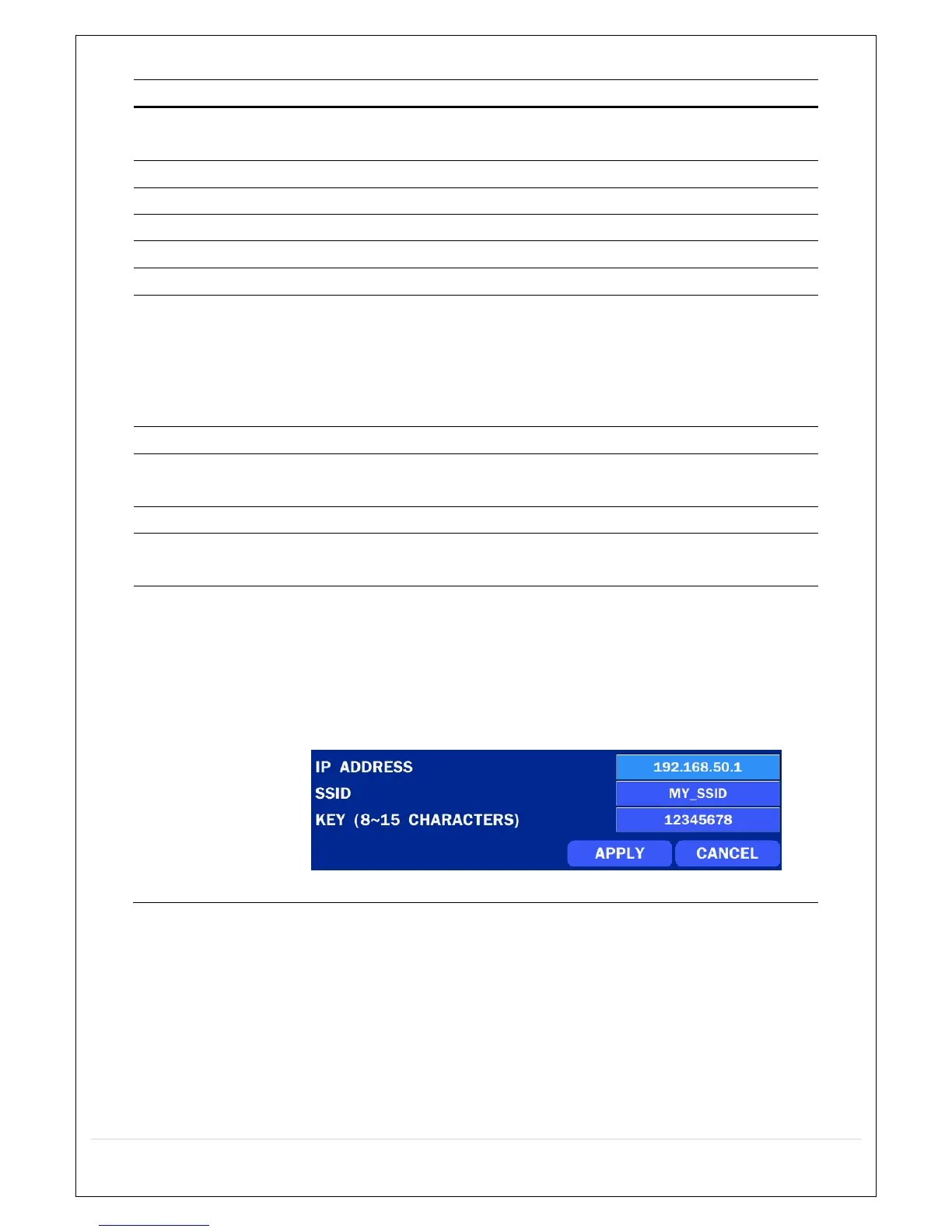
WIRELESS LAN 1. Connect USB Wifi Dongle to USB connector on DVR.
2. Load the application on your smart phone or PC and enter the WIFI
IP ADDRESS.
3. Find the WIFI SSID and enter the password. (shown in image
below)
4. Then, the remote viewing and configuration can be used.
* There is a distance limitation for the Wireless LAN.
4-6-1. Network Types
4-6-1-1. DHCP
An IP address is automatically assigned by the DHCP server, which automatically assigns the IP address
and other parameters to new devices.
4-6-1-2. STATIC
IP address, Subnet Mask, Gateway, and DNS are manually assigned by the user.
IP ADDRESS: The fixed IP address of the DVR unit.



 To Next Page