10
digiLiVE HTML CONTROL APPLICATION
HTML App Access – Wi-Fi
Since it is hosted on the digiLiVE itself, accessing the HTML Control application is simply a
matter of logging onto the digiLiVe’s 2G wireless network.
1. Ensure that the Wi-Fi dongle supplied with your digiLiVE console is plugged into one
of the two USB 2.0 connectors (the rear panel one is recommended).
2. Scan for wireless networks on your computer or mobile device and select the digiLiVE
network to connect to – which will be either DIGI4_XXXXX or DIGI8_XXXXX
depending on your digiLiVE model. There is no network password set as default, but
this can be changed in the Settings screen.
3. Open a web browser and navigate to 10.10.2.1 – the Channels screen will open.
HTML App Access – LAN
1. Ensure that both your computer and your digiLiVE are connected to the same LAN
2. Open a web browser and navigate to 10.10.1.1 – the Channels screen will open.
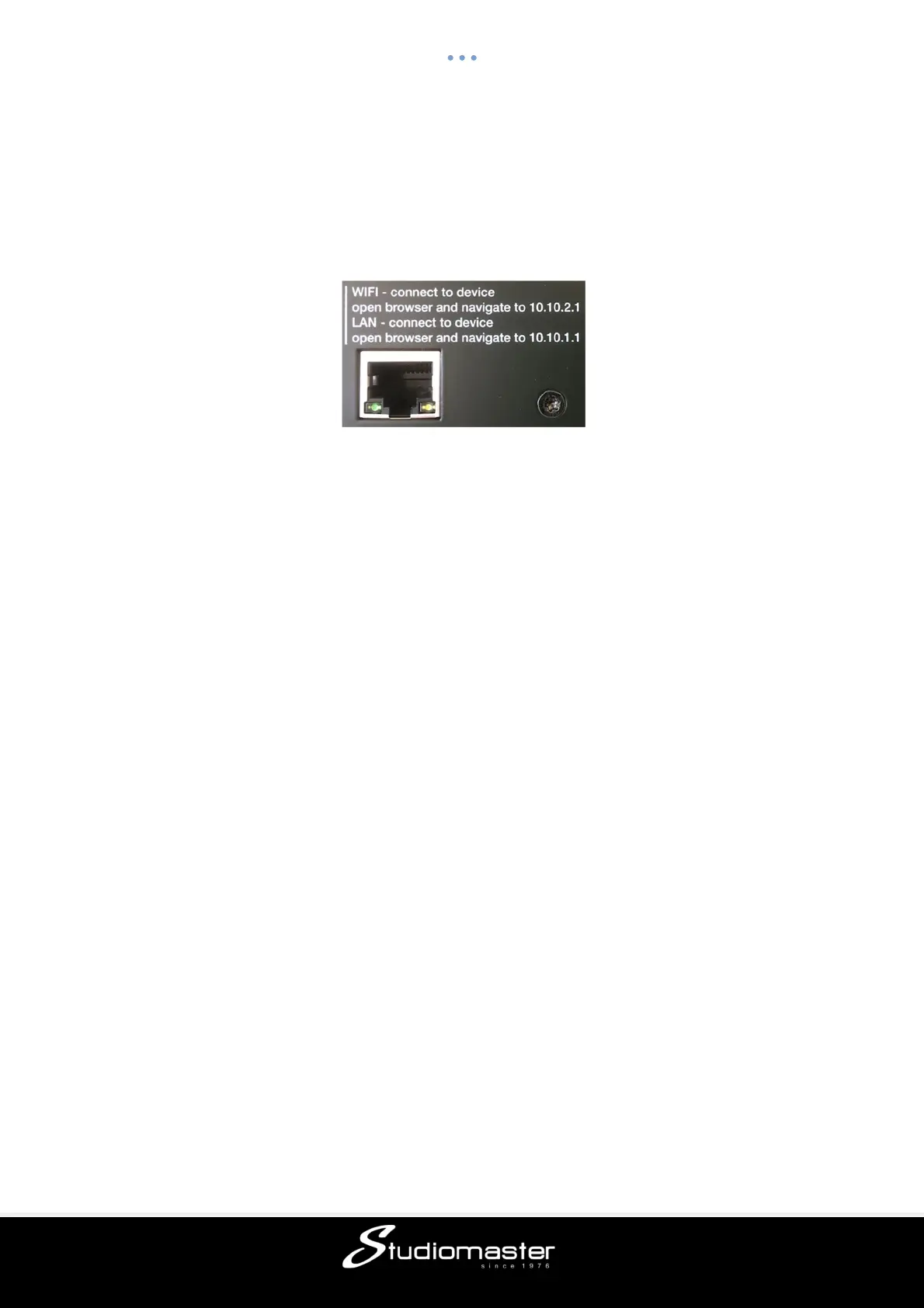
A brief recap of this information is printed on the rear panel of your digiLiVE for easy
reference.
Since we believe that most users will run the control app on a mobile device, we will refer to
touching a tab or function rather than clicking on it. If you are running the app on a non-
touchscreen computer, in this guide a touch is equivalent to a click.
IMPORTANT - Please note that, with the factory default network settings, the wireless link to
the digiLive control app will work only with the supplied Wi-Fi dongle. If you wish to connect
to the digiLiVE via another wireless network, access point, router or LAN, you will need to
make the necessary changes to the digiLiVE’s Network Settings.


 To Next Page