33
SCENES PAGE
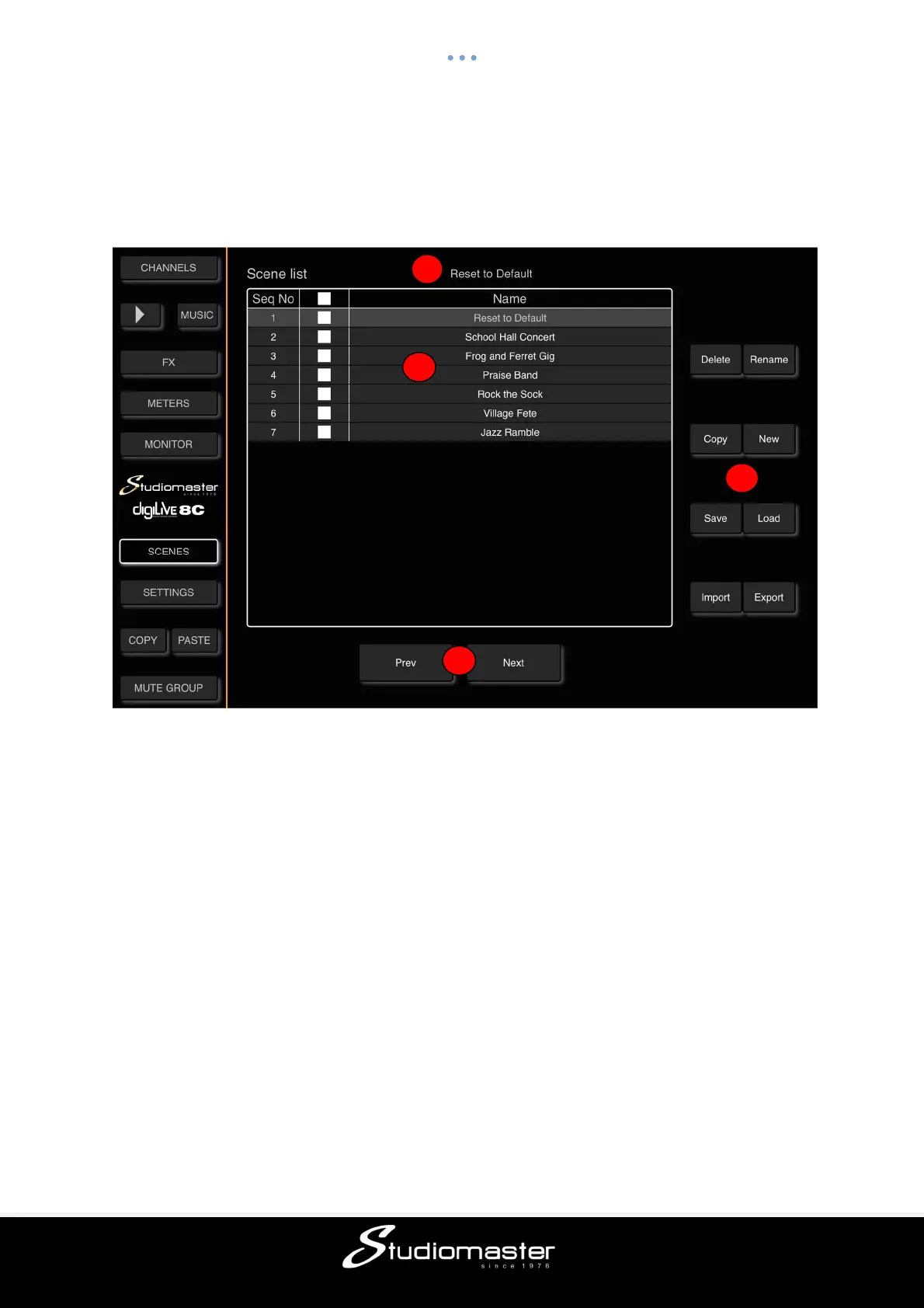
The Scenes Page allows you to store complete “snapshots” of all digiLiVE channel Preamp,
EQ, Dynamics, Bus Send, FX, Meter, Monitor and Settings parameters as “Scenes”.
To open the Scenes page, touch the Scenes tab on the left-hand menu.
① Current Scene
This displays the name of the currently loaded Scene. If no Scene has been loaded, this
space will be blank. We recommend creating a “Reset” scene (Factory Reset the digiLiVE
and save a Scene) as this allows you to reset the digiLiVE back to its default state without
having to wait for it to reboot (see Factory Reset in Settings).
② Scene List
The Scene List contains a Scene’s Sequence Number (Seq No); a “Touch-to-Tick” check-
box column where you can select all scenes, a single scene or a selection of scenes for
Deletion or Export; and the list of Saved Scenes.
To Rename, Copy, Load or Save an existing Scene, select the Scene by touching its name
on the list (its background will change to light-grey).
③ Scene Operations
Delete: Tick the Scene name check-box and then touch the Delete button. A dialogue pop-up
– “Are you sure you want to delete it?” appears. Touch “OK” to delete the scene, touch
“Cancel to cancel deletion.
Rename:Touch the Scene name to select it, and then touch the Rename button. A “Please
enter a new name” dialogue pop-up appears. Touch the existing name to edit it (your device’s
on-screen keyboard appears). Once you have renamed the Scene, clear the keyboard and
touch “OK” to rename the scene or “Cancel” to exit without renaming.
Please note that the maximum name length is 24 characters.
1
2
3
4


 To Next Page