8 Web Interface User Manual
42
The upgrade file should be in the ".zip" format.
Log export
Step 1 Click "System" -> "System maintenance" to enter the corresponding
interface.
Step 2 Click the button "Log export" to enter the corresponding interface.
Step 3 Select the type of logs to be exported, and click "Confirm".
Rebooting
Step 1 Click "System" -> "System maintenance" to enter the corresponding
interface.
Step 2 Click "Rebooting" to enter the corresponding interface.
Step 3 A warning window will pop up, and click "Confirm" to continue the rebooting
operation.
Reset all setting
Step 1 Click "System" -> "System maintenance" to enter the corresponding
interface.
Step 2 Click "Reset all settings" to enter the corresponding interface.
Step 3 A warning window will pop up, and click "Confirm" to continue the reset all
settings operation.
Restoring the factory settings refers to restoring all modified settings to the factory
state and will not clear the data.
8.10.3 Remote Maintenance
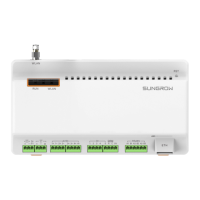
Click "System" -> "Remote maintenance" to enter the corresponding interface.
Tab. 8-1 Parameter description
Remote maintenance switch state
Disabled
Not allow for remote maintenance on the
Logger1000
Allow for remote maintenance on the


 To Next Page