11
4.3.3 Downloading Steps
1. Press the key to initiate downloading of the
binary file. The HyperTerminal will display:
Ready to download.
CCCC
2. Point and click on 'Transfer' on the HyperTerminal
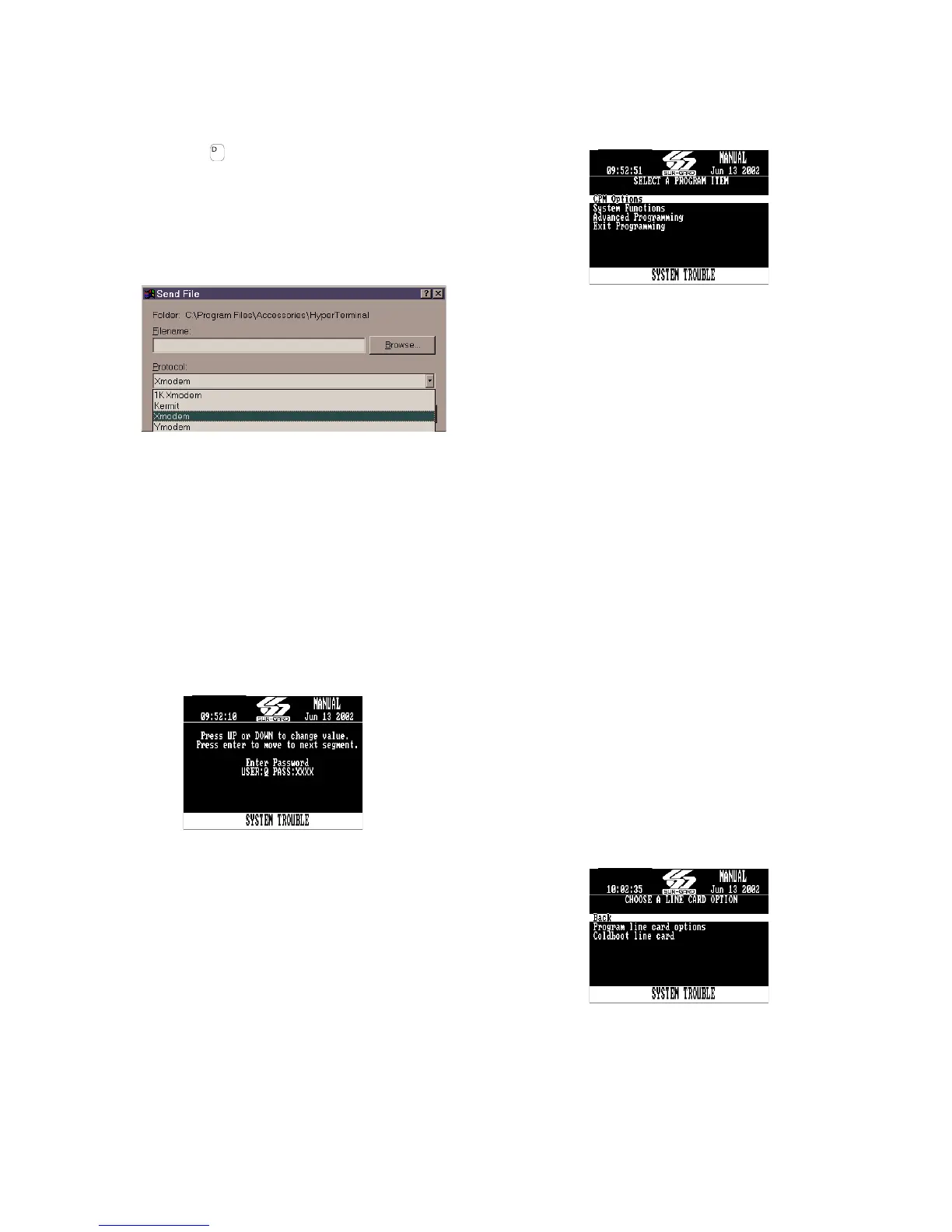
menu and access the 'Send File' category. The 'Send
File' window should appear.
Figure 4-3
3. Change the protocol to 'X-modem' and place the
correct path and file name of the binary file to be
downloaded.
4. Point and click on the [Send] button and the down-
loading status window should appear. The line card
will restart automatically after a successful download.
4.4 Manual Programming
The user interface consists of 3 buttons: the
Scroll Up button, the Scroll Down button, and the
Enter button. These buttons are used to access the
programming of the line cards and the CPM3, and to
view alarm and trouble messages in manual mode.
They are located on the right side of the screen.
Figure 4-4
The Configuration mode allows programming of the
various features and options available on the
System III. To enter the Configuration mode, press
the [Enter] button; the following screen will be dis-
played.
Enter the Master Access Code using the buttons; the
default Master Access Code is "CAFE" to change the
default Master Access Code.
When the access code is entered, the screen will dis-
play the Configuration Menu.
Figure 4-5, Configuration Menu
CPM Options allow the user to customize the opera-
tion of the system TCP/IP addressing, Passwords,
COM settings and other system functions are pro-
grammable here. Refer to the description of all CPM
options and their default settings.
4.4.1 Advanced Programming
The advanced programming menu allows the user to
change the options of a specific profile and line card.
The CPM3 will prompt the user to enter the line card
number, the profile number, and the option number.
When all the information is entered (the line card num-
ber, the profile number, and the option number), the
CPM3 will move to the option value segment and display
the current value of the option. The user can change the
value by pressing the up or down key. After the changing
the value, the CPM3 will display the following:
Line card Menu
0 Go to next Line card number
1 Go to next profile number
2 Go to next option number
3Save
The user can change multiple profiles and options per
line card. After all the modifications to options and pro-
file are made, the user must Save in order for the
changes to take effect for each line card.
To exit from the menu, the user must press the Scroll Up
and Scroll Down keys simultaneously.
NOTE: The line card will need to be reset in order for
the options to take effect.
Programming Line Card Options:
• Cold boot Line Card
Resets the selected line card to the factory
defaults. This will also clear all the internal buffers.
Figure 4-6, Advanced Programming Menu


 To Next Page