Sutron Corporation Satlink Operations & Maintenance Manual, Rev 8.04.2 11/3/2016 pg. 42
5.3.6. Working Offline
To “work offline” means to make changes to the setup in LinkComm setup while disconnected
from Satlink. You enter this mode by selecting “Work Offline” in the station view. The changes
you make to the setup are automatically saved in LinkComm but not in the Satlink.
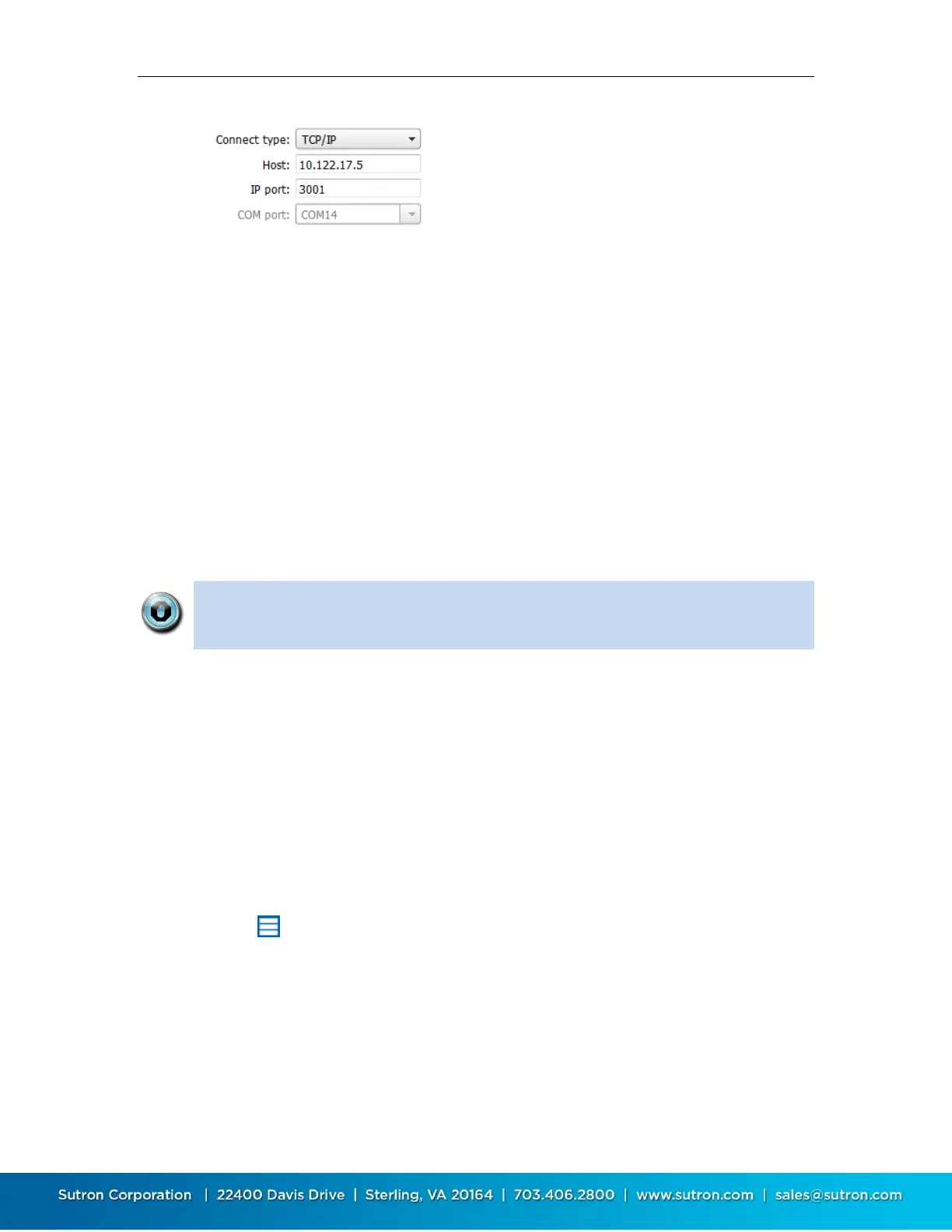
When you later connect to Satlink, you need to send the setup to Satlink to bring the setups “in-
sync”. If you checked “Get setup on connect” in the station’s Connection Settings, then when you
first connect, LinkComm will prompt to overwrite your changes. If you answer “No”, LinkComm
will then prompt to send your changes to Satlink. Answer “Yes” at this point to bring the setups
“in-sync”.
5.3.7. Notes
This section is used to enter notes in this section related to station setup and maintenance. For
example, you might store information about the last time the station was visited, plans for future
visits, and notes on calibrations, etc.
Note: All settings (station and connect settings, notes, and site images) for
every station you define are saved automatically as you make changes. Hence,
there is no need to select any kind of “Save” menu item.
5.3.8. Site Images
This section allows you store pictures of the site. Click “Add New Image” to browse for images to
store. If a camera is available, you’ll have the option to take pictures to store as new site images.
When you click a site image, it expands to fill the available window.
To delete a site image, right-click (or press-and-hold) the image and select “Delete Site Image” in
the subsequent prompt.
5.4. Main Menu
Press the button in the upper left to access the main menu. The menu shows different
options, depending on whether you are connected to – or working offline with – a station.


 To Next Page