Sutron Corporation Satlink Operations & Maintenance Manual, Rev 8.04.2 11/3/2016 pg. 56
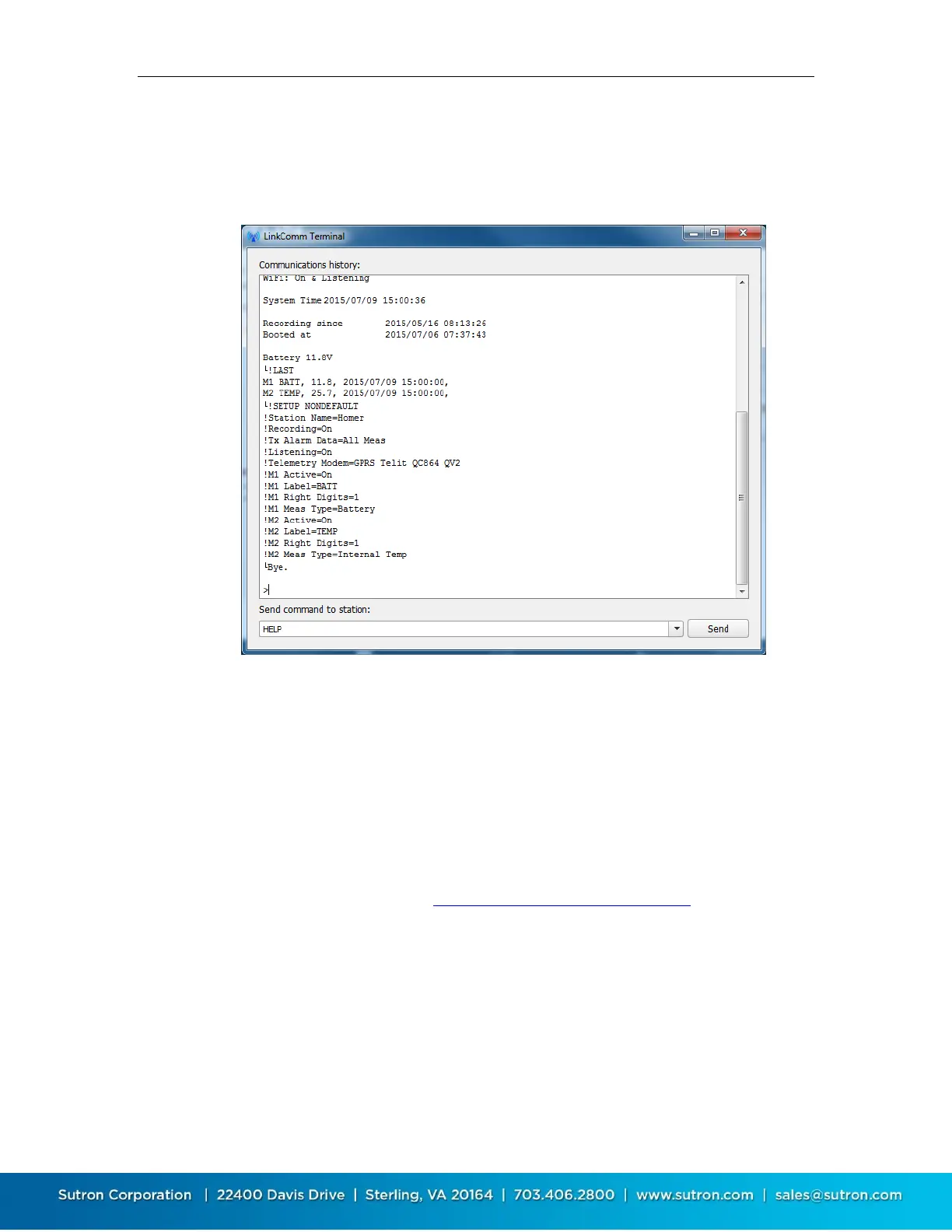
To see the details of the communication between LinkComm and Satlink, bring up the terminal
window via the Terminal button on the Diagnostic tab.
You may type into the terminal window. Data typed will be sent to Satlink. Any replies from
Satlink will be shown in the Terminal window.
5.12.4. Data Flow
The Data Flow dialog shows recent command line traffic in Hexadecimal, and shows traffic
direction and timestamp information. To open the dialog, press the Data Flow button on the
Diagnostic tab.
When “Autoscroll on data” is checked, the window advances when new data becomes available.
5.12.5. Firmware Upgrade
The software running in Satlink can be upgraded. The latest version of Satlink firmware is
delivered as part of the LinkComm download package obtained from the Sutron web site.
LinkComm may be downloaded from http://www.sutron.com/downloads.htm (search on
“LinkComm”).
Upgrades may be done over RS232, USB, USB thumb drive or Wi-Fi.
Upgrade files are packaged into the same download with the LinkComm program. Upgrade files
will have names such as SL3EuropaActual_800r1695.sl3u
To initiate an upgrade of your Satlink, select the Upgrade button on the Diagnostics tab. If
LinkComm detects a newer version of firmware on your PC, LinkComm will suggest that an
upgrade be made using it. If you select “No”, then use the file-open dialog that follows to browse
for, and select, the upgrade file to use.


 To Next Page