32
Click for contents
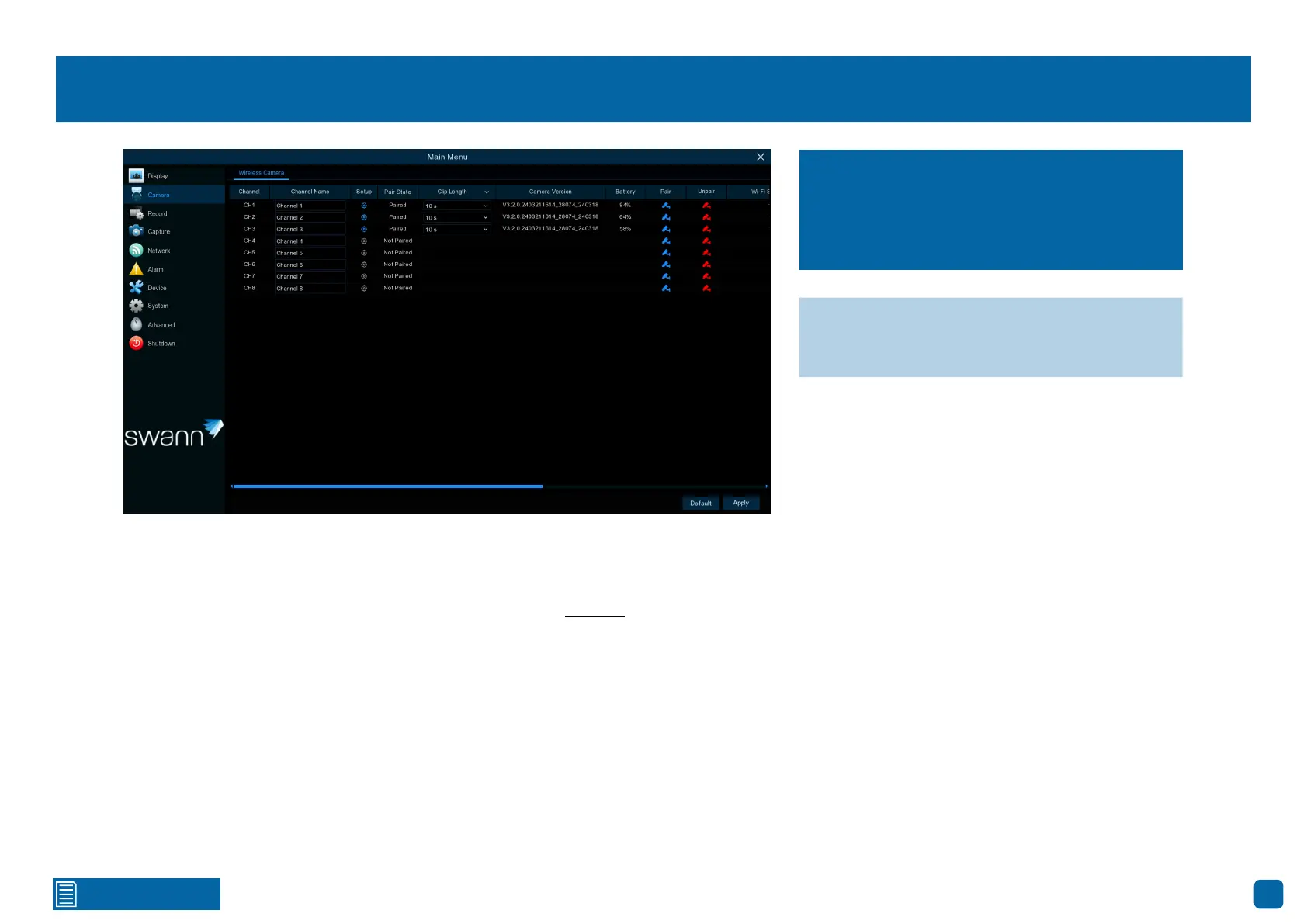
Camera: Wireless Camera
Channel Name: Enter a name for the camera selected. It can be up to 16
characters in length.
Setup: Click the button to access the camera display settings (see page 33).
Pair State: Will state when a camera has been paired or not paired to that
particular channel.
Clip Length: Determines how long your Power Hub will record when the
camera has detected motion. It also determines how long you can view the
camera in Live View mode. You can increase this but know that this will use
more battery power.
Camera Version: Shows the firmware version of the camera.
Battery: Shows the battery level of the camera.
Pair: Click this to pair a camera, then follow the on-screen instructions.
Unpair: Click this to unpair the camera from that channel.
Wi-Fi Strength: Shows the Wi-Fi signal strength of the camera. It may up-
date if there are changes to the signal strength.
Available Stream: Shows the display and recording resolution of the camera.
IP Address: Shows the camera’s IP address.
MAC Address: Shows the camera’s MAC address.
Device Type: Shows the camera’s model number.
The functions here will display technical and
status information of the cameras paired to
your Power Hub. You can also change the
channel name and adjust image settings.
→ Click “Default” to revert to default settings.
→ Click “Apply” to save settings.


 To Next Page