43
Click for contents
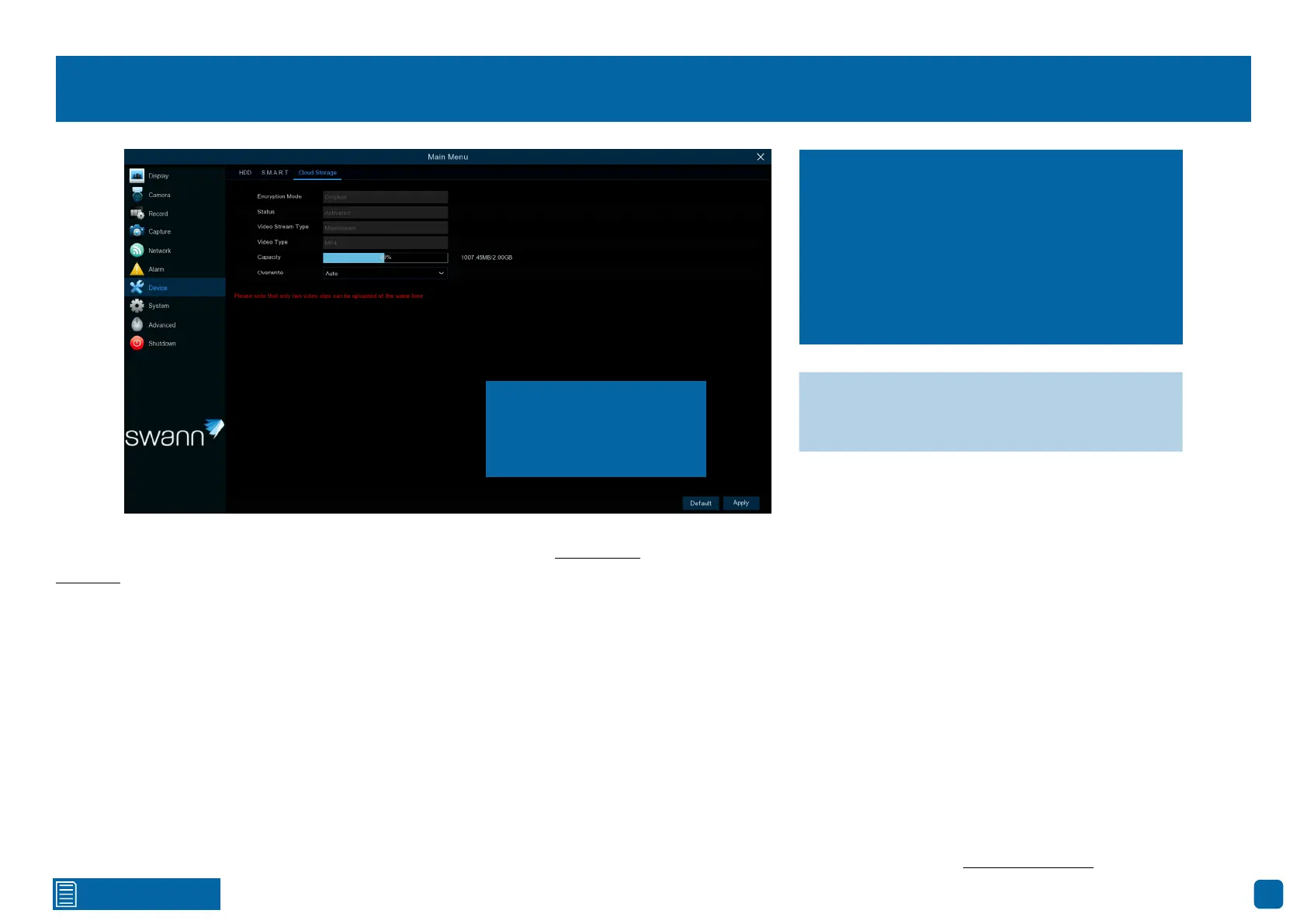
Device: Cloud Storage - Dropbox Activation
Before activating, it’s best to create a Dropbox account first. Visit www.drop-
box.com, provide your name, email address, and password, agree to the
terms & conditions, and then click or tap the sign-up button. If you already
have a Dropbox account, you can skip this step.
Encryption Mode: Please use the Swann Security app to activate.
Status: This will change to Activated when active. If you see Network Blocked,
check that your Power Hub has internet access.
Video Stream Type: Mainstream (high-quality) video is copied to the cloud.
Video Type: MP4 video format is used for wider playback compatibility when
copied to the cloud.
Capacity: When activated, this will display how much free space you have on
your Dropbox account.
Overwrite: The default setting will overwrite the oldest files first. Click the
drop-down menu if you would like to select a particular time instead.
To activate the cloud function:
1. On your mobile device, sign in to your Dropbox account first (skip this step
if you have already done this).
2. In the Swann Security app, tap “Menu” (top left), then tap “Dropbox”.
3. Tap “Authorize”, then tap “Allow”. Repeat the above step, then tap “Link”.
4. Your Power Hub is now authorized to use your Dropbox account.
5. With the cloud function enabled, you need to instruct your Power Hub to
send alerts to the cloud (see page 20 - Alarm: Detection).
→ Click “Default” to revert to default settings.
→ Click “Apply” to save settings.
If you have subscribed to one of the Secure+
Plans in the Swann Security app, your snap-
shots and videos are uploaded automatically
to the cloud. Subscribers are not required to
have a Dropbox account. For non-subscribers,
follow the instructions below to activate the
cloud function using your Dropbox account.
A maximum of two video
clips can be uploaded at
the same time.


 To Next Page