Playing discs
Note
• Some discs will only allow
you to change the soundtrack
from the Disc menu. Press
[TOP MENU] or
[MENU / LIST] to display the
Disc menu.
• On DVD-RW discs recorded
in VR mode that may have
both a main and a sub audio
channel, you can switch to
main (L), sub audio (R) or a
mix of both (L/R).
• This unit CANNOT record
in both stereo and SAP
(Secondary Audio Program)
at the same time.
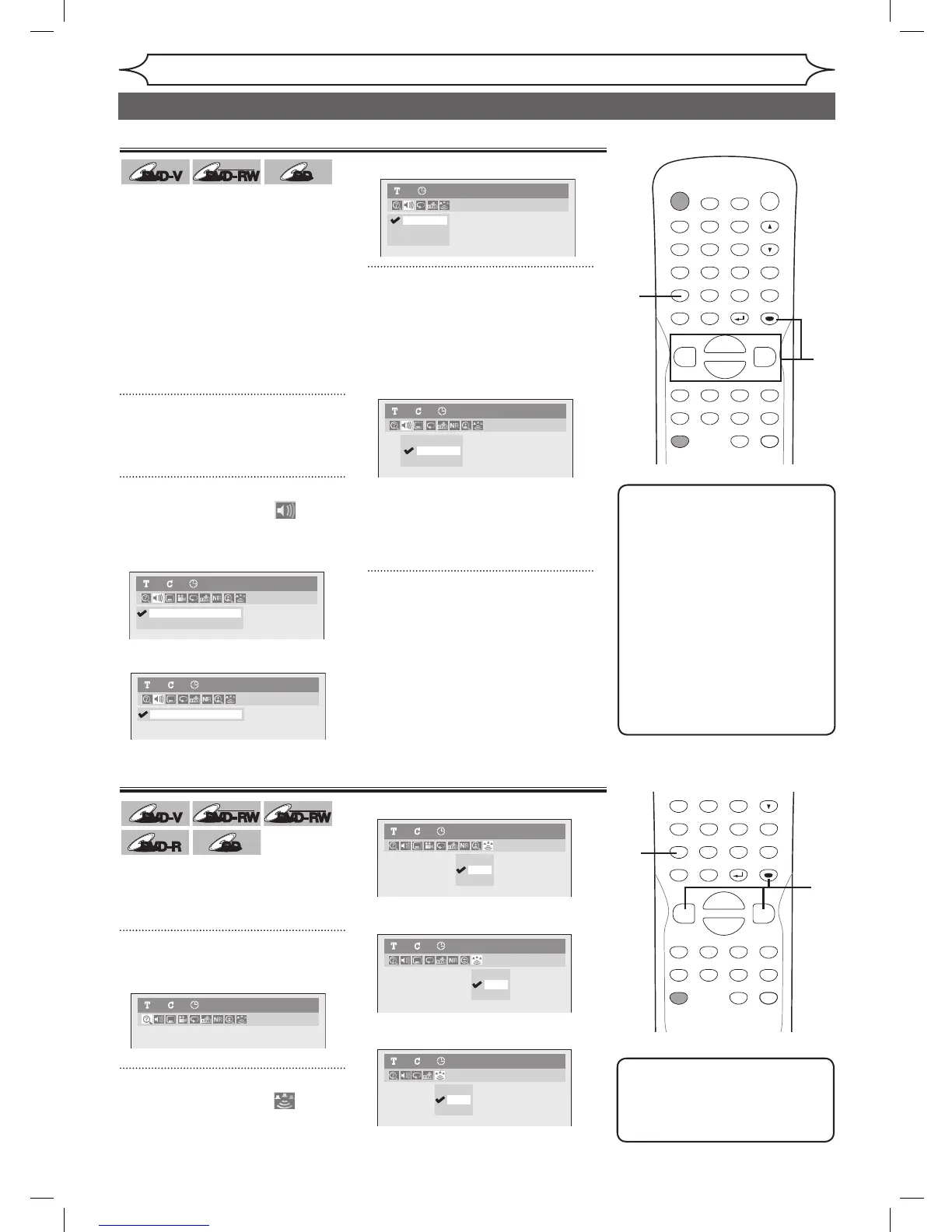
Switching audio soundtrack
When playing a DVD-Video
disc recorded with two or more
soundtracks (these are often in
different languages), you can
switch them during playback.
On DVD-RW discs recorded in VR
mode, you can switch to main (L),
sub audio (R) or a mix of both (L/R).
When playing Audio CDs files you
can switch between stereo, just
the left channel or just the right
channel.
1
During playback, press
[DISPLAY].
The Display menu will appear.
2
Using [{ / B], select .
Press [ENTER].
Audio menu will appear.
<DVD-Video>
<DVD-RW VR mode>
<Audio CD>
3
Using [K / L], select a desired
audio soundtrack or audio chan-
nel. Press [ENTER].
<DVD-Video>
Audio soundtrack will switch.
<DVD-RW VR mode>
Audio channel menu will appear.
Follow step 4.
<Audio CD>
Audio channel will switch.
4
Using [K / L], select a desired
audio channel. Press [ENTER].
Audio channel will switch.
POWER
ZOOM
DISPLAY
SETUP
T
OP MENU
MENU/LIST
REC SPEED
REC/OTR
PAUSESKIP SKIP
PL
AY
CM SKIP
REPEAT
OPEN/CLOSE
TIMER
PROG.
FWD
REV
CLEAR
1
2
3
4
5
6
7
8
9
SPACE
0
A
H G
ENTER
CH
RETURN
.@/:
ABC
DEF
GHI
JKL
MNO
PQRS
TUV
WXYZ
B
C
{
B
K
L
h
g
F
STOP
B
x1.3/0.8
2. L
3. R
1. L/R
Audio CD1 0:00:00
DVD-RW
VR Playlist
1 1 0:00:00
3. R
1. L/R
2. L
1.Dolby Digital Dual L/R
DVD-RW1 1 0:00:00
VR Playlist
2.Dolby Digital 2ch Japanese
1.Dolby Digital 5.1ch English
DVD-Video 1 1 0:00:00
Switching virtual surround system
You can enjoy stereophonic virtual
space through your exciting 2
channel stereo system.
1
During playback, press [DISPLAY].
The Display menu will appear.
2
Using [{ / B], select .
Press [ENTER].
Virtual Surround menu will appear.
<DVD-Video>
<DVD-RW VR mode>
<Audio CD files>
Note
• Select Virtual Surround OFF
in a case sound is distorted.
• The setting will be kept OFF
when the unit is turned off.
POWER
ZOOM
DISPLAY
SETUP
T
OP MENU
MENU/LIST
REC SPEED
REC/OTR
PAUSESKIP SKIP
PL
AY
CM SKIP
REPEAT
OPEN/CLOSE
TIMER
PROG.
FWD
REV
CLEAR
1
2
3
4
5
6
7
8
9
SPACE
0
A
H G
ENTER
CH
RETURN
.@/:
ABC
DEF
GHI
JKL
MNO
PQRS
TUV
WXYZ
B
C
{
B
K
L
h
g
F
STOP
B
x1.3/0.8
2
1
Selecting the format of audio and video (cont’d)
OFF
Type 1
Type 2
DVD-Video1 1 0:00:00
OFF
Type 1
Type 2
DVD-RW
VR Playlist
1 1 0:00:00
OFF
Type 1
Type 2
Audio-CD1 1 0:00:00
DVR91DG_E7A01UD.indd 48 2006/02/15 17:26:36


 To Next Page