You can put chapter markers
in each title. Once a chapter is
marked, you can use it for the
chapter search feature.
You can put a chapter marker
anywhere you want.
When the number of chapter
markers in the Playlist comes to
999 in total, you cannot add any
more chapter markers.
1
Follow steps 1 to 3 on page 61
to display Original or Playlist
menu.
2
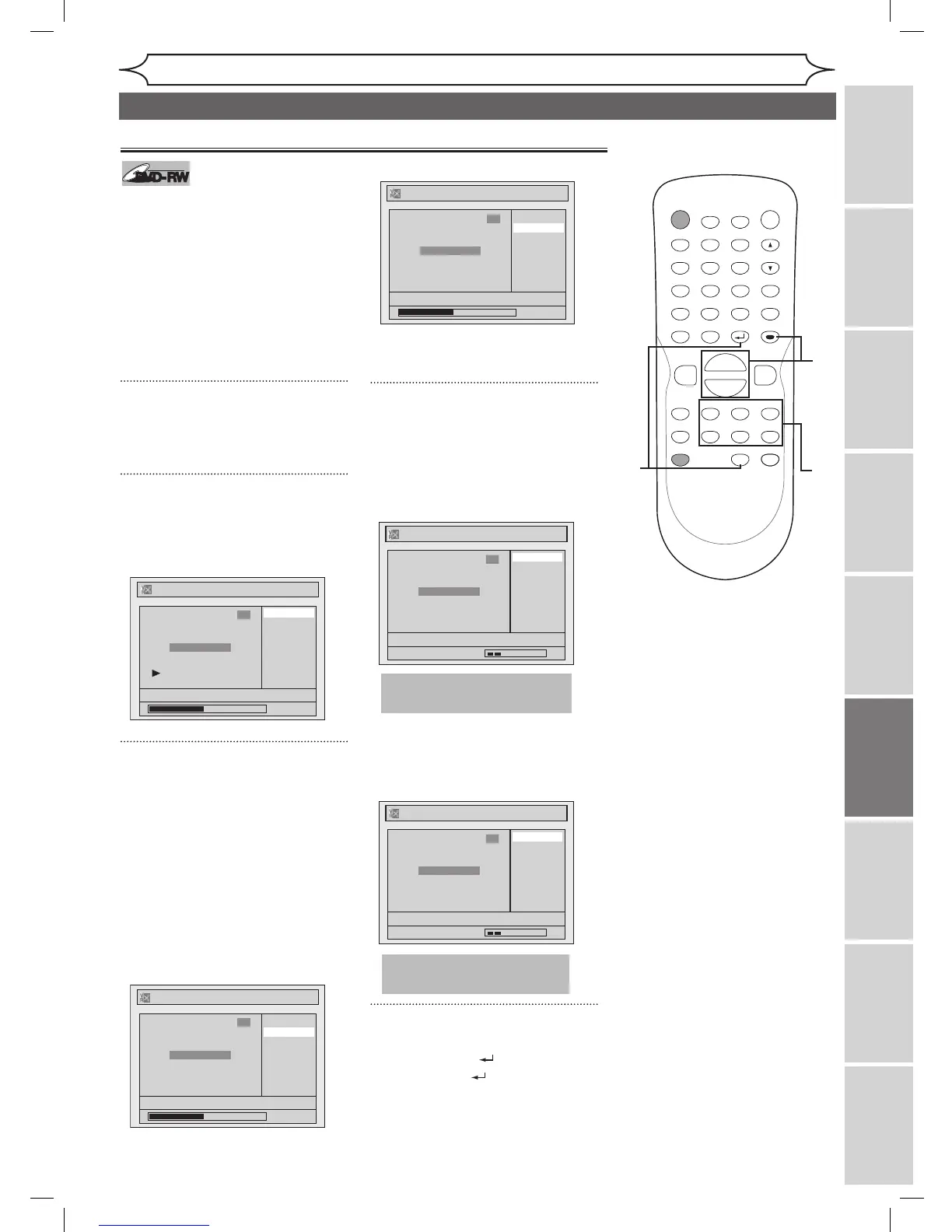
Using [K / L], select “Chapter
Mark”. Press [ENTER].
Option window will appear.
<Playlist>
3
Use [SKIP H / G],
[REV E], [FWD D],
[PLAY B] and [PAUSE F] to
decide the point at which you
will create a new chapter marker.
Or, use [SKIP H / G] to
decide a chapter marker that
you will delete. Select “Add” or
“Delete” accordingly using
[K / L] . Press [ENTER].
Confirmation window will appear.
<Playlist :Add>
<Playlist :Delete>
• You cannot delete the first
chapter of each title.
4
Using [K / L], select “Yes”.
Press [ENTER].
When you select “Add” at step 3, a
new chapter marker will be created
at the point you have decided.
<Playlist :Add>
When you select “Delete” at step
3, the chapter marker you have
selected will be deleted.
<Playlist :Delete>
5
After this operation is completed,
press [RETURN ] twice and
then [RETURN ] or [STOP C]
to exit.
Data will be written onto the disc
momentarily.
Setting or clearing chapter markers


 To Next Page