Changing the Setup menu
Recording Playing discs EditingBefore you start Connections Getting started Others Español
Parental Lock (Default : All)
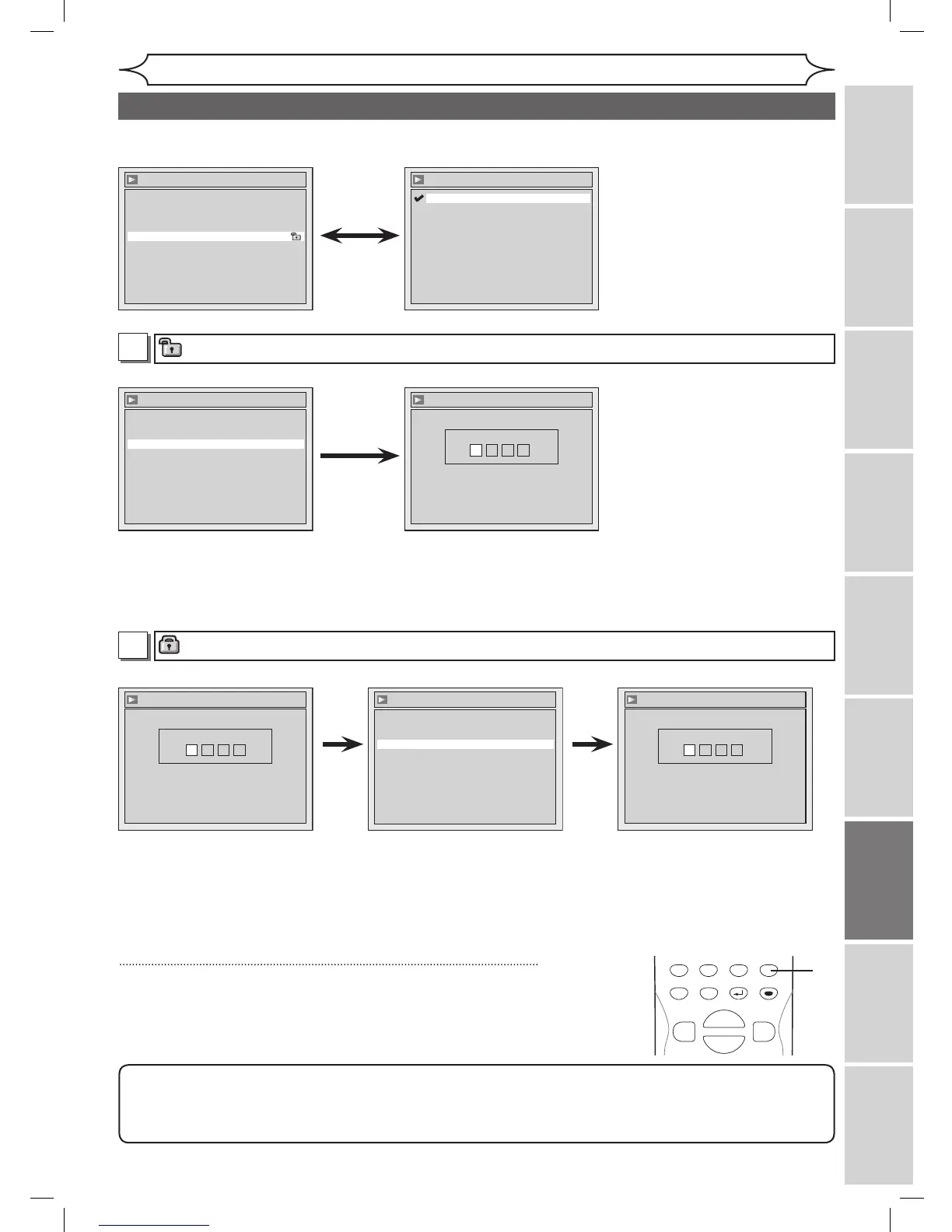
Set the Parental Lock level.
• Using [
K / L], change
the parental level. Press
[ENTER].
Option window will appear
Proceed to step A or B.
• Using the Number buttons,
enter a new password. Press
[ENTER].
Your setting will be activated.
• Using [
K / L], select “Yes”.
Press [ENTER].
If you select “No”, proceed
to step 5.
Yes
A
A password has not been set yet.
Note
• Press [CLEAR] to erase numbers entered incorrectly.
• When you forget the password or you want to clear all settings in Parental lock, enter
4,7,3,7 using the
Number buttons in Password Input window. Password will be cleared and parental levels will be set to “All”.
• Using the Number buttons,
enter a new password. Press
[ENTER].
Your setting will be activated.
5
Press [SETUP] to exit.
A password has been set already.
Yes
• Using [K / L], select “Yes”.
Press [ENTER].
If you select “No”, proceed to
step 5.
• Using the Number buttons,
enter the current password.
B


 To Next Page