EasyManua.ls Logo

Tascam 388 Studio 8 - Setup; Recording the Basíctrack

Tascam 388 Studio 8
139 pages
Print Icon
To Next Page IconTo Next Page
To Previous Page IconTo Previous Page
Loading...
RECORDING
THE
BASIC
TRACKS
SETUP
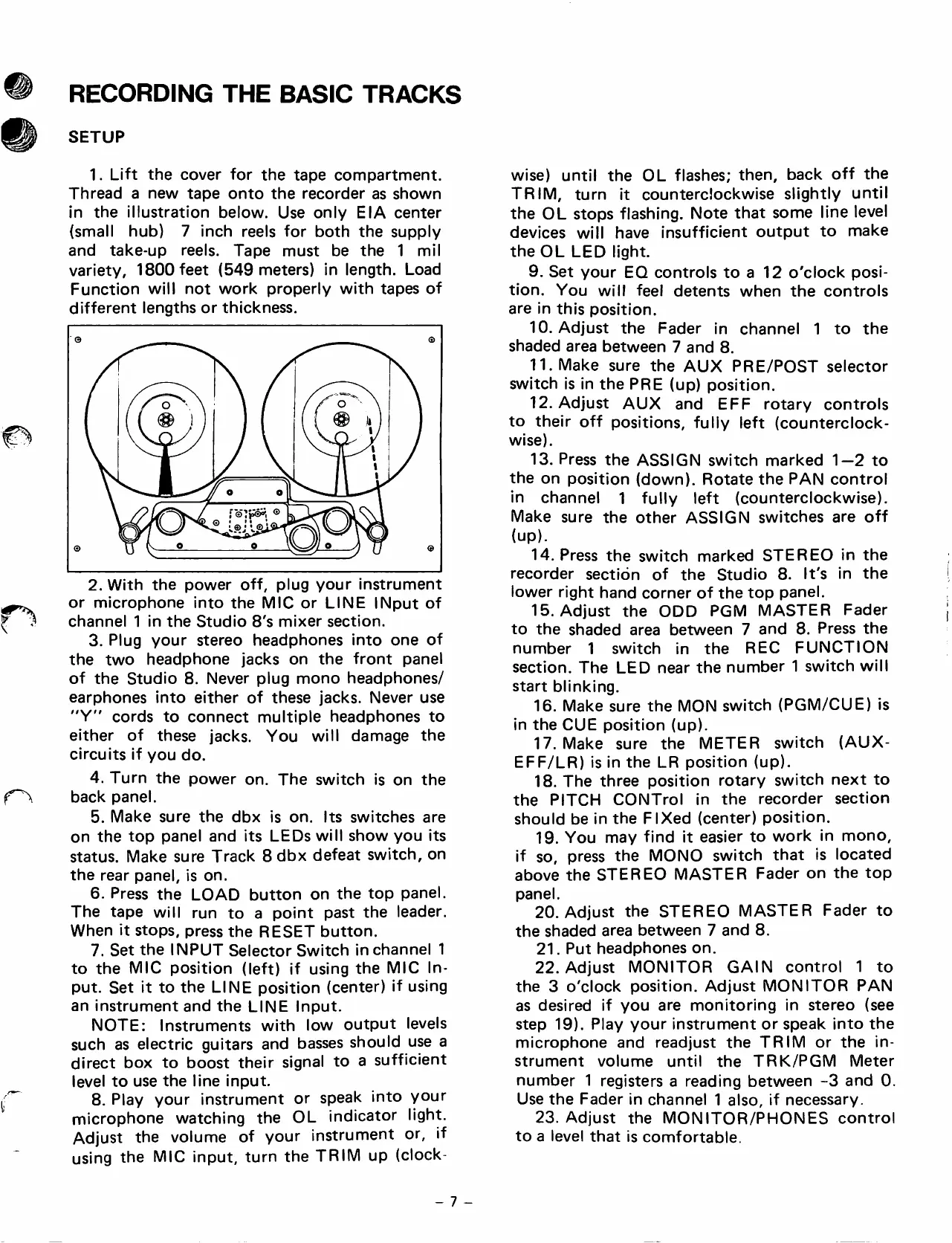
1.
Llft
the
cover
for
the
tape
compartment.
Thread
a
new
tape
onto
the
recorder
as
shown
¡n
the
illustration
below.
Use
oniy
EIA
center
{small
hub)
7
inch
reeis
for
both
the
supply
and
take-up
reels.
Tape
must
be
the
1
mil
variety,
ISOOfeet
(549
meters)
in
length.
Load
Function
wiii
not
work
properiy
with
tapes
of
different
lengths
or
thickness.
2. With
the
power
off,
plug
your
instrument
or
microphone
into
the
MIC
or
LINE
INput
of
channel
1
in
the
Studio
8's
mixer
section.
3.
Plug
your
stereo
headphones
into
one
of
the
two
headphone
jacks
on
the
front
panel
of
the
Studio
8.
Never
plug
mono
headphones/
earphones
into
either
of
these
jacks.
Never
use
"Y"
cords
to
connect
múltiple
headphones
to
either
of
these
jacks.
You
will
damage
the
circuits
if
you
do.
4.
Turn
the
power
on.
The
switch
is
on
the
back
panel.
5.
Make
sure
the
dbx
is
on.
Its
switches
are
on
the
top
panel
and
its
LEDs
will
show
you
its
status.
Make
sure
Track
8
dbx
defeat
switch,
on
the
rear
panel,
is
on.
6.
Press
the
LOAD
button
on
the
top
panel.
The
tape
will
run
to
a
point
past
the
leader.
When
it
stops,
press
the
RESET
button.
7.
Set
the
INPUT
Selector
Switch
in
channel
1
to
the
MIC
position
(left)
if
using
the
MIO
In-
put.
Set
it
to
the
LINE
position
(center)
if
using
an
instrument
and
the
LINE
Input.
NOTE:
Instruments
with
low
output
levels
such
as
electric
guitars
and
basses
should
use
a
direct
box
to
boost
their
signal
to
a
sufficient
level
to
use
the
line
input.
8.
Play
your
instrument
or
speak
into
your
microphone
watching
the
OL
indicator
light.
Adjust
the
volume
of
your
instrument
or,
if
using
the
MIO
input,
turn
the
TRIM
up
(clock-
wise)
until
the
OL
flashes;
then,
back
off
the
TRIM,
turn
it
counterclockwise
slightly
until
the
OL
stops
flashing.
Note
that
some
line
level
devices
will
have
insufficient
output
to
make
theOL
LED
light.
9.
Set
your
EQ
controls
to
a
12
o'clock
posi
tion.
You
will
feel
detents
when
the
controls
are
in
this
position.
10.
Adjust
the
Fader
in
channel
1
to
the
shaded
area
between
7
and
8.
11.
Make
sure
the
AUX
PRE/POST
selector
switch
is
in
the
PRE
(up)
position.
12.
Adjust
AUX
and
EFF
rotary
controls
to
their
off
positions,
fully
left
(counterclock
wise).
13.
Press
the
ASSIGN
switch
marked
1—2
to
the
on
position
(down).
Rotate
the
PAN
control
in
channel
1
fully
left
(counterclockwise).
Make
sure
the
other
ASSIGN
switches
are
off
(up).
14.
Press
the
switch
marked
STEREO
in
the
recorder
sectión
of
the
Studio
8.
It's
in
the
lower
right
hand
córner
of
the
top
panel.
15.
Adjust
the
ODD
PGM
MASTER
Fader
to
the
shaded
area
between
7
and
8.
Press
the
number
1
switch
in
the
REO
FUNCTION
section.
The
LED
near
the
number
1
switch
will
start
blinking.
16.
Make
sure
the
MON
switch
(PGM/CUE)
is
in
the
CUE
position
(up).
17.
Make
sure
the
METER
switch
(AUX-
EFF/LR)
is
in
the
LR
position
(up).
18.
The
three
position
rotary
switch
next
to
the
PITCH
CONTrol
in
the
recorder
section
should
be
in
the
FlXed
(center)
position.
19.
You
may
find
it
easier
to
work
in
mono,
if
so,
press
the
MONO
switch
that
is
located
above
the
STEREO
MASTER
Fader
on
the
top
panel.
20.
Adjust
the
STEREO
MASTER
Fader
to
the
shaded
area
between
7
and
8.
21.
Put
headphones
on.
22.
Adjust
MONITOR
GAIN
control
1
to
the
3
o'clock
position.
Adjust
MONITOR
PAN
as
desired
if
you
are
monitoring
in
stereo
(see
step
19).
Play
your
instrument
or
speak
into
the
microphone
and
readjust
the
TRIM
or
the
in
strument
volume
until
the
TRK/PGM
Meter
number
1
registers
a
reading
between
-3
and
0.
Use
the
Fader
in
channel
1
also,
if
necessary.
23.
Adjust
the
MONITOR/PHONES
control
to
a
level
that
is
comfortable.
-
7
-

Table of Contents

Related product manuals