List
of
Figures
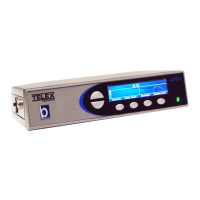
FIGURE 1. ADHB-4 Front Panel Controls and Indicators ....................................................................................16
FIGURE 2. ADHB-4 Back Plane Connections .......................................................................................................17
FIGURE 3. ADHB-4 Side Panel Connections ........................................................................................................17
FIGURE 4. ADHB-4 Underside Mounting .............................................................................................................20
FIGURE 5. ADHB-4 Topside Mounting .................................................................................................................21
FIGURE 6. NENA Phone Connector ......................................................................................................................22
FIGURE 7. RJ-12 Pin Outs—NENA phone ............................................................................................................23
FIGURE 8. 3-Pin Connector Pin Outs—Footswitch ..............................................................................................23
FIGURE 9. RJ-11 Pin Outs—Desk Mic Jack ..........................................................................................................25
FIGURE 10. Found New Hardware Wizard—Welcome .........................................................................................28
FIGURE 11. Windows Security Message ................................................................................................................28
FIGURE 12. Congratulations! Window ..................................................................................................................29
FIGURE 13. Found New Hardware Wizard—Welcome .........................................................................................30
FIGURE 14. This wizard helps you install the software for: ADHB-4 Window .....................................................31
FIGURE 15. Please choose your search and installation options Window ............................................................32
FIGURE 16. Browse for Folder Window ................................................................................................................33
FIGURE 17. Hardware Installation Window ..........................................................................................................33
FIGURE 18. Completing the Found New Hardware Wizard ..................................................................................34
FIGURE 19. Second Level Navigation Links ..........................................................................................................35
FIGURE 20. Home Window ....................................................................................................................................36
FIGURE 21. Account Management Window ...........................................................................................................37
FIGURE 22. Password Change Success Message ..................................................................................................38
FIGURE 23. ERROR: Incorrect Password .............................................................................................................38
FIGURE 24. Ethernet Setup Window ......................................................................................................................39
FIGURE 25. Gain Setup Window ............................................................................................................................42
FIGURE 26. System Setup Window—View 1 ..........................................................................................................44
FIGURE 27. System Setup Window—View 2 ..........................................................................................................49
FIGURE 28. System Status Window ........................................................................................................................53
FIGURE 29. Save Parameters Window ..................................................................................................................57
FIGURE 30. Console Speaker and Status Indications ............................................................................................66
FIGURE 31. Per Line Unselect Speaker .................................................................................................................68
FIGURE 32. IRR Speaker Window .........................................................................................................................69
FIGURE 33. Select Button Speaker Number Display .............................................................................................70
FIGURE 34. ADHB-4 Speaker Volume Control Window ................................................................................
.......71
FIGURE 35. RHB Front Panel ...............................................................................................................................74
FIGURE 36. RHB Back Panel .................................................................................................................................74


 To Next Page