Following the unit serial numbers drop down box is an icon which is used to export
data from GeoView to an ASCII format for use in another database system or spread
sheet program.
4.1.4 Data Download
Once you have the database created and connected, you can then download data from
your KT-10 v2 and store it on your PC. To accomplish this, connect your KT-10 v2 to
your PC via the USB cable provided or by performing a Bluetooth pairing between your
PC and KT-10 v2 unit. Use the Device menu and select Connect device or press the
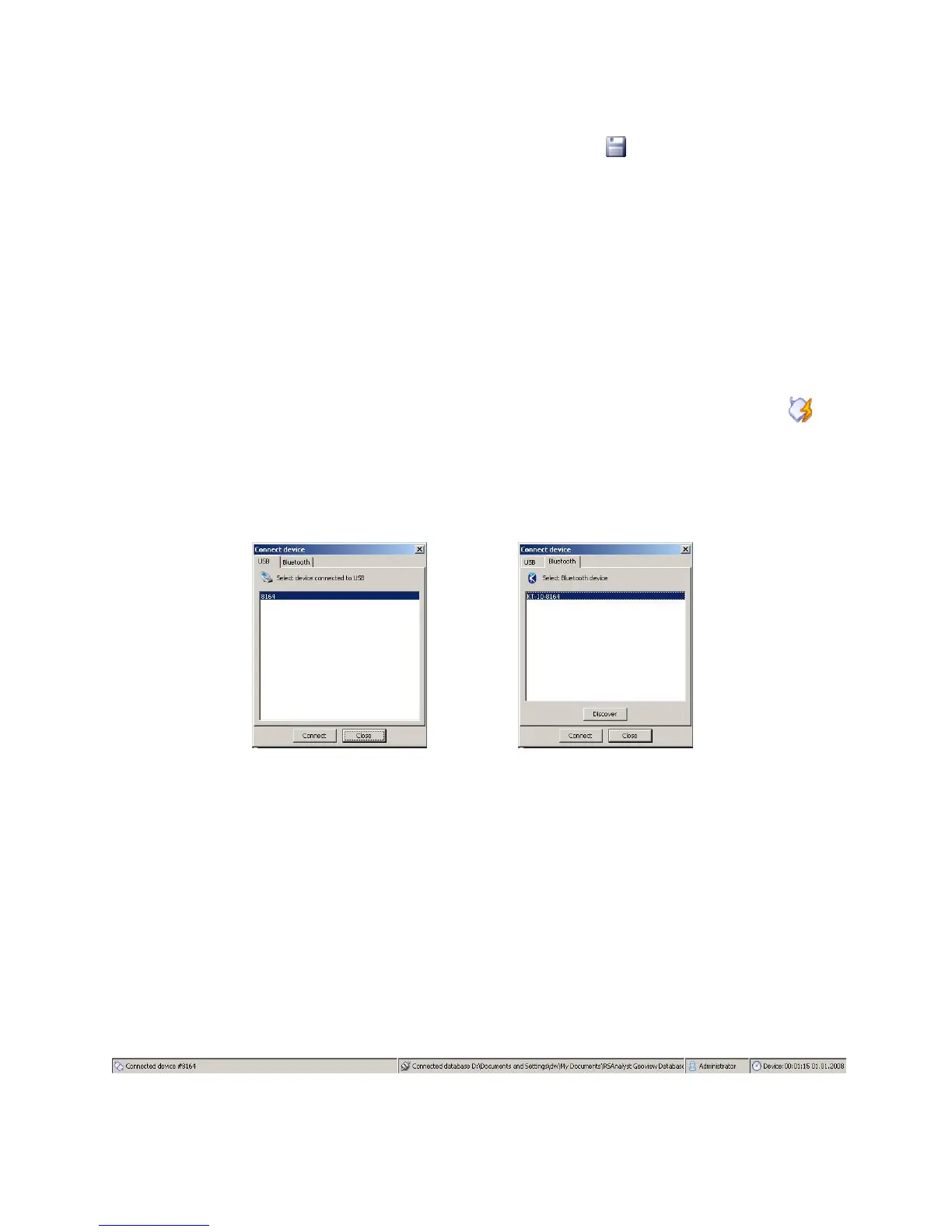
icon to connect the KT-10 v2 to the GeoView software. A window will open prompting
you to select the method and serial number for the unit you are connecting to.
Figure 66: Connection dialog - USB & Bluetooth
The tabs at the top of the window are used to select either a USB connection or Bluetooth
connection. The unit you have connected to your Personal Computer will show up in the
list. In the case of a Bluetooth connection, you may have to use the discover button to
bring the serial number up. Select a serial number from the list with a left click of the
mouse, which will cause the listing to be highlighted, then press the connect button at the
bottom of the window.
Once the KT-10 v2 is connected you will notice the bottom of the screen will be updated
with the KT-10 v2 unit’s serial number, as seen in Figure 67.
Figure 67: KT-10 v2 connection Updated
67


 To Next Page