NOTE: For your convenience, Tesla allows you to choose from
a variety of languages to use for voice commands. To choose
a different language, touch Controls > Display > Voice
Recognition Language.
Use voice commands to easily control settings and
preferences without using the touchscreen. Voice commands
are designed to understand natural requests. The following is
a non-exhaustive list of actions that you can perform with
voice commands:
•
Adjust climate preferences
• Tweak the windshield wiper speed and frequency
•
Control various aspects of your vehicle
•
Navigate to a location
•
Call a contact
•
Interact with apps and settings
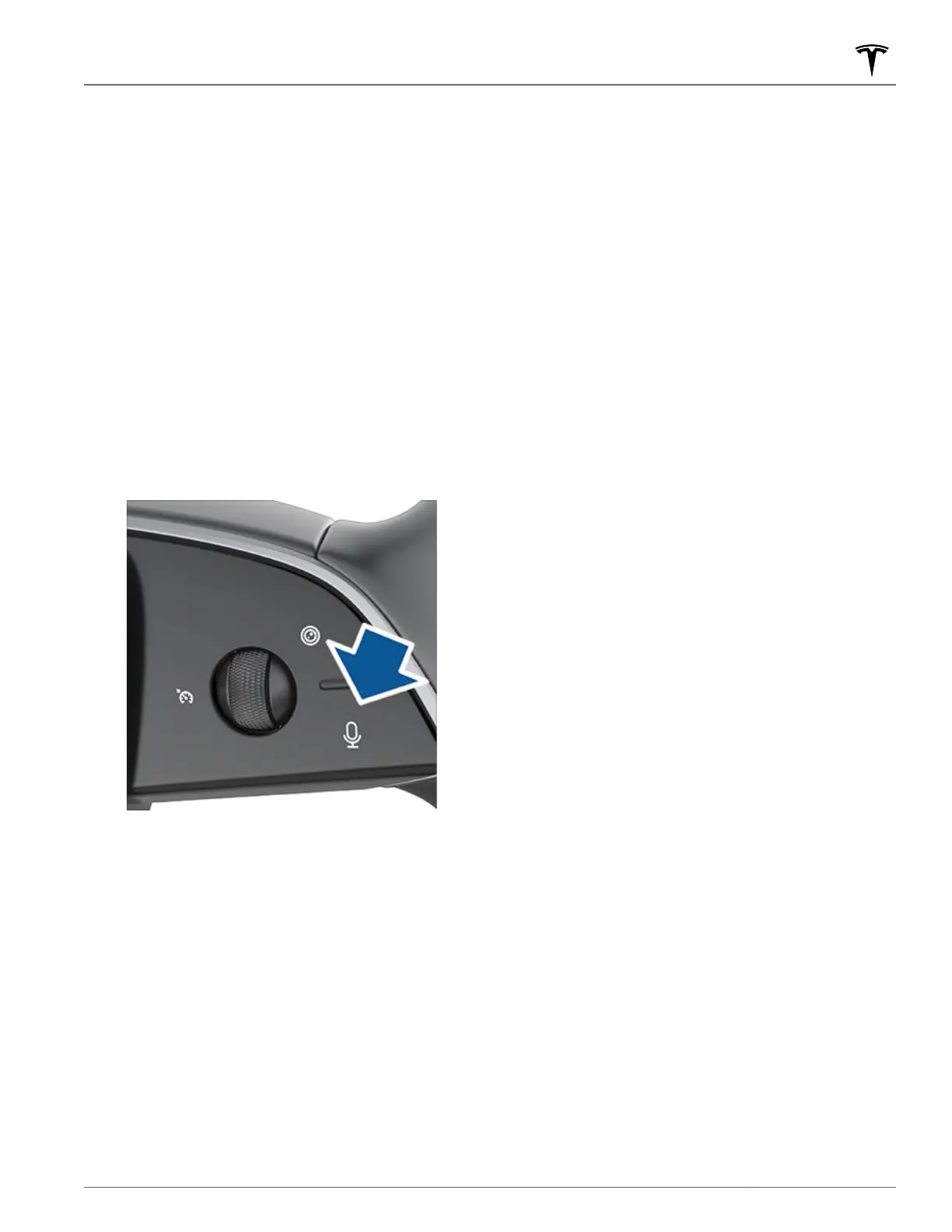
To initiate a voice command, fully press the microphone
button on the right side of the steering wheel. When a chime
sounds, make your request.
Examples of Voice Commands
Here is a list of example voice commands. This is not an
exhaustive list. Tesla is constantly working to improve voice
commands.
NOTE: Your vehicle must be in Park to enable some voice
commands (such as Sentry Mode, Dog Mode, etc.).
Climate Controls
Adjust your climate preferences:
•
"Make it cooler"
•
"Make it warmer"
•
"Turn on/off the driver's seat heater"
•
"Cool down the passenger"
• "Direct airflow to my face"
• "Sync climate"
• "Increase/decrease the fan speed"
•
"Turn on/off rear defroster"
•
"Set the temperature/fan..."
• "Turn on recirculate"
Windshield Wipers
Update the windshield wiper speed and frequency based on
changing road and weather conditions:
•
"Speed up the wipers"
•
"Increase/decrease windshield wiper speed by..."
•
"Turn on/off the wipers"
Vehicle Controls
Modify various controls in your vehicle:
• "Sentry Mode on/off"
•
"Keep my car safe"
• "Lock/unlock the doors"
• "Turn on Dog Mode"
• "Fold/unfold the mirrors"
•
"Open/close charge port"
• "Start/stop charging"
• "Open service settings"
• "Open the glovebox"
Navigation
Search for or navigate to a location:
• "Where is [location]?"
• "Drive to [location]"
•
"Navigate to [location]"
•
"Show nearby Superchargers"
•
"I'm feeling hungry/lucky" (see Maps and Navigation on
page 144).
•
"Stop navigation"
•
"Mute voice guidance"
If you have defined a navigation address for your home or
work locations, you can use a voice command to navigate
there by saying
"Navigate home" or "Take me to work".
Voice Commands
17Overview














 To Next Page