Function Graphing 3-9
8303FUNC.DOC TI-83 international English Bob Fedorisko Revised: 02/19/01 12:16 PM Printed: 02/19/01 1:35
PM Page 9 of 28
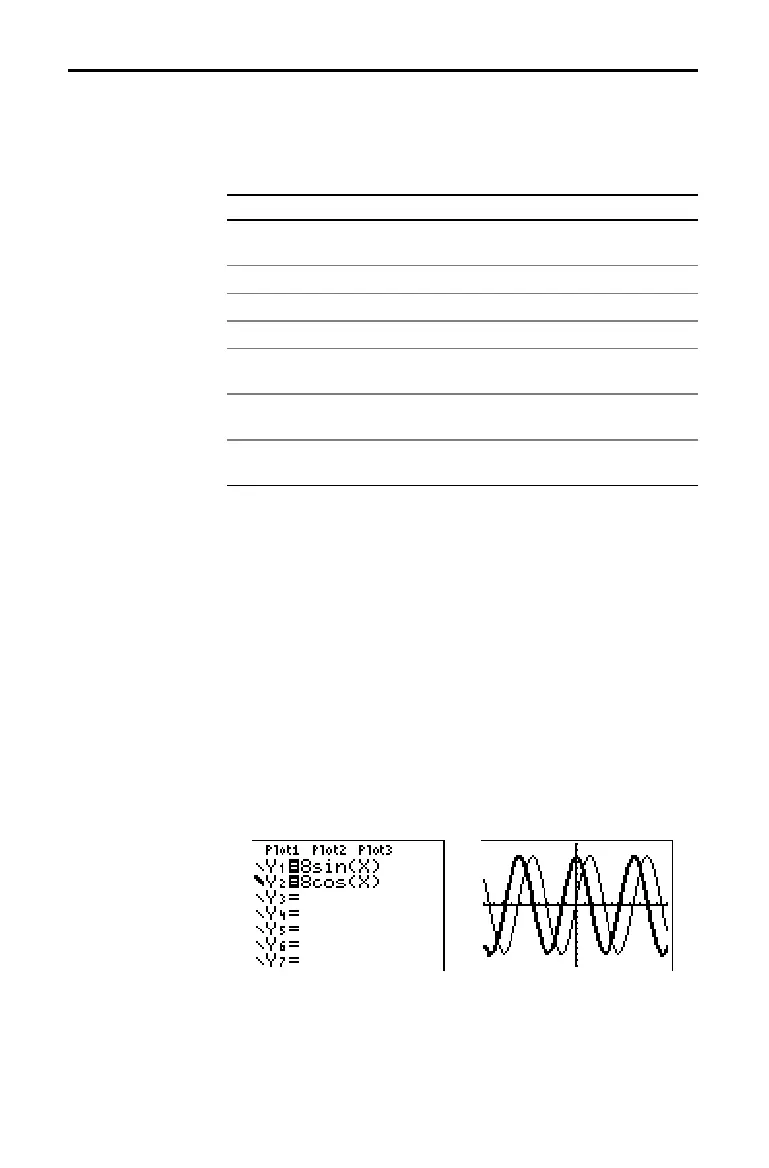
This table describes the graph styles available for function
graphing. Use the styles to visually differentiate functions
to be graphed together. For example, you can set
Y
1
as a
solid line,
Y
2
as a dotted line, and Y
3
as a thick line.
Icon Style Description
ç
Line A solid line connects plotted points; this is
the default in
Connected mode
è
Thick A thick solid line connects plotted points
é
Above Shading covers the area a*bove the graph
ê
Below Shading covers the area below the graph
ë
Path A circular cursor traces the leadin
ed
e of
the graph and draws a path
ì
Animate A circular cursor traces the leadin
ed
e of
the graph without drawing a path
í
Dot A small dot represents each plotted point;
this is the default in
Dot mode
Note:
Some graph styles are not available in all graphing modes.
Chapters 4, 5, and 6 list the styles for
Par
,
Pol
, and
Seq
modes.
To set the graph style for a function, follow these steps.
1. Press
o
to display the
Y=
editor.
2. Press
†
and
}
to move the cursor to the function.
3. Press
|
|
to move the cursor left, past the
= sign, to
the graph style icon in the first column. The insert
cursor is displayed. (Steps 2 and 3 are interchangeable.)
4. Press
Í
repeatedly to rotate through the graph
styles. The seven styles rotate in the same order in
which they are listed in the table above.
5. Press
~
,
}
, or
†
when you have selected a style.
Setting Graph Styles for Functions
Graph Style
Icons in the Y=
Editor
Setting the Graph
Style



 To Next Page
 Loading...













