29
.....Additional setup menus within the DATA LOG submenu
The flowmeter stores completed datalog files and assigns a unique file number to each log. This allows
data logs to be recorded and retrieved. Additionally, files can be viewed, deleted, or transferred in ASCII
format to an IBM
®
-compatible PC for record keeping or analysis. Log files are transferred using the D-Link
flowmeter data link utility (Appendix C, page 69).
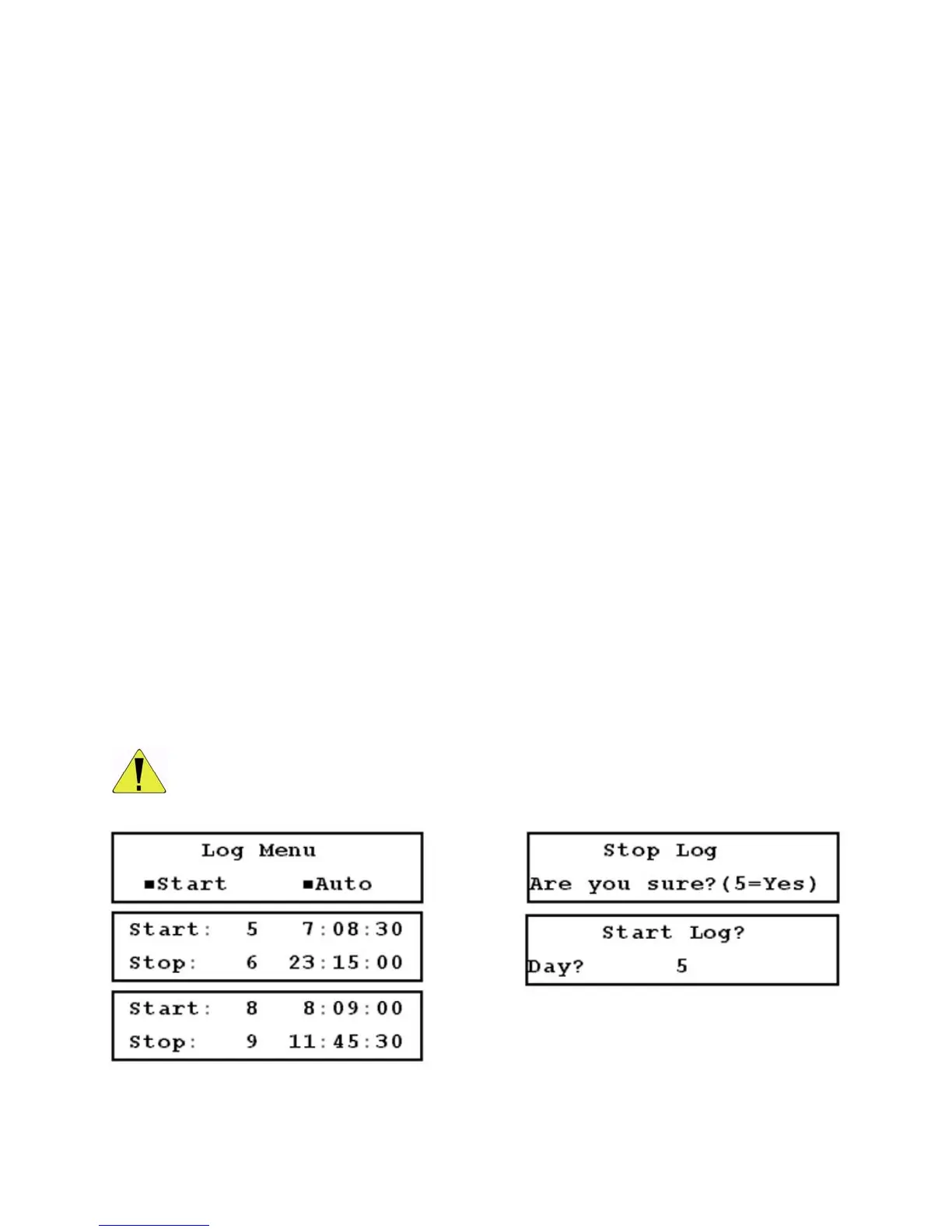
1. Log menu (80): There are 4 selections available (Figure 3.16-A, below):
a. Start (or stop) log – This option provides control for manually starting/stopping the data logger. The
appropriate option (start or stop) is displayed depending on whether the logger is currently
recording.
To stop the log:
1. Access Menu 80, and select Stop.
2. Figure 3.16-B (below) is displayed; press 5.
b. Auto – This option allows you to program the logger for a future start and stop time. To use this
function:
1. Access Menu 80, and select Auto.
2. The current programmed start/stop times are displayed (Figure 3.16-C, below).
3. Press ENTER. Prompts are displayed requesting day, hour, minute, and second information
for the start/stop times (Figure 3.16-D, below). Press ENTER after EACH entry.
Once the start/stop times are entered, the new times are displayed (Figure 3.16-E, below). The data logger
will now start and stop automatically at the preset times. If the logger is running, you can manually stop the
logging by selecting Stop in Menu 80.
Ensure that flow measurement units, time, and date are correct on the flowmeter
PRIOR to beginning the log. Do not change any of these parameters while the
logger is actively transferring the data.
FIGURES 3.16-A THROUGH 3.16-E (LEFT TO RIGHT, TOP TO BOTTOM)



 To Next Page