10
3.3 Using the Arrow Keys to Access Menus
Another method of accessing the flowmeter’s menus is to use the LEFT or RIGHT ARROW keys to scroll
through the menu structure. Menus are organized into 3 basic levels: 1) Main menu, 2) submenus, and 3)
primary displays, setup menus, diagnostic menus. The Main menu displays various submenus, which
contain individual setup and diagnostic menus.
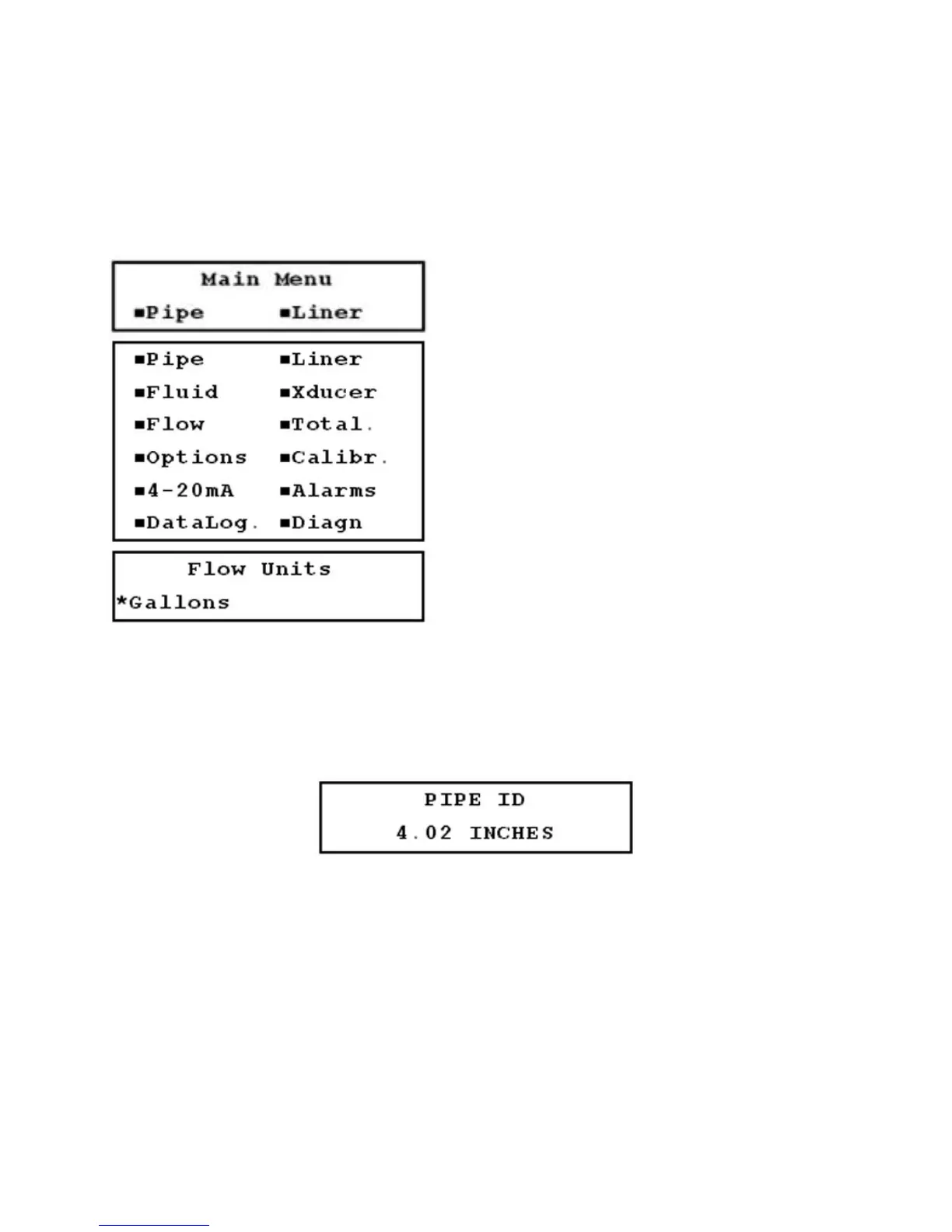
FIGURES 3.3-A THROUGH 3.3-C (TOP TO BOTTOM)
To access the Main menu from any screen:
1. Press MENU twice. The Main menu is displayed
with the Pipe and Liner submenu options as shown
in Figure 3.3-A.
2. To view the remaining submenus (Figure 3.3-B),
press the DOWN ARROW key.
3. When the desired submenu is highlighted, press
ENTER to display the first menu of the selected
submenu. Figure 3.3-C is an example of when the
Flow submenu is selected.
Use the UP or DOWN ARROW keys to view a primary
display, setup menu, or diagnostic menu within the
current submenu.
3.4 Flowmeter Configuration Using Setup Menus
Flowmeter configuration is accomplished using the setup menus. Some setup menus allow a numeric
value to be entered, and others offer non-numeric selections. In non-numeric setup menus, an asterisk is
displayed to the left of the selected currently entered in the flowmeter.
FIGURE 3.4




 To Next Page