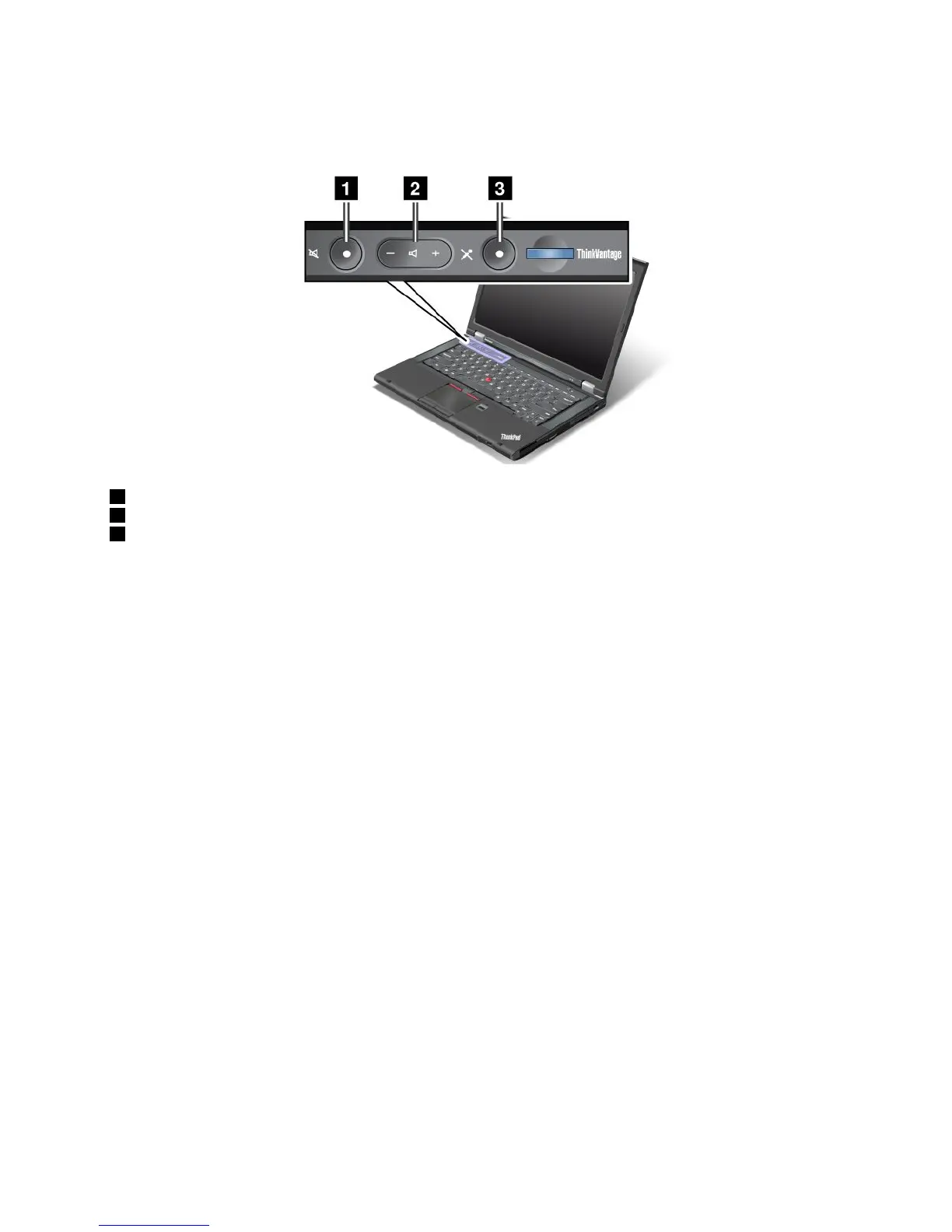
Volumeandmutebuttons
Youcanadjustthesoundlevelofthebuilt-inspeakersbyusingthefollowingthreebuttons:
1Speakermutebutton
2Volumecontrolbutton
3Microphonemutebutton
Ifyoumutethesoundandthenturnoffyourcomputer,thesoundwillremainmutedwhenyouturnonyour
computeragain.Toturnonthesound,presstheplus(+)orminus(-)button.
Settingthevolume
Toadjusttheoutputvolumeortherecordingvolume,dothefollowing:
1.ClickStart➙ControlPanel➙HardwareandSound➙Sound.TheSoundwindowopens.
2.ClickthePlaybacktaborRecordingtab,andthenclickadevice,whichyouwanttocustomize.
3.ClickthePropertiesbutton.
4.ClicktheLevelstab,andthenchangethevolumebymovingtheslider.
Youalsocangetaccesstothedesktopvolumecontrolbyusingthevolumeicononthetaskbaratthelower
rightofthescreen.Fordetailsaboutcontrollingvolume,refertoyourWindowshelpinformationsystem.
SettingthemicrophonemutebuttoninWindows7
Bydefault,youcantoggleallofyourrecordingdevicesbetweenthemutestateandtheun-mutestateby
pressingthemicrophonemutebutton.
Ifyouwanttotoggleoneoftherecordingdevicesbetweenthemutestateandtheun-mutestate,do
thefollowing:
1.PressFn+F6.TheCommunicationssettingswindowopens.
2.ClicktheManageSettingsbutton.TheCommunicationsUtilitywindowopens.
3.OntheVoIPCallSettingstab,clickMicrophonemutebuttonsettings.TheSettingforMicrophone
Mutewindowopens.
4.SelectOnlytherecordingdeviceselectedbelow:.Thenselecttherecordingdevicefromthe
drop-downlistbox.
5.ClickOK.
Chapter2.Usingyourcomputer23



 To Next Page