Windowskey
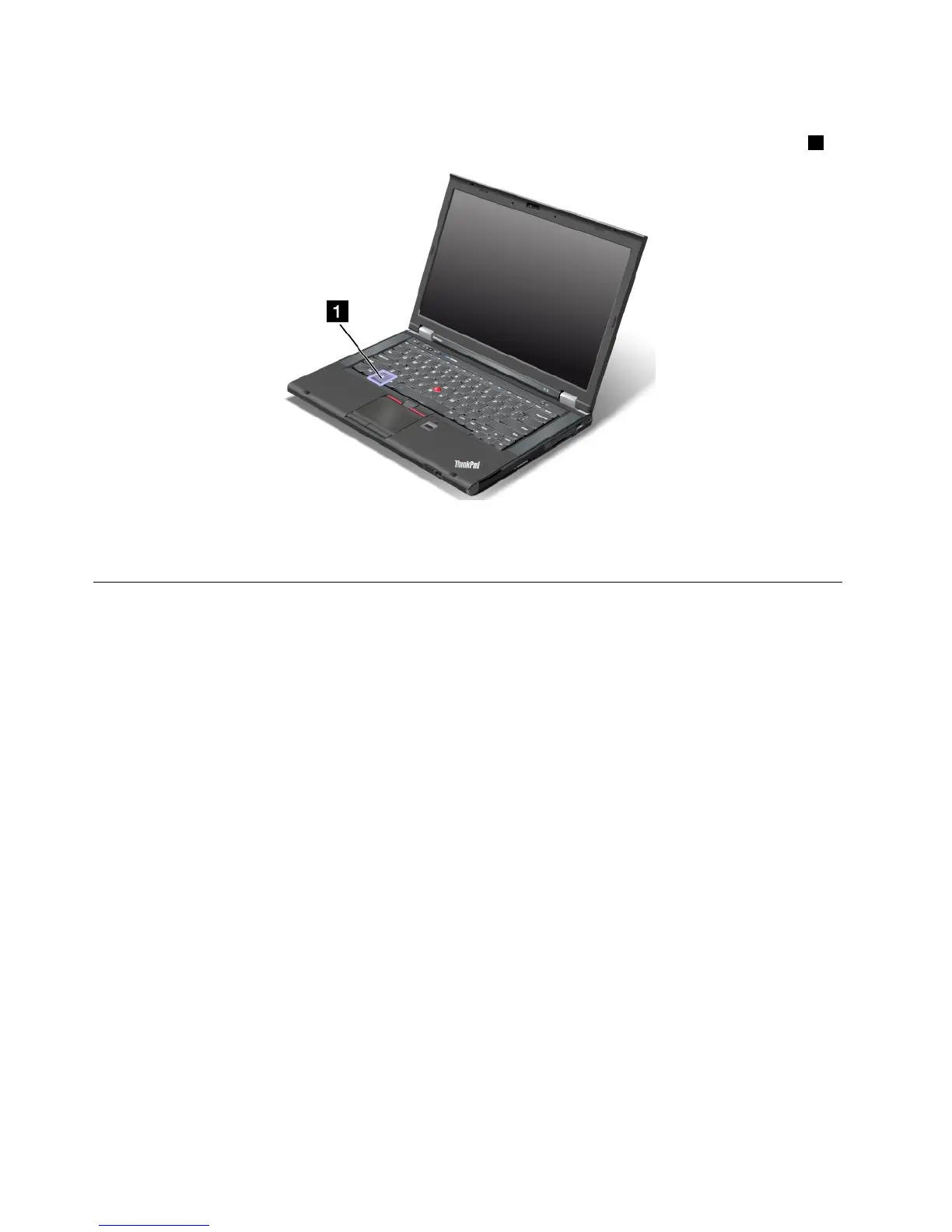
YoucandisplayorhidetheStartmenuoftheWindowsoperatingsystembypressingtheWindowskey1:
YoualsocanusetheWindowskeytogetherwithanotherkeytoachieveotherfunctions.Fordetails,referto
thehelpinformationsystemoftheWindowsoperatingsystem.
UsingtheUltraNavpointingdevice
YourcomputercomeswiththeUltraNavpointingdevice.TheUltraNavpointingdeviceconsistsofthe
TrackPointpointingdeviceandthetouchpad,eachofwhichisitselfapointingdevicewithbothbasicand
extendedfunctions.Youcancongurebothdevicesbychoosingthesettingsyouprefer.
•SetboththeTrackPointpointingdeviceandthetouchpadaspointingdevices.
ThissettingenablestheuseofallthebasicandextendedfunctionsoftheTrackPointpointingdevice
andthetouchpad.
•SettheTrackPointpointingdeviceasthemainpointingdeviceandthetouchpadforextended
functionsonly.
ThissettingenablestheuseofallbasicandextendedfunctionswiththeTrackPointpointingdevicewhile
limitingtheuseofthetouchpadtoscrolling,tapzones,andslow-motionpointerfunctions.
•SetthetouchpadasthemainpointingdeviceandtheTrackPointpointingdevicefortheextended
functionsonly.
Thissettingenablestheuseofallbasicandextendedfunctionswiththetouchpadwhilelimitingtheuse
oftheTrackPointpointingdevicetoscrollingandMagnifyingGlassfunctions.
•SettheTrackPointpointingdeviceasthemainpointingdevice,anddisablethetouchpad.
•Setthetouchpadasthemainpointingdevice,anddisabletheTrackPointpointingdevice.
ChangingtheUltraNavpointingdevicesettings
TochangeyourUltraNavpointingdevicesettings,clickStart➙ControlPanel➙HardwareandSound➙
Mouse➙UltraNav.Thenchangethesettingsasyoudesired.
24UserGuide



 To Next Page