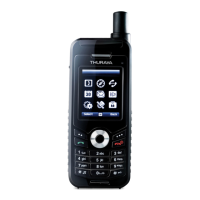
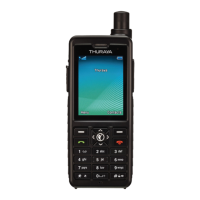
20
02 Getting started
Display layout
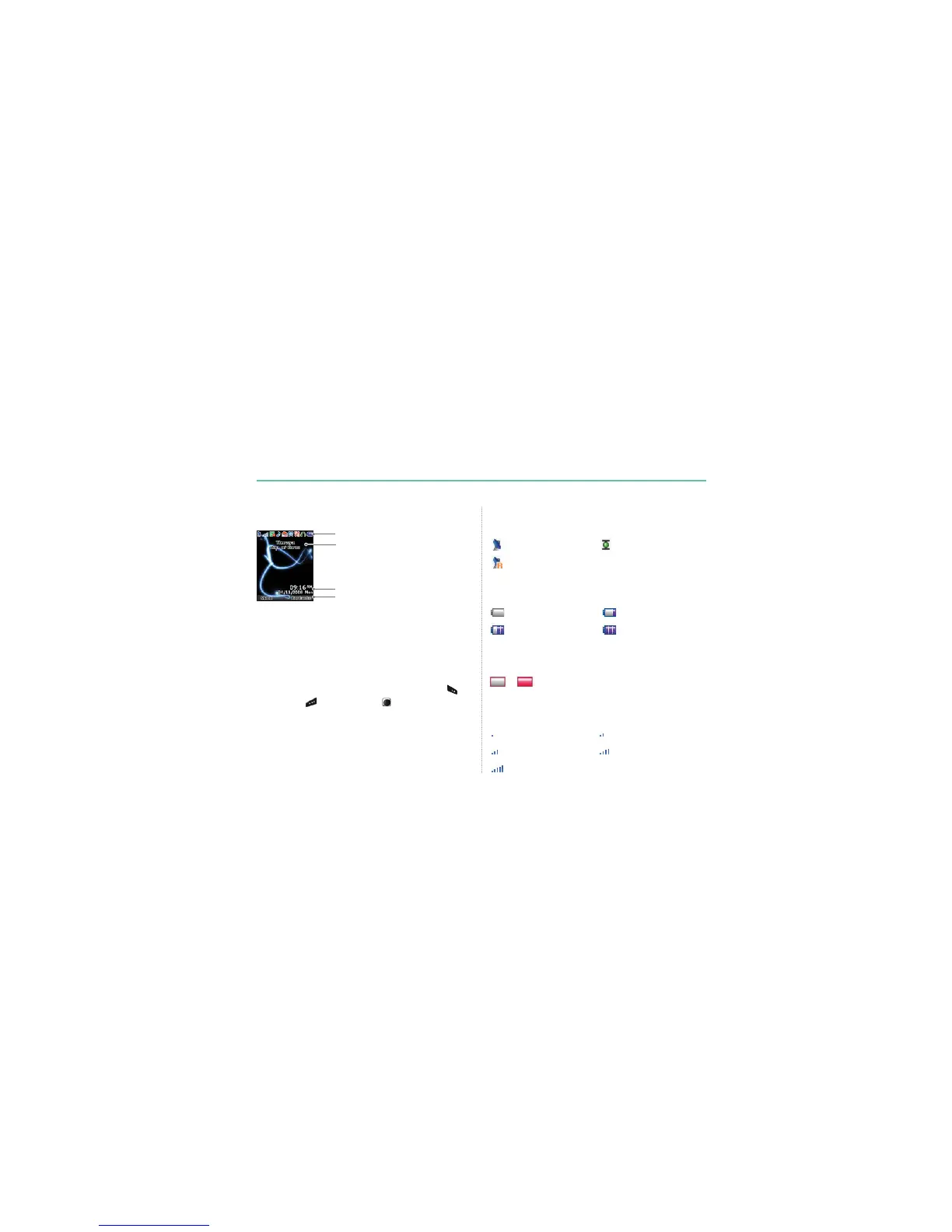
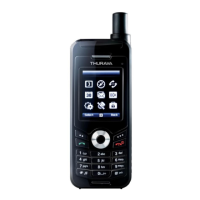
The structure of the display areas is as follows:
7KHLQGLFDWRUOLQHVKRZVPDLQO\V\PEROVZKLFKLQIRUP\RXDERXW
the operating conditions of the Thuraya XT.
7KHPDLQDUHDVKRZVGDWDUHODWLQJWRFDOOVPHQXDQGWKHLU
submenus and displays the editors for the contacts and SMS.
,QLGOHPRGHVWDQGE\WKHQHWZRUNQDPHWLPHDQGGDWHDUH
displayed.
7KHVRIWNH\OLQHRSHUDWHVWRJHWKHUZLWKWKHOHIWVRIWNH\
WKH
right soft key
and the center key beneath this line.
The functions of the soft keys will change according to the menu
where you are using them (see page 21).
Display
Indicator line
Display symbols
6$7 +3$
Roaming
Signal type
6$7VLJQDO 6$7VLJQDO
6$7VLJQDO 6$7VLJQDO
6$7VLJQDO
Signal strength
Battery almost discharged Low battery
Battery good Battery full
Battery strength
+3$/RZVLJQDO+3$+LJKVLJQDO
HPA strength (High-Penetration Alerting, see page 25)
–
Time & Date line
$YDLODEOHVRIWNH\IXQFWLRQV
Network information


 To Next Page