44
Picture Colour Temperature
The Colour Temperature can be set independently for each input. For example, DTV can be set to
Normal and the HDMI input can be set to Personal for DVD playback.
Setting the Colour Temperature
Three preset colour temperature settings can be selected or, using the User Colour Temperature mode, the mix
of Red, Green and Blue can be set to preferred levels.
1
Press the MENU button.
2
Press the 34 buttons to select the PICTURE menu.
3
Press the 56 buttons to highlight
Colour Temperature
.
4
Press the OK button to display Colour Temperature menu.
5
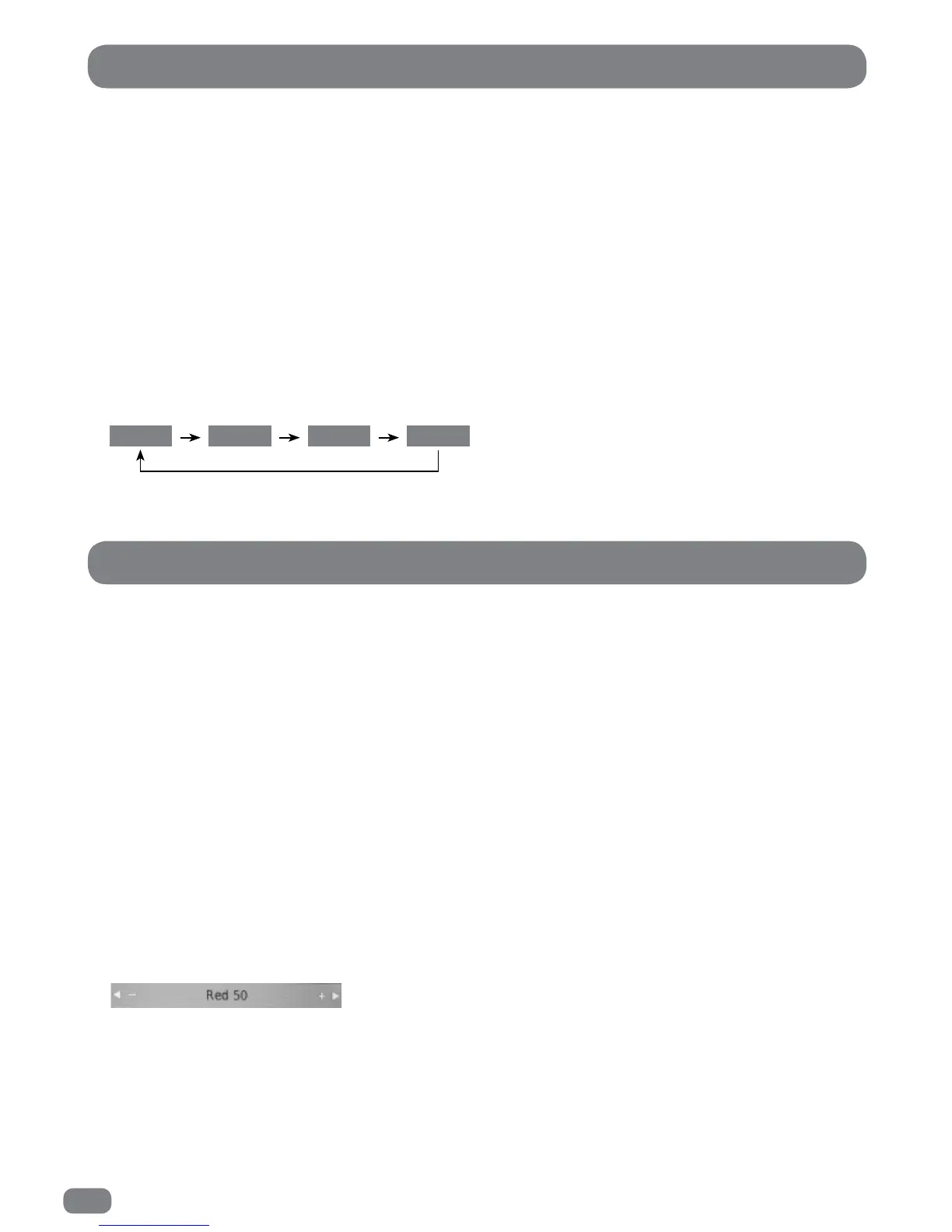
Press the 34 buttons to select any of the four settings as shown below.
6
Press the MENU button to close the Picture Mode menu.
Medium Warm User Cool
Colour Temperature User Mode
The levels of Red, Green and Blue can only be adjusted when using User Colour Temperature Mode.
Adjustments can be made as follows:
1
Press the MENU button.
2
Press the 34 buttons to select the PICTURE menu.
3
Press the 56 buttons to highlight
Colour Temperature
.
4
Press the OK button to display Colour Temperature menu.
5
Press the 34 buttons to select User in the Colour Temperature menu.
6
Press the 56 buttons to select, Red, Green or blue.
7
Press the 34 buttons to adjust the value.
Adjustments are made with the PICTURE menu hidden so that most of the picture is visible. Only the item
being adjusted is shown on the screen.
8
When all the settings are as required press the OK button to return to the Colour Temperature menu.
Picture Colour Temperature User Mode


 To Next Page