60
DTV Text
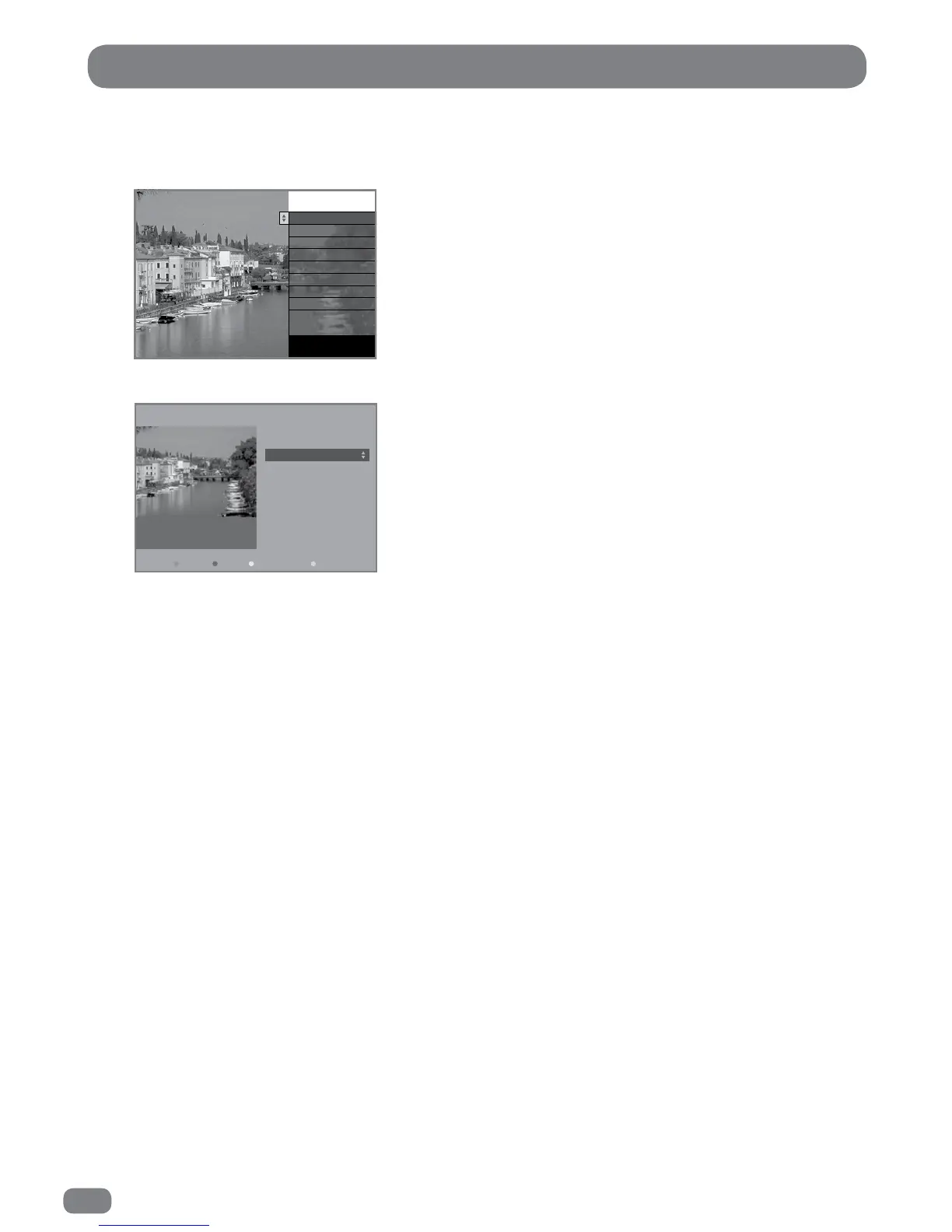
To access DTV Text press the TEXT or RED button depending on the programme’s broadcaster. A small
banner 'loading…' will be displayed on screen. After a few seconds the broadcaster’s menu will appear,
either overlaying part of the current programme:
or with the current programme in a smaller window next to the text menus and instructions:
Use the
56
buttons (or in some cases the
34
buttons) to navigate the menus and the OK button to
select items. Use the RED, GREEN, YELLOW and BLUE buttons to access shortcuts, help and additional
menus etc., as shown on screen.
To exit DTV Text press the TEXT, the EXIT button or change channel.
All DTV Text navigation uses the
5634,
Colour and 0–9 number buttons, all functions are available
with the TileVision
®
splashproof remote control.
Channel Logo
Item one
Item two
Item three
Item four
Item five
Item six
Item seve n
INDEX
Latest news item:
To exit, press TEXT
Typical
overlay
example
Typical
inset
example
Some broadcasters show a red on-screen prompt
when DTV Text is available.
To remove the prompt from the screen press the
Green button.
DTV Text is not available immediately after
changing channel as it takes a few seconds for
the TileVision
®
to receive the data from the
broadcaster.


 To Next Page