51
2 PREPARATION FOR MEASUREMENT
2.9 Active Sync
Microsoft ActiveSync is the data synchronization software:
It synchronizes data between Windows CE devices (such as the GTS-750/GPT-7500) and PCs.
Using ActiveSync, the GTS-750/GPT-7500 can exchange data to a PC via USB cable.
To establish a connection between the instrument and your PC, you first need to install ActiveSync in
your PC.
2.9.1 Getting Connected
1
Install ActiveSync in your PC (if it is not already installed).
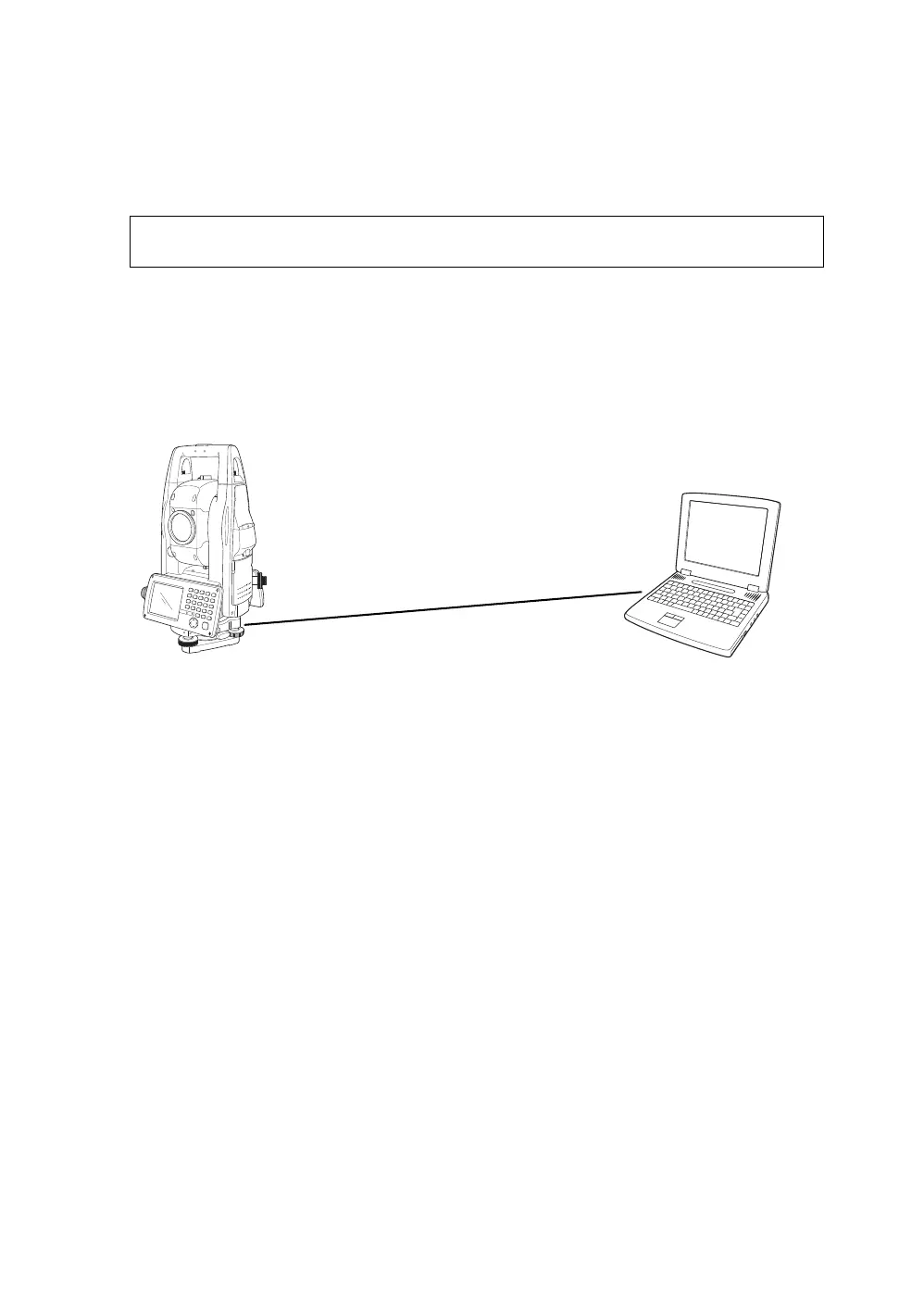
2 Connect the instrument to your PC with an interface cable F-25 as shown below.
3 The instrument will give the prompt, “Conneting to Host”.
4 The PC will prompt you to set up a partnership or set up as a guest.
5 Select the [NO] key to setting up as a guest.
6 Press the [Next] key.
Once a connection has been established, the ActiveSync window will appear on your PC.
7 Click the [Explorer] icon. You will then see the GTS-750/GPT-7500 file structure.
For downloading ActiveSync, access the following website.
http://www.microsoft.com/windowsmobile/
USB Port (mini B)
USB Port (A)
PC
GTS-750/GPT-7500
Interface(USB) cable F-25



 To Next Page
 Loading...