53
13.8 Importing Data into Microsoft Excel
The following procedure details the method for importing a smartCHEM-Titro text data file into
Microsoft
Excel
.
1. Start Microsoft
Excel
and select File
→
Open
2. In the “Files of type:” pull-down box, choose “Text Files (*prn; *.txt; *.csv)”.
3. Navigate to the folder where your data file is stored and double-click it to start the Text Import
Wizard.
Note : The default data folder for the WinTPS software is “C:\My Documents\WinTPS”.
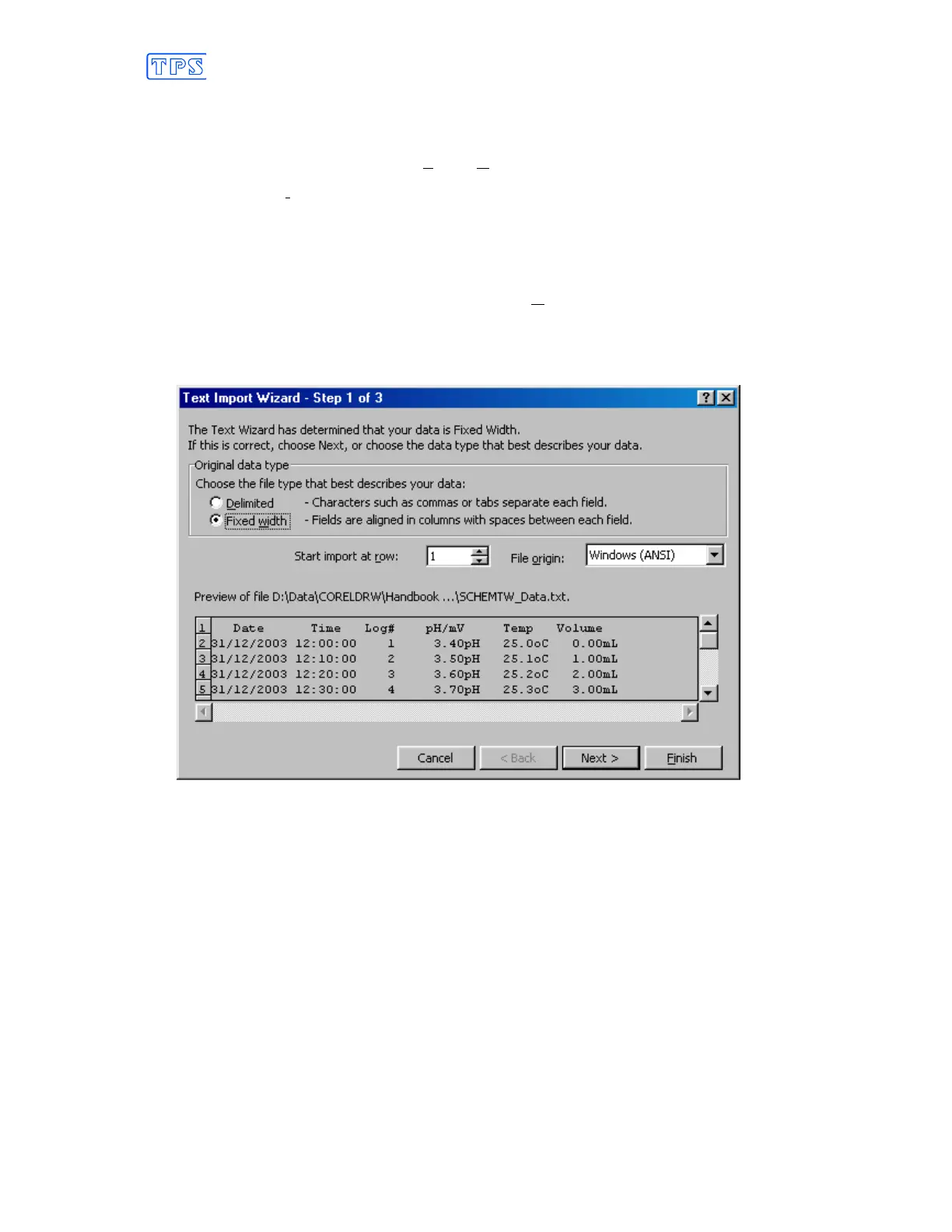
4. In step 1 of the Text Import Wizard select “Fixed width”, as per the sample screen below, then
press “Next >”.
Note that the data column headers in row 1 appear only when the data is downloaded using the
WinTPS software.
Continued over the page…



 To Next Page