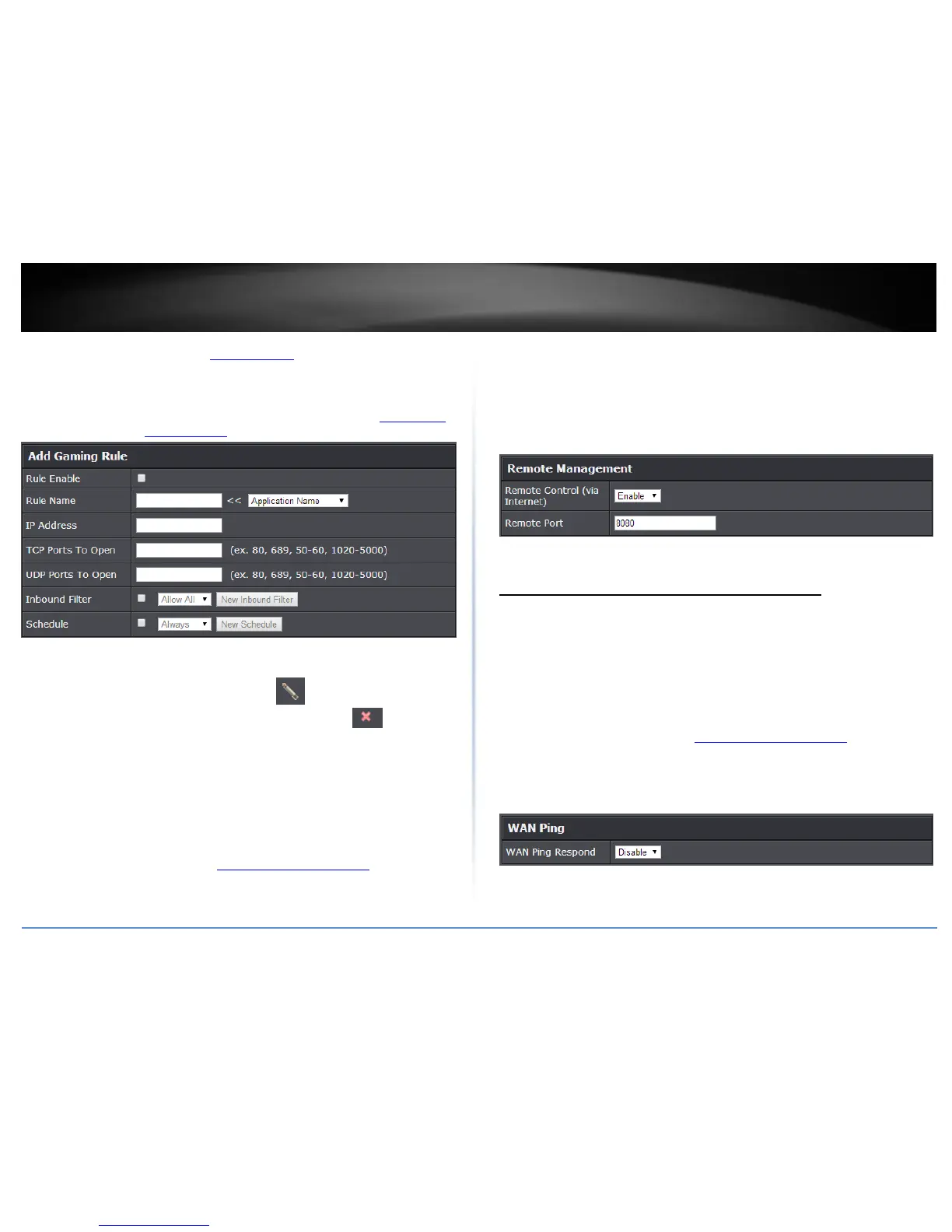
Schedule and refer to page 30 “Create Schedules”. After you have created a new
schedule, click the drop-down list and the new schedule will be available for
selection.
Note: Before applying scheduling, please ensure your Time settings are configured
correct and you have defined a schedule. See page 29 to configure Time Settings
and see page 30 “ Create Schedules” to create a schedule.
Note: In the Rule List, you can edit a rule by clicking under the Edit column next to
the rule you would like to edit. You can also delete a rule by clicking under the
Delete column next to the rule you would like to delete.
Allow remote access to your router management page
Advanced > Setup > Management
You may want to make changes to your router from a remote location such at your
office or another location while away from your home.
1. Log into the management page (see “Access your management page” on page 7).
2. Click on Advanced and click Setup, then click on Management.
3. Review the setting on the Remote Management section. Click Apply to save settings
Remote Control (via Internet): Click the drop-down list and select Enable to
enable remote management or Disable to disable remote management.
Remote Port: Enter the port to assign remote access to the router. It is
recommended to leave this setting as 8080.
Note: If you have configured port 8080 for another configuration section such as
virtual server or special application, please change the port to use.
(Recommended port range 1024-65534)
Allow/deny ping requests tofrom the Internet
Advanced > Administrator > Advanced Network
To provide additional security, you may want to disable your router from responding to
ping or ICMP (Internet Control Message Protocol) requests from the Internet. A ping is
network communication test to check if a device with IP address is alive or exists on the
network. By disabling this feature, you can conceal your router’s IP address and
existence on the Internet by denying responses to ping requests from the Internet. You
can additionally use this feature as a tool for troubleshooting purposes
1. Log into the management page (see “Access your management page” on page 7).
2. Click on Advanced and click on Administrator, then click on Advanced Network.
3. Next to WAN Ping, Click the WAN Ping Respond drop-down list and Enable to allow
your router to respond to ping requests from the Internet. You can also choose
Disable to block WAN ping requests from the Internet
4. To save changes, click Apply.



 To Next Page