http://(new.ipaddress.here) to access your access point management page. You can
also use the default login URL http://tew-817dtr
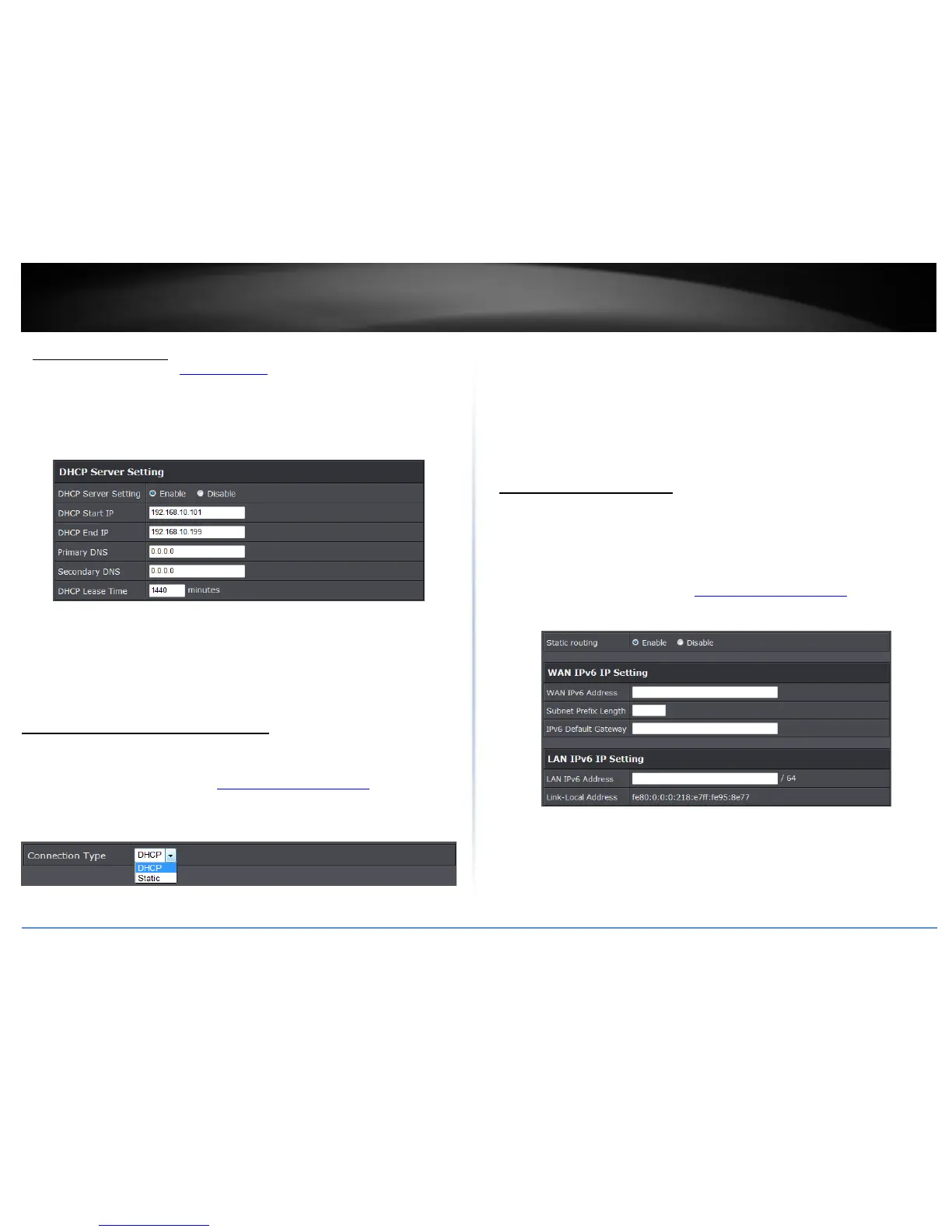
Your access point can be used as a DHCP (Dynamic Host Configuration Protocol) server
to automatically assign an IP address to each wireless device connected. The DHCP
server settings can be accessed when access point is set to Static IP address and it is
disabled by default
Enable DHCP Server: Select to enable DHCP server.
DHCP Start IP: Enter the starting DHCP IP address to assign.
DHCP End IP: Enter the ending DHCP IP address to assign.
Primary/Secondary DNS: Assign DNS IP address to use
DHCP Lease Time: Select the DHCP lease time allowed.
Configure your Internet connection
Advanced > Setup > Internet Settings
1. Log into the management page (see “Access your management page” on page 7).
2. Click on Advanced and click on Setup, then click on Internet Settings.
3. Under Connection Type in drop-down list, select the type of connection type the
device is connected to.
DHCP: Select to this option to have the device automatically obtain DHCP IP
address from the connected network.
Static: Select this option to manually assign an IP address from the connected
network.
4. To save changes, click Apply.
Note: If you are unsure which Internet connection type you are using, please contact
your network administrator.
IPv6 Connection Settings
Advanced > Setup IPv6 Settings
IPv6 (Internet Protocol Version 6) is a new protocol that significantly increases the
number of available Internet public IP addresses due to the 128-bit IP address structure
versus IPv4 32-bit address structure.
1. Log into the management page (see “Access your management page” on page 7).
2. Click on Main, and click on IPv6.
3. Select the IPv6 connection type to assign IPv6 addressing to the access point.
Static Routing: Select enable to configure IPv6 settings.
WAN IP Setting: Manually enter your assigned WAN IPv6 settings
LAN IPv6 Setting: Manually enter the device’s LAN setting.
4. To save changes, click Apply.



 To Next Page