Connect wireless devices using WPS
WPS (Wi-Fi Protected Setup) is a feature that makes it easy to connect devices to your
wireless network. If your wireless devices support WPS, you can use this feature to
easily add wireless devices to your network.
Note: You will not be able to use WPS if you set the SSID Broadcast setting to Disabled or
if you are using WEP security.
There are two methods the WPS feature can easily connect your wireless devices to
your network.
Push Button Configuration (PBC) method
o (RECOMMENDED) Hardware Push Button method–with an external button
located physically on your router and on your client device
o WPS Software/Virtual Push Button - located in router management page
PIN (Personal Identification Number) Method - located in router management page
Note: Refer to your wireless device documentation for details on the operation of
WPS.
Recommended Hardware Push Button (PBC) Method
Note: It is recommended that a wireless key (passphrase or password) is created
before connecting clients using the PBC method. By default your router is
preconfigured with a wireless encryption key. If no wireless key is defined when
connecting via PBC, the router will automatically create an encryption key that is 64
characters long. This 64 character key will then have to be used if one has to
connect computers to the router using the traditional connection method.
To add a wireless device to your network, simply push the WPS button on the wireless
device you are connecting (consult client device User’s Guide for length of time), then
push and hold the WPS button located on your router for 3 seconds and release it. The
WPS LED will blink to indicate WPS has been activated on your router. (See “Product
Hardware Features” on page 2)
For connecting additional WPS supported devices, repeat this process for each
additional device.
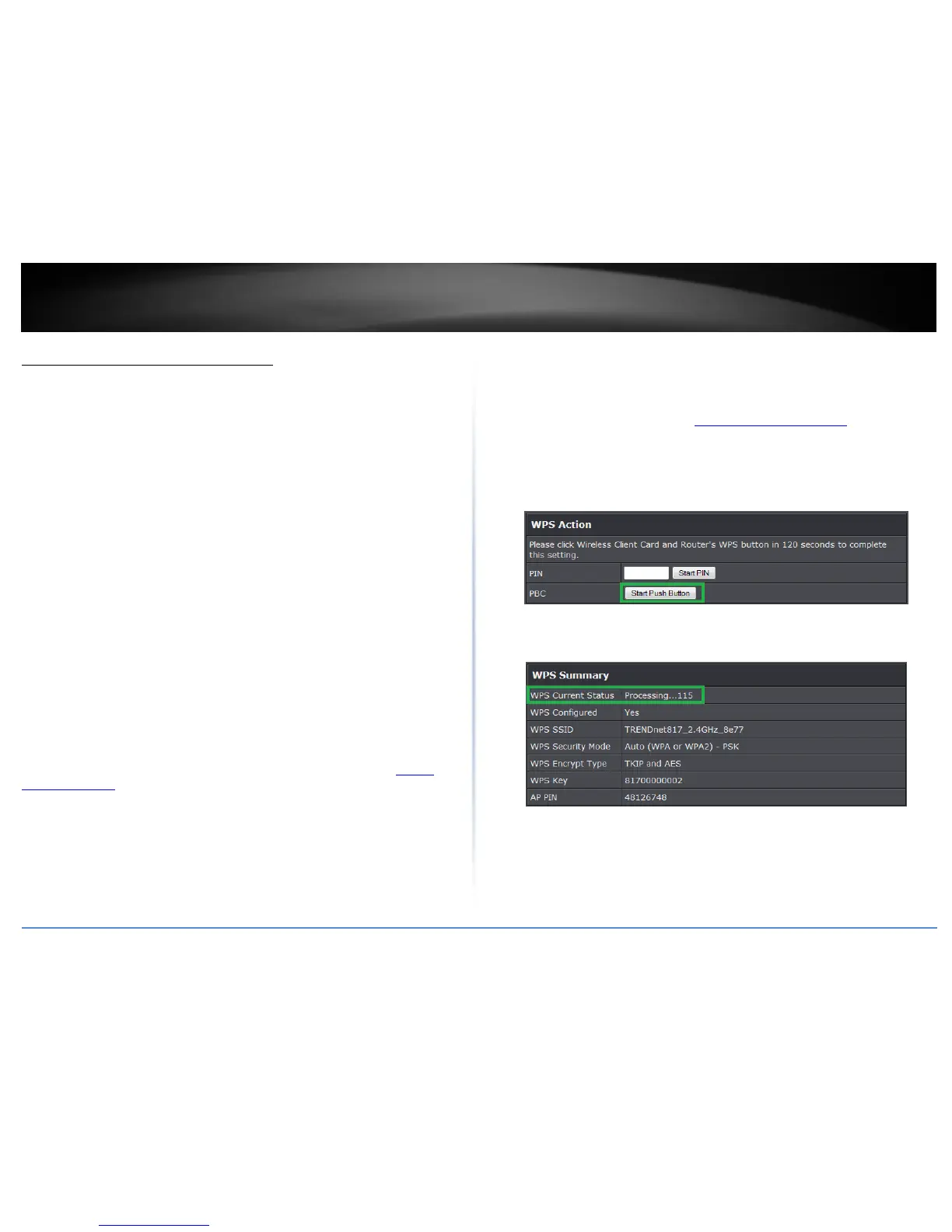
PBC (Software/Virtual Push Button)
Advanced > Wireless (2.4GHz or 5GHz) > WPS
In addition to the hardware push button located physically on your router, the router
management page also has push button which is a software or virtual push button you
can click to activate WPS on your router.
1. Log into the management page (see “Access your management page” on page 7).
2. Click on Advanced, then click on Wireless (2.4GHz or 5GHz), and click on WPS.
3. To add a wireless device to your network, next to Virtual Push Button, click the Start
Push Button button in the router management page. Then push the WPS button on the
wireless device (consult wireless device’s User’s Guide for length of time) you are
connecting.
4. Wait for your router to finsh the WPS process.
Note: You should a message on your WPS client device indicating WPS was successful.
PIN (Personal Identification Number)
Advanced > Wireless (2.4GHz or 5GHz) > WPS
If your wireless device has WPS PIN (typically an 8-digit code printed on the wireless
device product label or located in the wireless device wireless software utility), you can
use this method.



 To Next Page