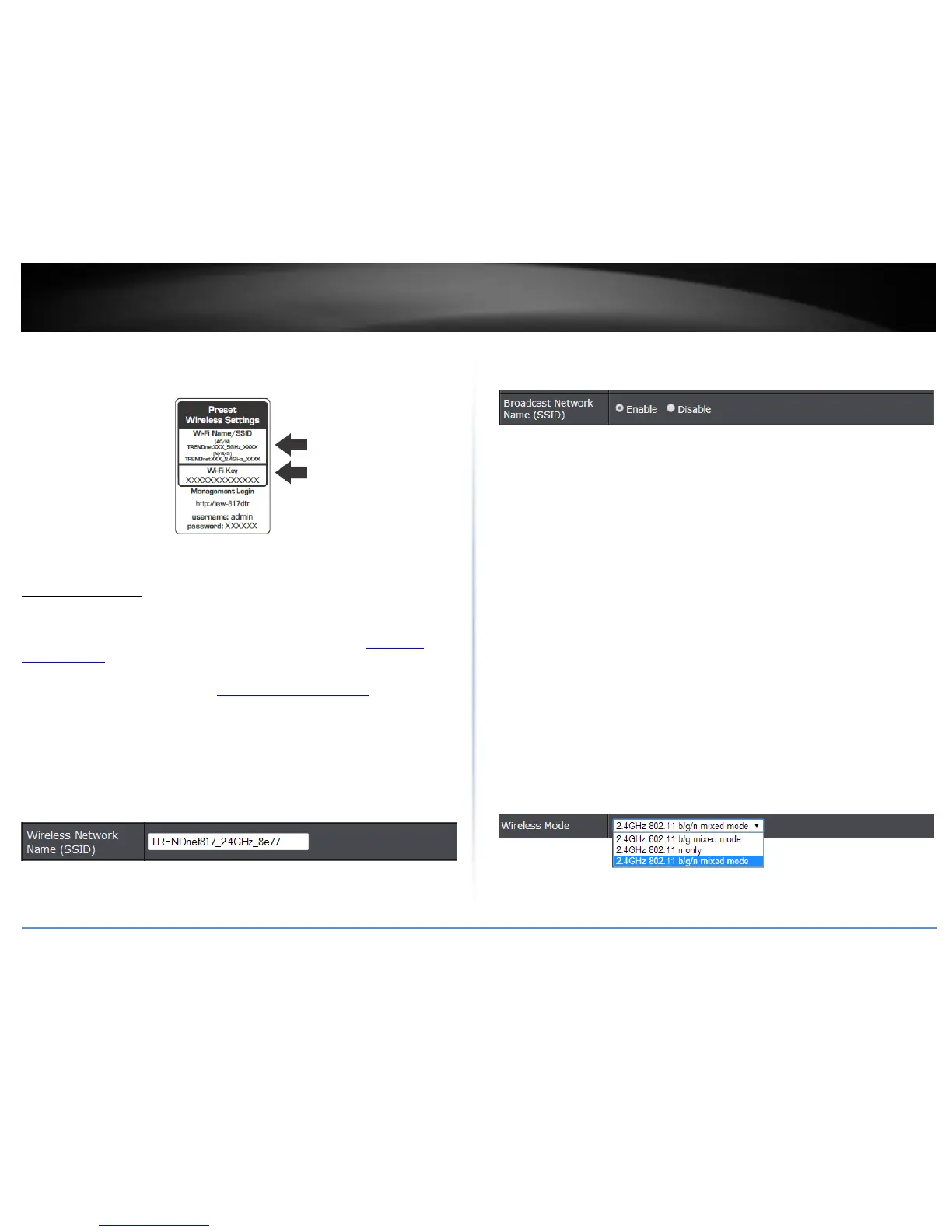
5. Wirelessly connect your devices using the default settings which can be found in the
wireless sticker on the front of the unit or the device label located in the back of the
unit. You can also plug a device using the Ethernet port of the TEW-817DTR.
Wireless Settings
Basic > Wireless (2.4GHz or 5GHz)
This section outlines available management options under basic wireless sub tab for
both 2.4GHz and 5GHz wireless sections. You can refer to the page 51 Secure your
wireless network to configure your wireless security settings.
1. Log into the management page (see “Access your management page” on page 7).
2. Click on Wireless and click on Basic scroll down to Wireless Network Settings (2.4GHz
or 5GHz)
3. To save changes to this section, click Apply when finished.
Wireless Network Name (SSID): Enter the wireless name (SSID) for your wireless
network. This acronym stands for Service Set Identifier and is the name of your
wireless network. It differentiates your wireless network from others around you.
By default, the router’s wireless name is unique to the device. If you choose to
change the SSID, change it to a name that you can easily remember.
Broadcast Network Name (SSID)
o Visible: Allows wireless devices to search and discover your wireless network
name (also called SSID) broadcasted by your router.
o Invisible: Turns off the ability for wireless devices to find your network. It is still
possible for wireless devices to be configured to connect to your wireless
network. Disabling this setting will disable WPS functionality.
Wireless Mode: When applying the Wireless Mode setting, please keep in mind the
following:
Wireless devices that support 802.11n are backwards compatible and can connect
wirelessly at 802.11g or 802.11b.
Wireless devices that support 802.11ac are backwards compatible and can connect
wirelessly at 802.11n or 802.11a.
Connecting at 802.11b or 802.11g will limit the capability of your 802.11n
supported wireless devices from obtaining higher performance and data rates.
Connecting at 802.11a or 802.11n will limit the capability of your 802.11ac
supported wireless devices from obtaining higher performance and data rates.
Allowing 802.11b or 802.11g devices to connect to an 802.11n capable wireless
network may degrade the wireless network performance below the higher
performance and data rates of 802.11n.
Allowing 802.11a or 802.11n devices to connect to an 802.11ac capable wireless
network may degrade the wireless network performance below the higher
performance and data rates of 802.11ac.
Wireless devices that only support 802.11n or 802.11a will not be able to connect
to a wireless network that is set to 802.11ac only mode.
Wireless devices that only support 802.11b or 802.11g will not be able to connect
to a wireless network that is set to 802.11n only mode.
Wireless devices that only support 802.11b will not be able to connect to a wireless
network that is set to 802.11g only mode.
Wireless devices that only support 802.11a will not be able to connect to a wireless
network that is set to 802.11n only mode.



 To Next Page