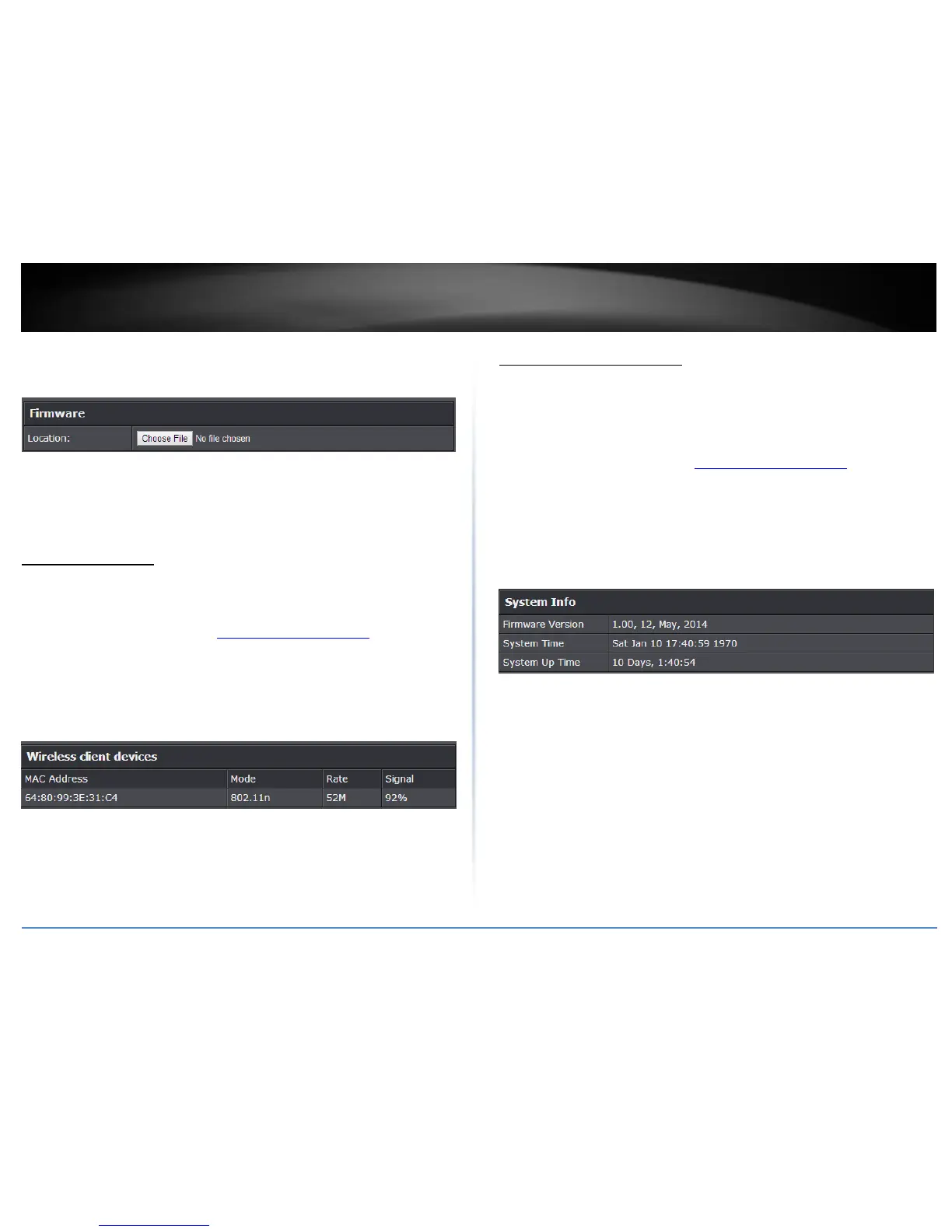
2. Click on Advanced and click Setup, then click Firmware.
3. Depending on your web browser, in the Upload Firmware section, click Browse or
Choose File.
4. Navigate to the folder on your computer where the unzipped firmware file (.bin) is
located and select it.
5. Click Apply. If prompted, click Yes or OK.
Wireless Client List
Advanced > Wireless (2.4GHz or 5GHz) > Station List
You can view the list of active wireless devices currently connected to your router.
1. Log into the management page (see “Access your management page” on page 7).
2. Click on Advanced and click on Wireless (2.4GHz or 5GHz), then click on Station List
MAC Address: The current MAC address of your 2.4GHz wireless client.
Mode: Displays the 802.11 mode associated with the client.
Rate: Displays the estimated data rate established with the client.
Signal: Displays the estimated signal strength associated with the client.
.
Check system information
Advanced > Administrator > Status
You may want to check the system information of your router such as WAN (Internet)
connectivity, wireless and wired network settings, router MAC address, and firmware
version.
1. Log into the management page (see “Access your management page” on page 7).
2. Click on Advanced and click on Administrator, then click on Status
System Information
Firmware Version: The current firmware version your router is running.
Time: The current time set on your router.
System Up Time: The duration your router has been running continuously
without a restart/power cycle (hard or soft reboot) or reset.
Internet Configuration
Connected Type: Displays the current WAN connection type applied.
WAN IP Address: The current IP address assigned to your router WAN port or
interface configuration.
WAN MAC Address: Displays the current WAN MAC address.
Subnet Mask: The current subnet mask assigned to your router WAN port or
interface configuration.
Default Gateway: The current gateway assigned to your router WAN port or
interface configuration.
Primary/Secondary DNS (Domain Name System) Server: The current DNS
address(es) assigned to your router port or interface configuration.



 To Next Page