19
(3)PresstheOKkeytoconrmtheselected
language, the setting is then activated and the
OSD language changes to the chosen language.
This sets the time that the on-screen display
information is shown.
1. Select ‘OSD Timeout.
2. Press the ‘RIGHT’ key to display the time
options.
3. The user can select the required time.
(1) You can set the subtitle language to your
preferred language type. These include English,
French, German, Italian, Spanish, Portuguese,
Danish,Czech,Dutch,Finnish,Swedish,Greek,
Russian, Welsh, or Gaelic.
(2) When the preferred subtitle has been
selected, it will display the selected subtitles
automatically while the stream has the suited
subtitle.
(3) The user can set another subtitle language in
the2ndpreferredsubtitleeld
Preference Settings
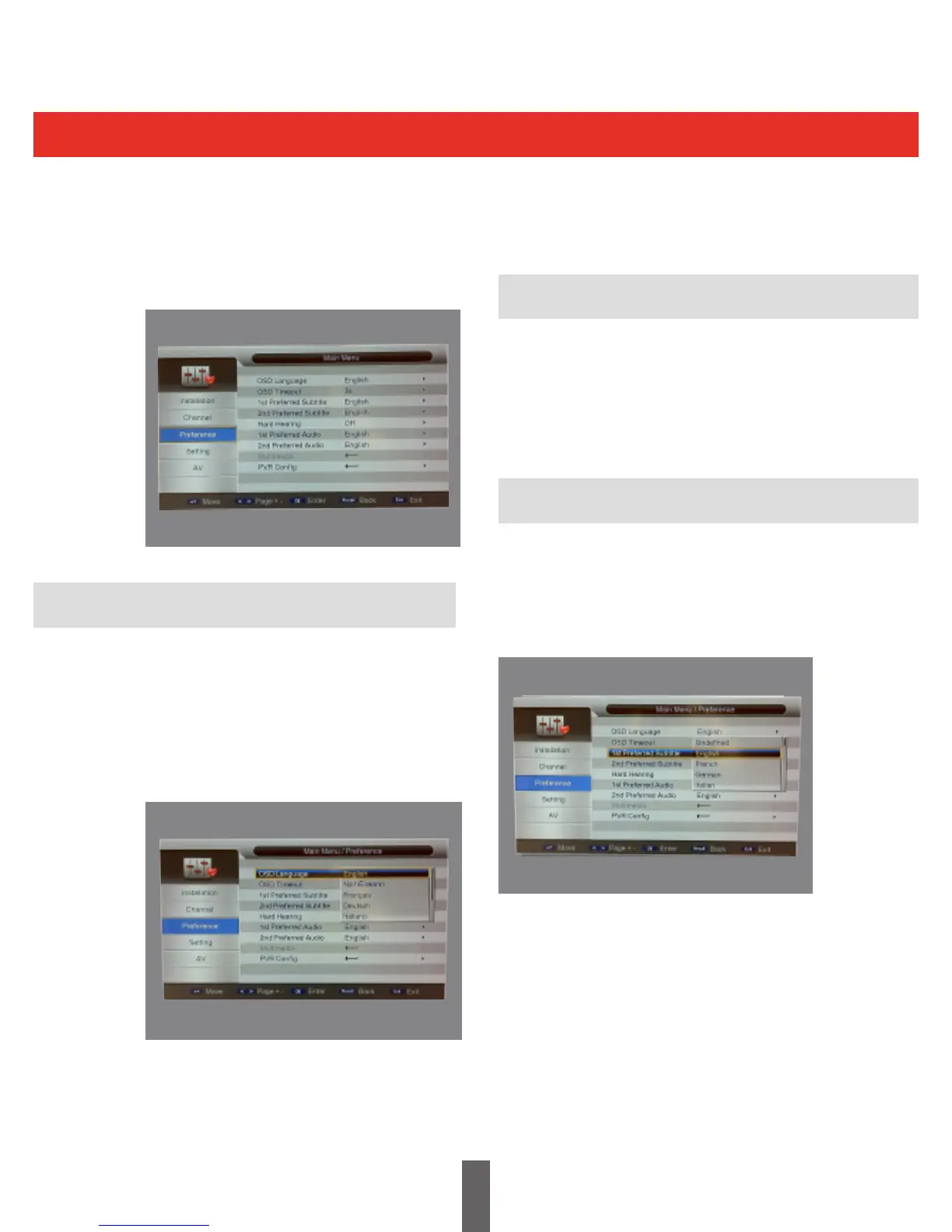
Thereceivercanbeconguredaccordingtothe
userpreferences,bypressingMAINMENU>
PREFERENCE.
This is shown below:
OSD Language option: The user interface
supports several languages, you can set the
language via the OSD language option.
(1) Move the cursor onto the language option,
press RIGHT key to Enter the OSD language list.
is shown below:
(2) Press the UP/DOWN key to choose the
required language
OSD Language
Preferred Subtitle
OSD Timeout



 To Next Page