33
Recorder Manager
Highlights the previous item in
thelelist.Iftherstitemis
reached, it highlights the last
iteminthelelist.
Highlights the next item in
thelelist.Ifthelastitemis
reached,ithighlightstherst
item.
Returns from current list to the
parent folder.
Allows you to enter a folder.
If a folder is selected, pressing
KEY_OK enters into the folder.
Ifitisalethenpressingthe
key will play the selected
recorded program.
Pressing this key moves from
the current list to the parent
folder.
If in the root directory, pressing
this key sets partition PVR1. If
in the sub directory pressing it
will delete the selected item.
If in the root directory, pressing
this key sets partition PVR2. If
in the sub directory pressing it
will rename the selected item.
If in the root directory, pressing
this key formats the drive to
NTFS
If in the root directory, pressing
this key formats the drive to
FAT32. If in the sub directory
pressing it will delete all
recordings.
Inthelelist,pressingKEY_
EXITreturnsfromthelelistto
themedialterselectionmode.
Thelebrowsermenu
disappears and the main menu
is shown, OR, vice-versa.
Enters / Exits Media menu
Key Stroke Action
KEY_LEFT
KEY_RIGHT
KEY_OK
KEY_RECALL
KEY_MEDIA
KEY_RED
KEY_GREEN
KEY_YELLOW
KEY_BLUE
KEY_EXIT
KEY_MENU
KEY_DOWN
KEY_UP
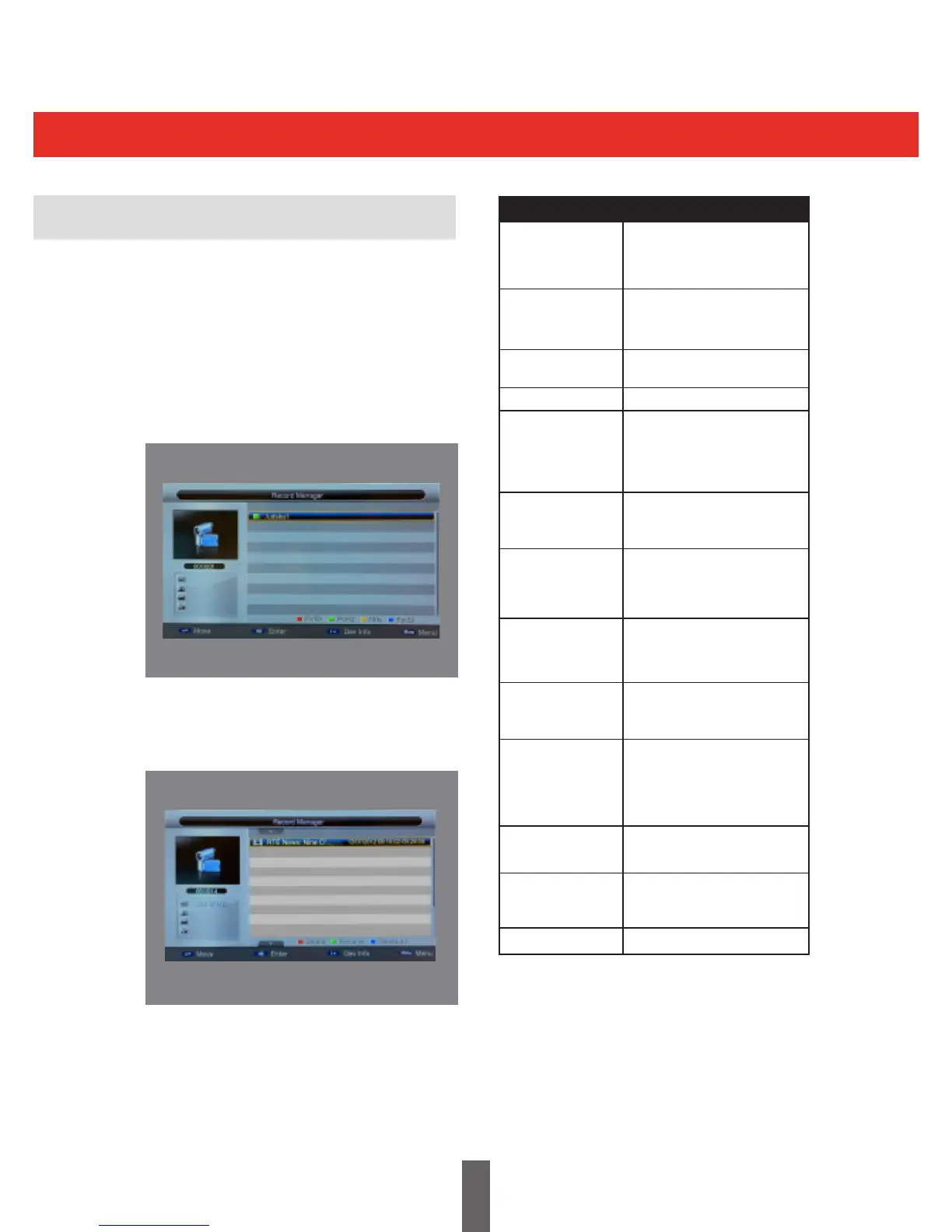
The picture below shows the Record Manager
Menu. From this menu the connected USB Hard
Disk Drive can be formatted to either NTFS or
FAT32.
Note: You must set partitions PVR1 and PVR2
on the USB Hard Disk Drive to allow two
programmes to be recorded simultaneously
All recorded programmes will appear in the menu
below. From this menu you can also rename and
delete the selected recordings.



 To Next Page