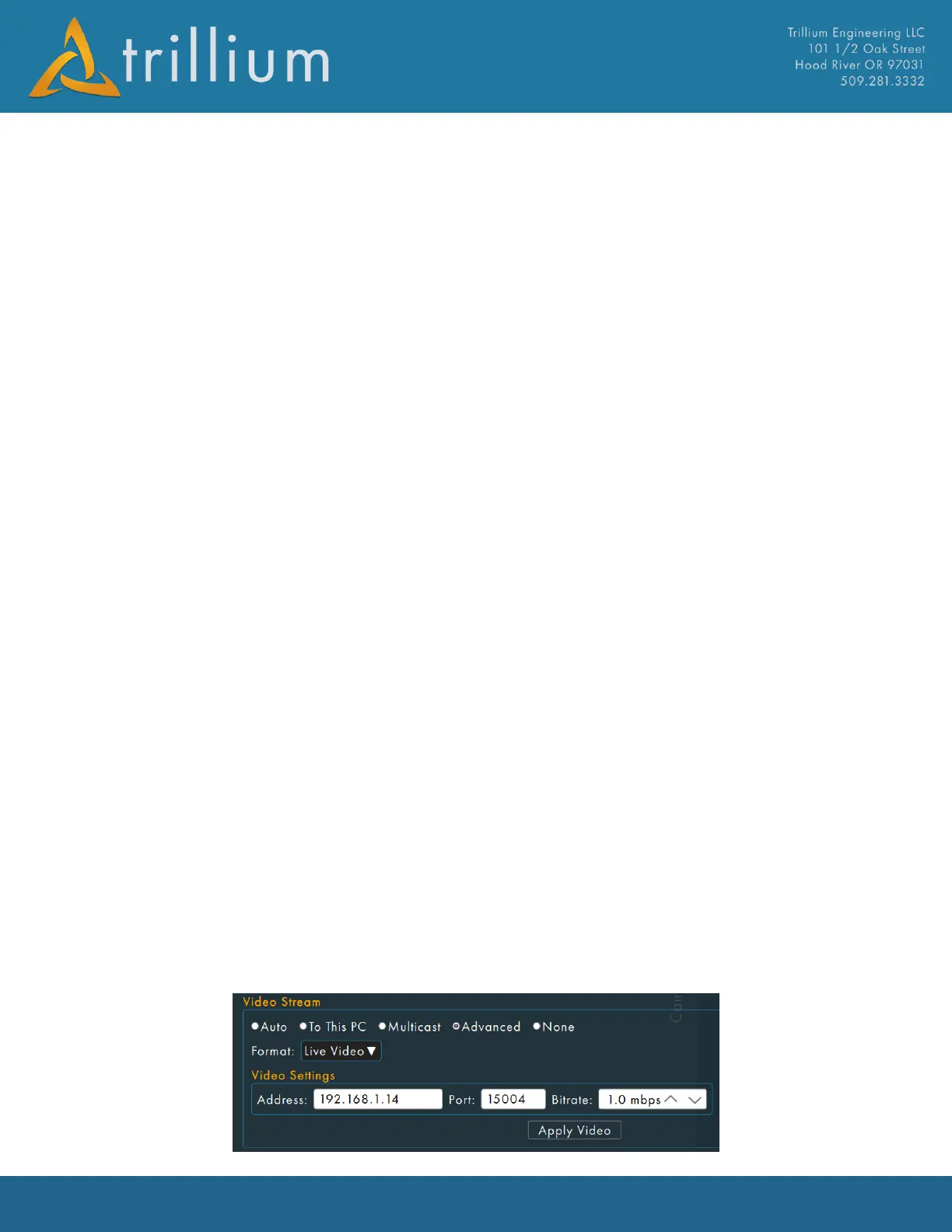
2.2.3 Video Stream
Auto
As soon as network communications are established with a gimbal, SkyLink will command the
gimbal to stream its video to the PC running SkyLink. If the gimbal is currently streaming video to
another IP address, SkyLink will not “steal” the video and thus SkyLink will not display video (and
show a warning). See about multicasting below if setup requires more than one SkyLink to show
video.
To This PC
This will force the gimbal to stream its video to the PC running SkyLink. If SkyLink detects the
gimbal streaming video to a different PC, it will command the gimbal to send video to the PC
running SkyLink. Note that if 2 or more instances of SkyLink on the network have this set they will
constantly command the gimbal to stream video to them and no instances will get consistent video.
See about multicasting below if setup requires more than one SkyLink to show video.
Multicast
This will cause the gimbal to send its video to a multicast address. The address will be
235.XXX.YYY.ZZZ where “XXX” “YYY” and “ZZZ” match the gimbal’s IP address. For example, if the
gimbal’s IP address is 192.168.10.20, the gimbal will send video to 235.168.10.20. NOTE: For
Multicast video to work the network that the gimbal and SkyLink are connected to must support
Multicasting, and the gimbal must have an assigned IP address (either from a DHCP device on the
network or via setting a fixed IP address on the gimbal). Multicast will not work if the gimbal is
using its default 169.254.87.45 address.
Advanced – Live Video
The Advanced Video Stream setting’s “Live Video” format allows selection of a specific address, port
and bitrate to use for streaming H.264 video. For example: “192.168.1.14:15004” will tell the
gimbal to stream video to 192.168.1.14 port 15004. If no port is provided SkyLink will use port
15004 by default. The IP address entered here can also be used to have the gimbal multicast its
video. Multicasting video is required if more than one instance of SkyLink needs to display video. To
enable multicasting, enter a valid multicast address in the range of 224.0.0.0 to 239.255.255.255
(EG: “226.10.10.10:15004”). If no port is provided, SkyLink will use port 15004 by default. NOTE:
For Multicast video to work the network that the gimbal and SkyLink are connected to must
support Multicasting, and the gimbal must have an assigned IP address (either from a DHCP device
on the network or via setting a fixed IP address on the gimbal). Multicast will not work if the gimbal
is using its default 169.254.87.45 address.


 To Next Page