2 SkyLink
2.1 Introduction and Installation
SkyLink is Trillium’s gimbal user interface which displays video and telemetry, allows for gimbal
control, and records and plays back video for post mission analysis. SkyLink will install to
C:\Program Files (x86)\Trillium\SkyLink\ and will create a directory C:\Trillium\ where recorded
video, map imagery, and map elevation data are stored. In addition to SkyLink, OrionUI will also be
installed which can be used to configure gimbal settings that aren’t typically required during
operation; see the OrionUI section below for details.
2.2 Gimbal Connection
The gimbal’s Ethernet connection provides both video and communications, so the connection
requires one of these network configurations:
1. Direct Connect. Trillium gimbals have a default IP address of 169.254.87.45 if no IP
address is assigned by a DHCP server. For direct connect, plug the gimbal into a computer
and ensure a static IP address is not set; the computer will default to an address of
169.254.XXX.XXX after approximately a minute.
2. Dynamic IP. Trillium gimbals can accept an IP address by a DHCP server and SkyLink will
connect as long as it is on the same subnet as the gimbal.
3. Static IP. Trillium gimbals can be configured with a static IP address and SkyLink will
connect as long as it is on the same subnet as the gimbal.
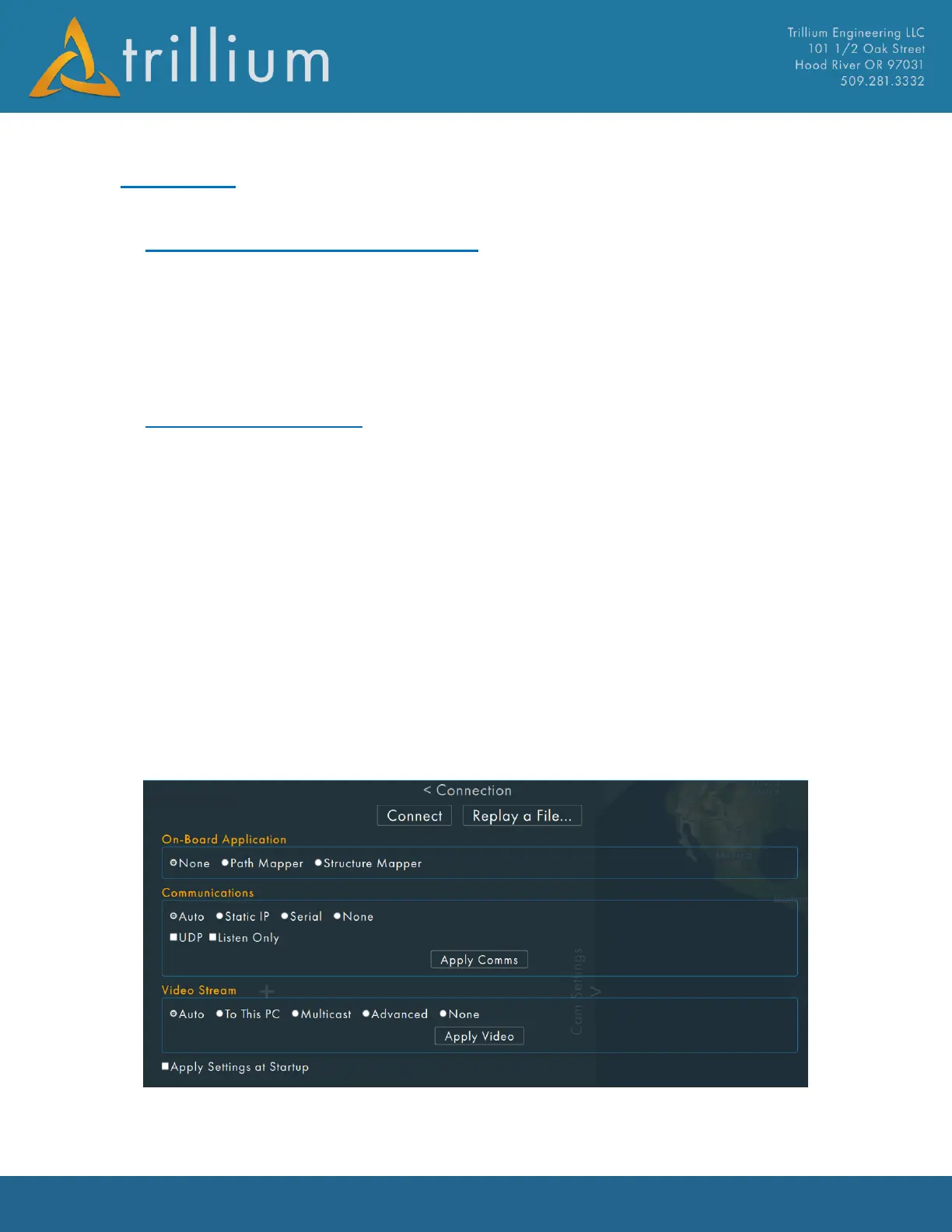
The Connection Menu allows the user to select what communications and video sources to use.
Clicking the “Connect” button will apply both the communications and video settings and close the
window.


 To Next Page