2.5 Camera Settings
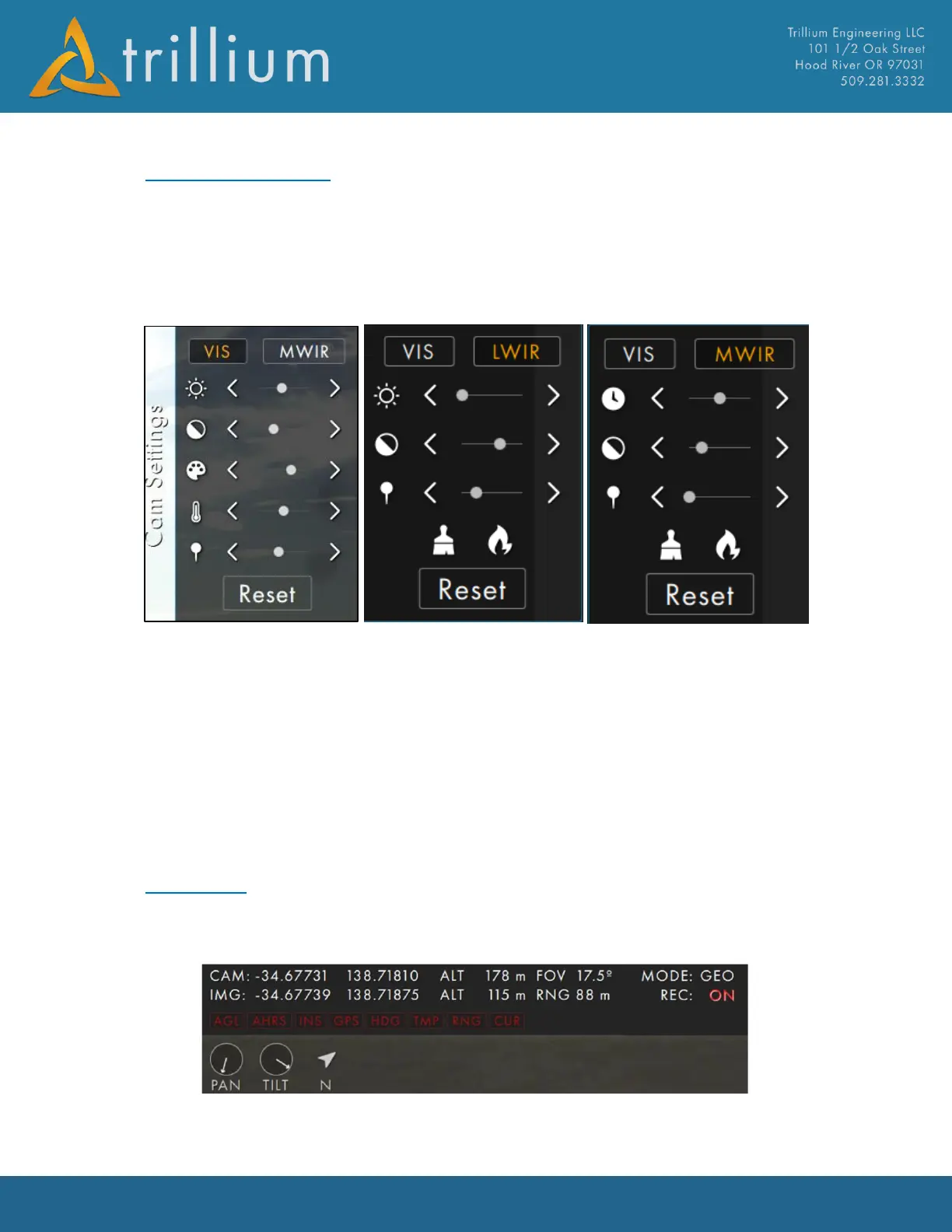
The Camera Settings Menu contains controls for refining the imagery from the active camera. Any
available cameras will be listed at the top by their type (VIS=daylight camera, LWIR=long-wave IR,
MWIR=mid-wave IR, etc.). Clicking any camera type will switch to that camera.
Clicking the Reset button will reset the active camera to its defaults.
Clicking on or hovering the mouse over a setting’s icon will display what the setting affects.
VIS Settings
EO cameras allow modification of brightness, contrast, saturation, hue and sharpness.
LWIR Settings
LWIR cameras allow changing brightness, contrast, sharpness, perform an FFC, and toggle white
hot/black hot.
MWIR Settings
MWIR cameras allow changing integration time (NUC Table), contrast, sharpness, perform an FFC,
and toggle white hot/black hot.
2.6 Overlays
SkyLink's overlays at the top of the video are meant to provide at-a-glance information about the
gimbal's position and where it is looking. These overlays are display-only and are not “burned into”
the video.


 To Next Page