such as open ocean or a low contract thermal scene. Another example is when in Target tracking
drops an object that leave the video such as a person enters a building.
• Scene Mode Drop: If there isn’t sufficient scene content, the gimbal will not be able to
successfully stay on target using Scene Steering. This can happen when viewing water, sand,
or other featureless locations. In this case, the gimbal will drop into Geo mode if a valid
image location can be calculated. If there is not a valid Geopoint the gimbal will transition to
Rate mode. When the Scene confidence improves, the gimbal will return to Scene mode.
• Track Mode Drop: When a track is terminated due to low tracking confidence, the gimbal
will drop into scene mode.
Onscreen Joystick
A single click/tap on the video will change the mode to the Default Gimbal Mode defined under
SkyLink Settings. The click will command the gimbal to move so that the point that was clicked
becomes centered in the video. If the gimbal is in Track mode, the gimbal will begin tracking the
object that was clicked.
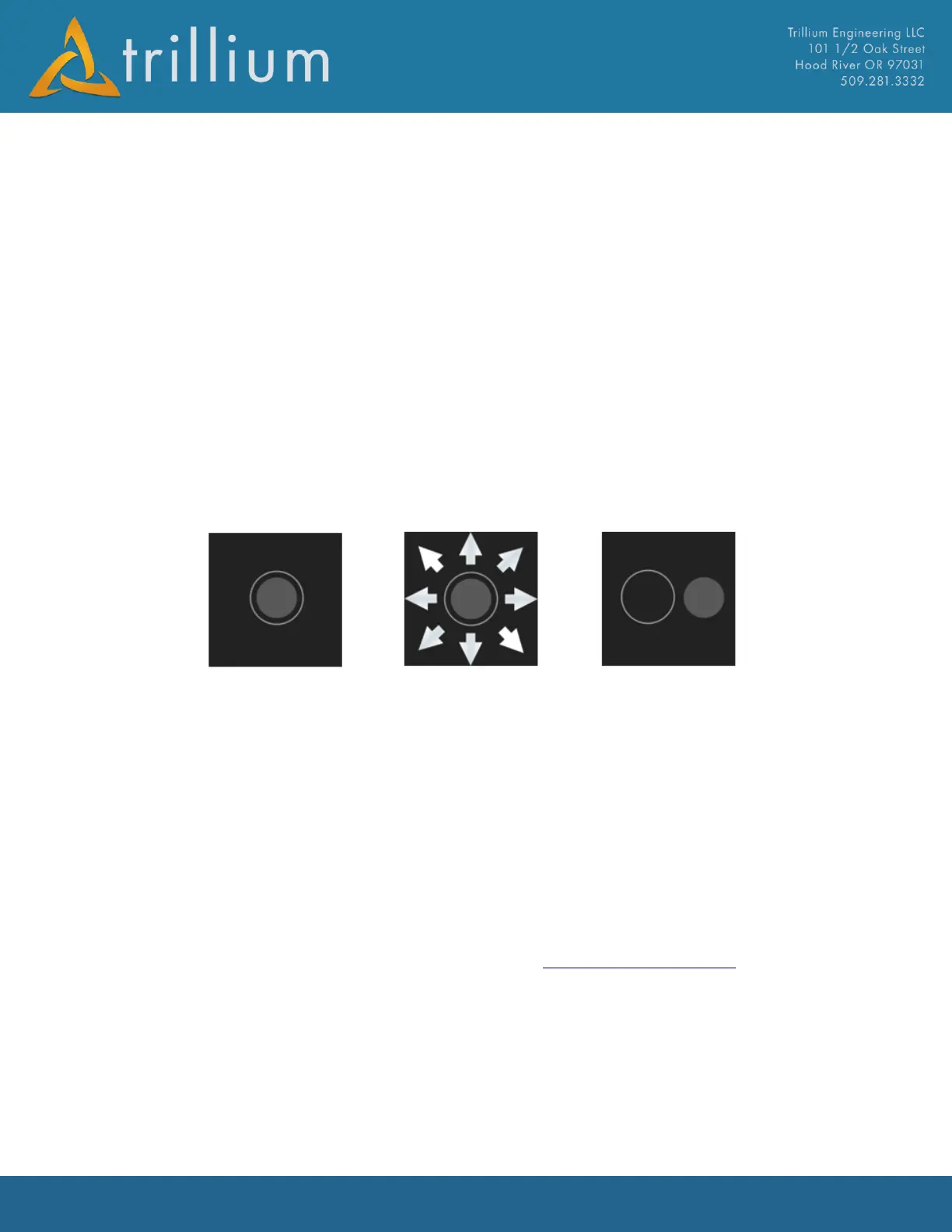
Pressing and holding or clicking the left mouse button on the video will bring up the onscreen
joystick pictured above. This works like a physical joystick: deflecting left pans the gimbal left,
deflecting up tilts the gimbal upward, etc. The further the joystick is deflected from the starting
point, the fast the gimbal will move. When the mouse button is released, or touch is lifted the
command will stop.
The onscreen joystick can be brought up on any portion of the video, its location over the video is
irrelevant. What matters is the direction and distance the joystick is deflected from its initial point.
A double-click on the video will put the gimbal in Track Mode and begin tracking the object that was
double clicked.
External Joystick
SkyLink currently only supports one physical joystick: the Logitech F310 Gamepad. The controls
work as outlined below:


 To Next Page