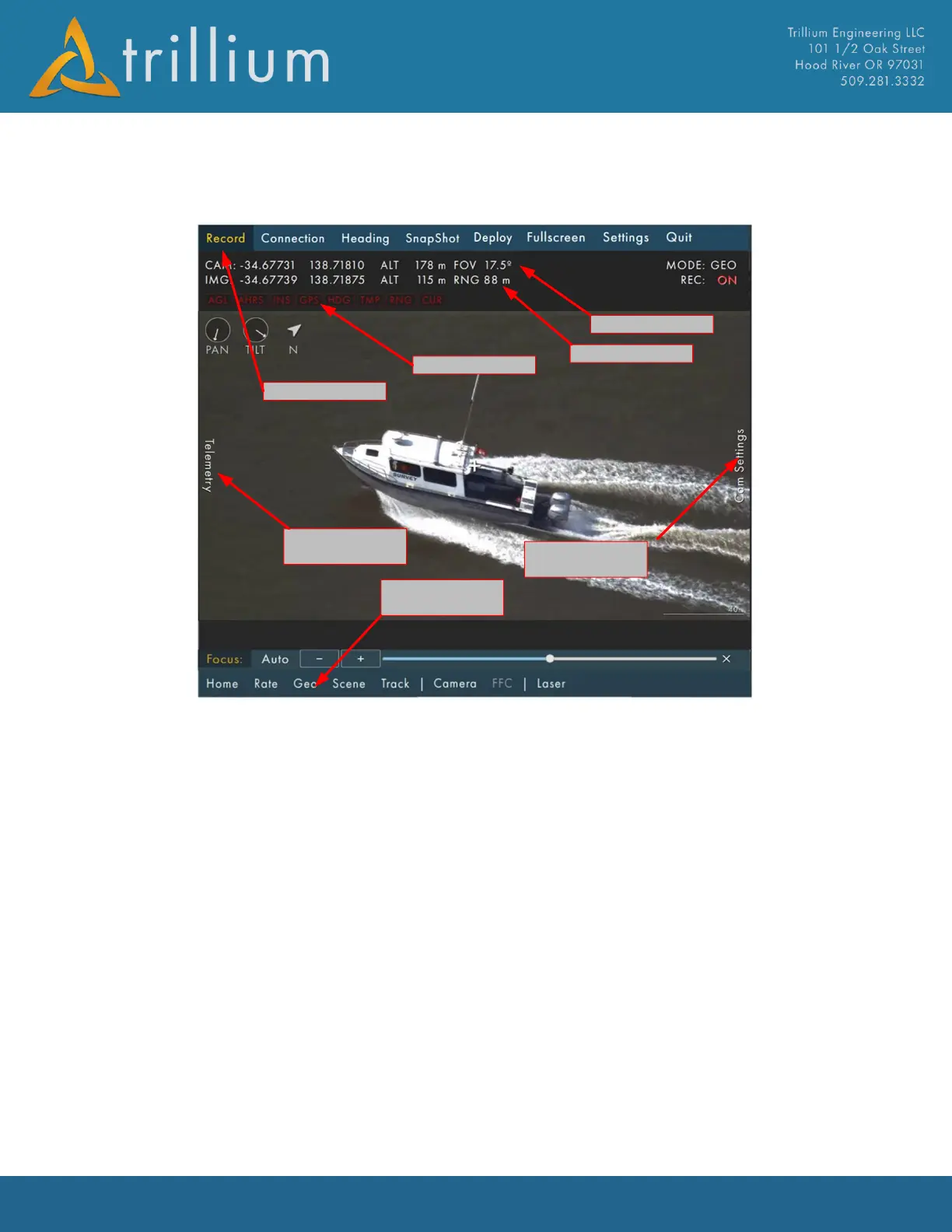
SkyLink will search for the gimbal then start displaying telemetry and video after connecting. The
video window on the left displays video and telemetry and allows for gimbal control:
At startup, the gimbal is in a position mode where it maintains a pan/tilt angle. If a user clicks on
the video, the gimbal enters the selected default stabilization mode (see mode details below) and
moves to center the video on the clicked location. If a user clicks and holds anywhere on the video
window, an onscreen joystick will appear that allows the gimbal to be steered. The video can be
zoomed by scrolling with a mouse wheel or pinch-to-zoom on touchpads and touchscreen devices.
1.1.3 Gimbal Modes
Rate Mode
In Rate mode, gyro feedback is used to ensure the camera line of sight (LOS) has zero inertial rates.
From a stationary platform, this results in the gimbal maintaining other stationary objects in view
when the gimbal is rotated. Once in rate mode, a user can click on the video to direct the gimbal to
stare at a new location or use the onscreen joystick to steer the gimbal.
Mode limitations: when the gimbal is moving such as on a fixed wing aircraft, the gimbal will only
maintain its inertial LOS which results in stationary objects below passing through the video at the
gimbal’s ground speed.


 To Next Page