2.1.1 Checking the Dynamic IP Address
Follow the steps below to look up the IP address and access the Web interface.
1. Download and install the GV-IP Device Utility program from
http://www.geovision.com.tw/english/5_8.asp
Note: The PC installed with GV-IP Device Utility must be under the same LAN with the
camera you wish to configure.
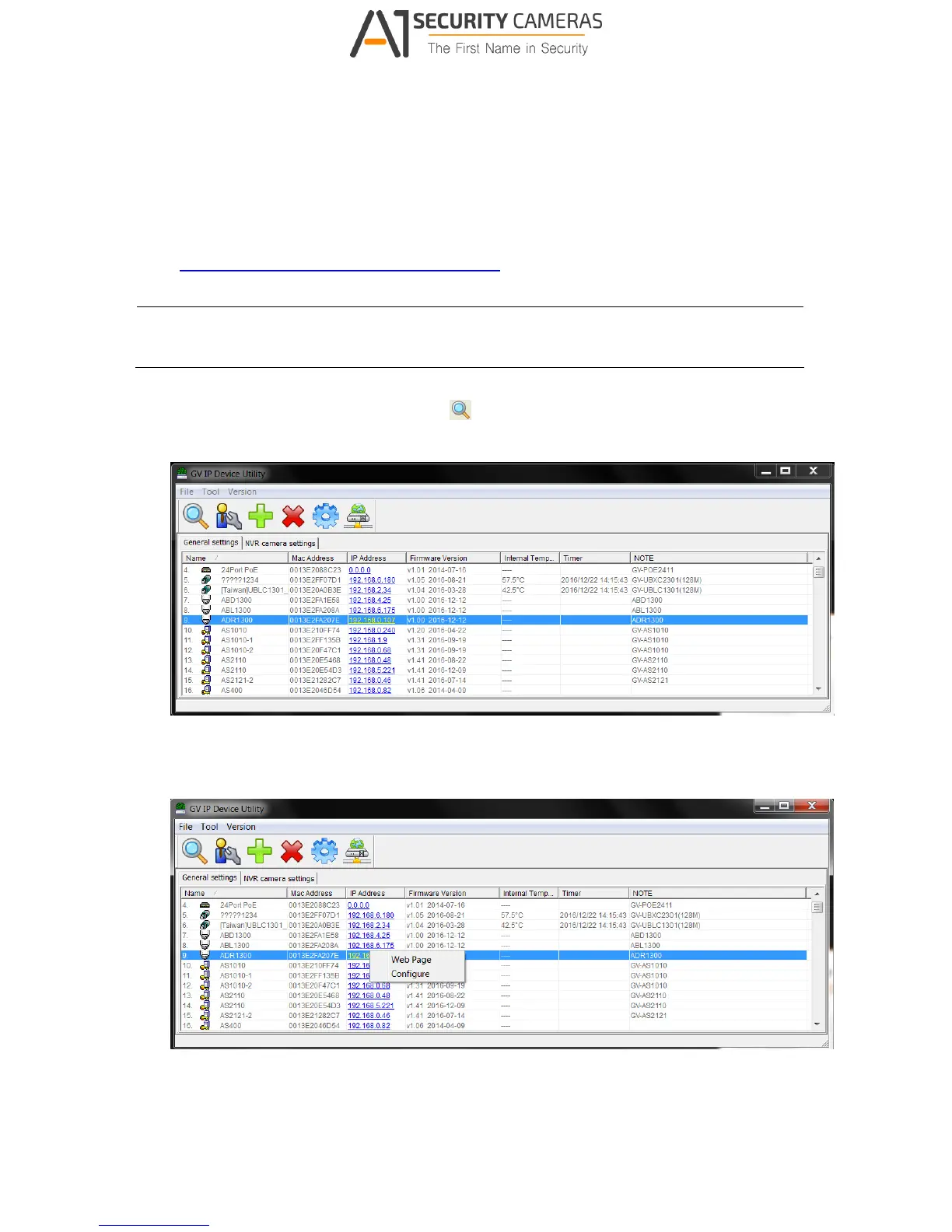
2. On the GV-IP Utility window, click the button to search for the IP devices connected
in the same LAN. Click the Name or Mac Address column to sort.
Figure 2-1
3. Find the camera with its Mac Address, click on its IP address and select Web Page.
Figure 2-2


 To Next Page