OTDR Series e-Manual, D07-00-076P-RevC00 Page 25 of 107
5.5.4.2 Connect to a WiFi network
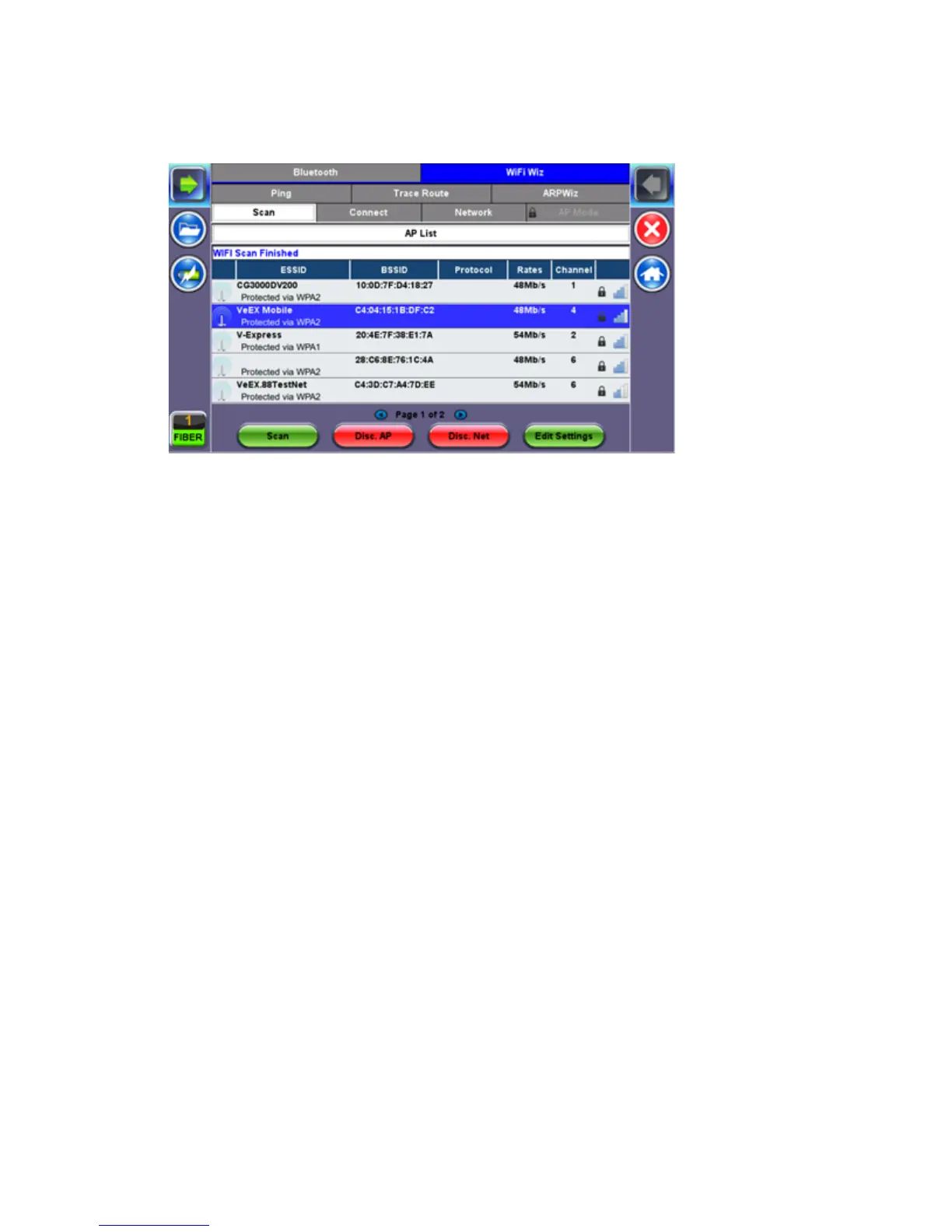
1. Press Scan to see all networks
2. Select one of the available networks and the Edit Settings key will appear to the right.
Once selected, an Edit Settings function key appears to the right.
3. Tap on Edit Settings to change the Encryption Type and enter the WiFi Key or Connect
AP. The label will change to Disc. AP upon successful connection and the Connect Net
key will appear.
Encryption Type: Supported encryption types include WEP, WPA, and WPA2.
Password: Security phrase or password necessary to access SSID and network. Tap the
Password field to enter the network password on the pop-up keypad (ASCII formatting
supported).
4. Press Apply after selecting the Encryption Type and entering the Key.
5. If the encryption menu was accessed via Connect AP, the test set will connect to the AP
automatically after hitting Apply.
6. If the encryption menu was accessed via Edit Settings, press Connect AP to connect to
the AP.
7. After a successful connection to the Access Point, press Connect Net to obtain an IP
address and access the additional IP tests like Ping, Trace Route etc.
Note: Passwords are case sensitive. If the user enters the wrong network key, the test set will
still connect to the Access Point, but will not be able to connect to the web or perform the Ping
test.



 To Next Page