16
UM150 User’s Manual
16
UM150 User’s Manual
2.3 Connecting
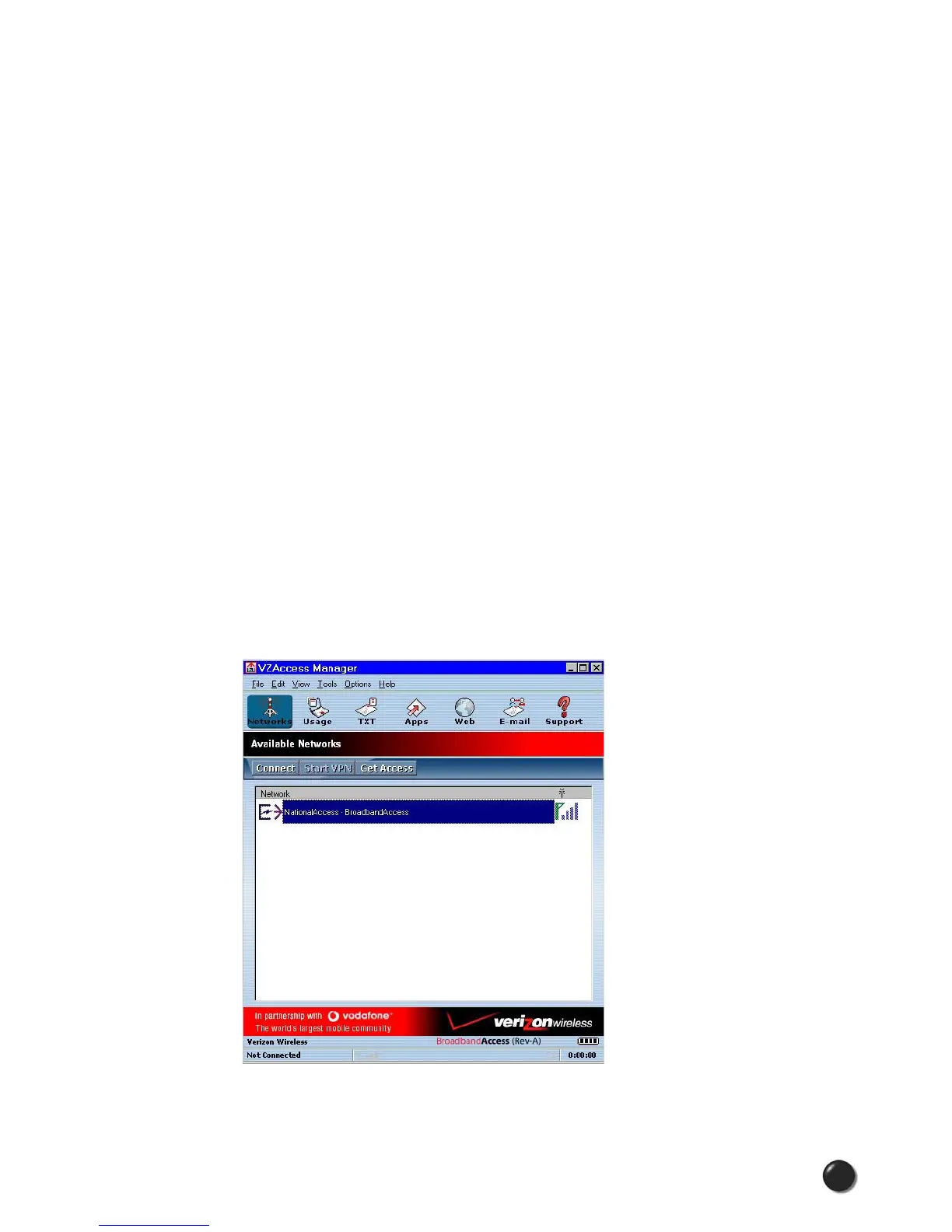
Once your Wi-Fi or WWAN device is properly configured, connecting to the Internet
is as simple as selecting the network connection type shown in the list and clicking
the Networks button. Note that the Networks button immediately above the list
will change to “Connect” or “Connect Wi-Fi” based on the current selection in the
networks list.
Following installation of the VZAccess Manager application, launch VZAccess
manager and click the Connect button. The application will automatically detect
whether the device is activated. If you have not already signed-up for service on
your device, when you attempt to connect to the network for the first time you will be
directed to the Verizon Wireless activation site. You will be presented with options to
activate a preference and follow the online screens to complete the order.
If you are outside the BroadbandAccess service area, or cannot complete the
activation online, you will be presented with a phone number to call for assistance
and completion of your order.
If you activate a daily session, you will be returned to the Verizon Wireless
activation site the next time you attempt to access the network after your session
has expired. The same activation options will be presented.
1. If you are outside the US, Canada or Puerto Rico and using the USB device,
select the “VZGlobal” connection. If in the US and using the device for the
domestic network, select one of the following connections: “NationalAccess −
BroadbandAccess” or “NationalAccess.”
2. Click the “Connect” button when it becomes enabled.
Once connected, the “Connect” button will change to “Disconnect.” Simply click this
to end your current connection. To connect to any other network shown, select it,
and then select “Connect.”



 To Next Page