17
UM150 User’s Manual
17
UM150 User’s Manual
The Status Bar
Information regarding your current network connection can be seen in the status
bar along the bottom of the VZAccess Manager interface. For more information
on this status bar, see the section “The Status Bar” in the “Additional Features”
section.
NOTE: If you are using a WWAN device that supports the Verizon Wireless dial-up
data service and you made wireless copies of your dial-up accounts, they will also
appear. See the section “Creating Wireless Copies of your Dial-Up Connections.”
Optionally you can have all dial-up connections appear in VZAccess Manager and
use it to launch any dial-up networking connection.
If you are in the presence of a private Wi-Fi network (such as one at work or
at home) it will also appear if you selected the Wi-Fi option during setup. If the
number of connections exceeds what can be displayed, a vertical scroll bar will
appear to the right of the connections. Scroll down to see them all.
NOTICE:
The first time you connect to GlobalAccess, BroadbandAccess, NationalAccess,
or a private Wi-Fi connection,a connectivity warning message will appear. You have the option
to suppress these warning messages when they are displayed.
VZAccess Manager will display status information at the bottom of the window
during the connection process as well as while connected. When not connected,
the status text in the lower left corner will display “Not connected” for the currently
selected network. The timer will display “00:00:00.” Once connected, the status text
will display “Connected” and the elapsed timer will begin to run. When a connection
is active, its name will appear as bold text.
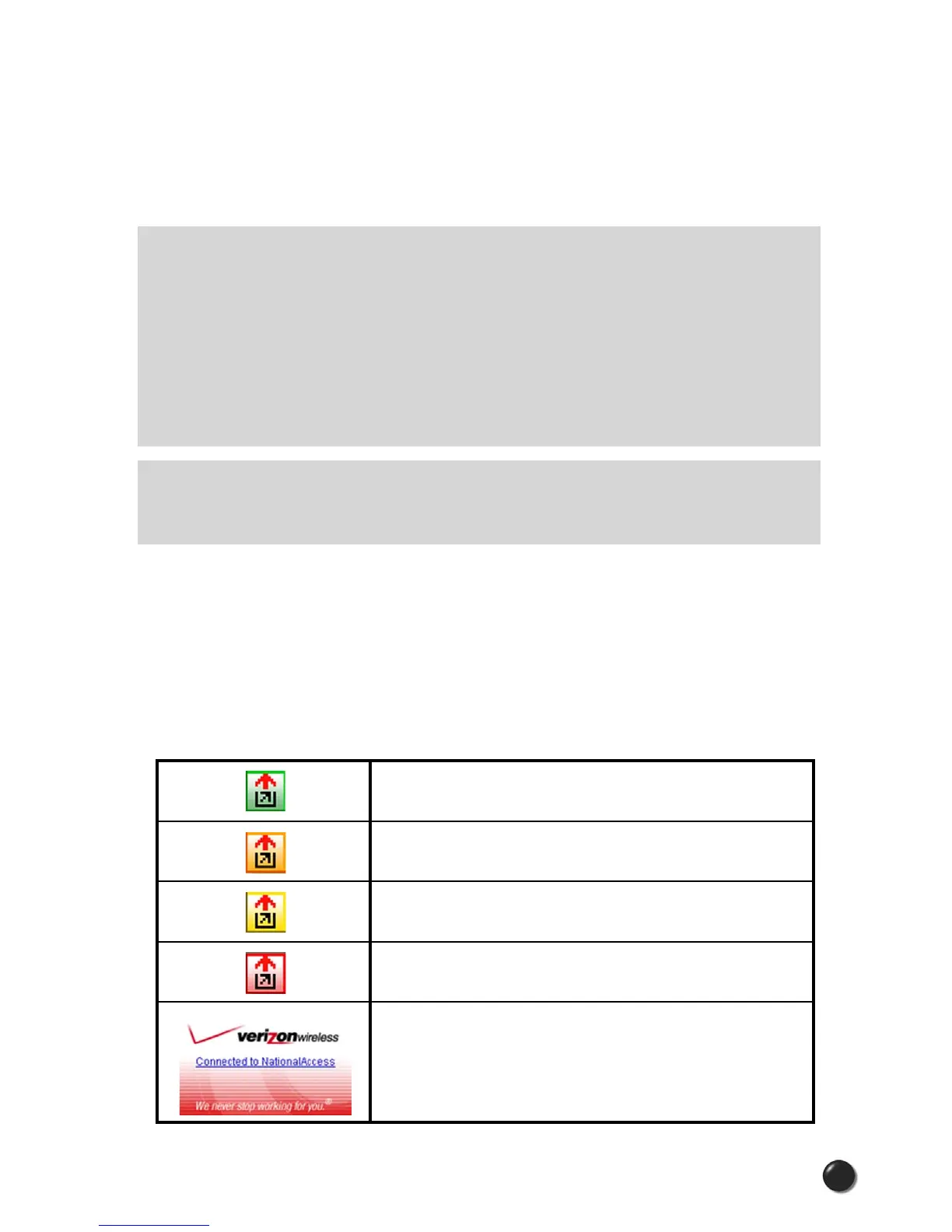
The status is also reflected in the Task Tray icon.
Connected
Idle - Not Connected
Connecting
Disconnecting
A window will also slide out of the tray showing
when you connect and disconnect from
networks.



 To Next Page