18
UM150 User’s Manual
18
UM150 User’s Manual
The pop up status can be turned off, if desired, by selecting “Tools,” “Preferences,”
“Options” tab, and un-checking “Show pop-up status windows by tray.” Right clicking
on the tray icon provides various options and double clicking on it will always show
the application. Placing your cursor on it will display the current connection status.
Based on your preferences, your browser or e-mail or VPN program can be
launched automatically, or you can launch whatever software you want to use.
You can also determine if all connections show in the drop down list or only your
wireless ones.
NOTE: Always use VZAccess Manager when connecting via BroadbandAccess or
NationalAccess.
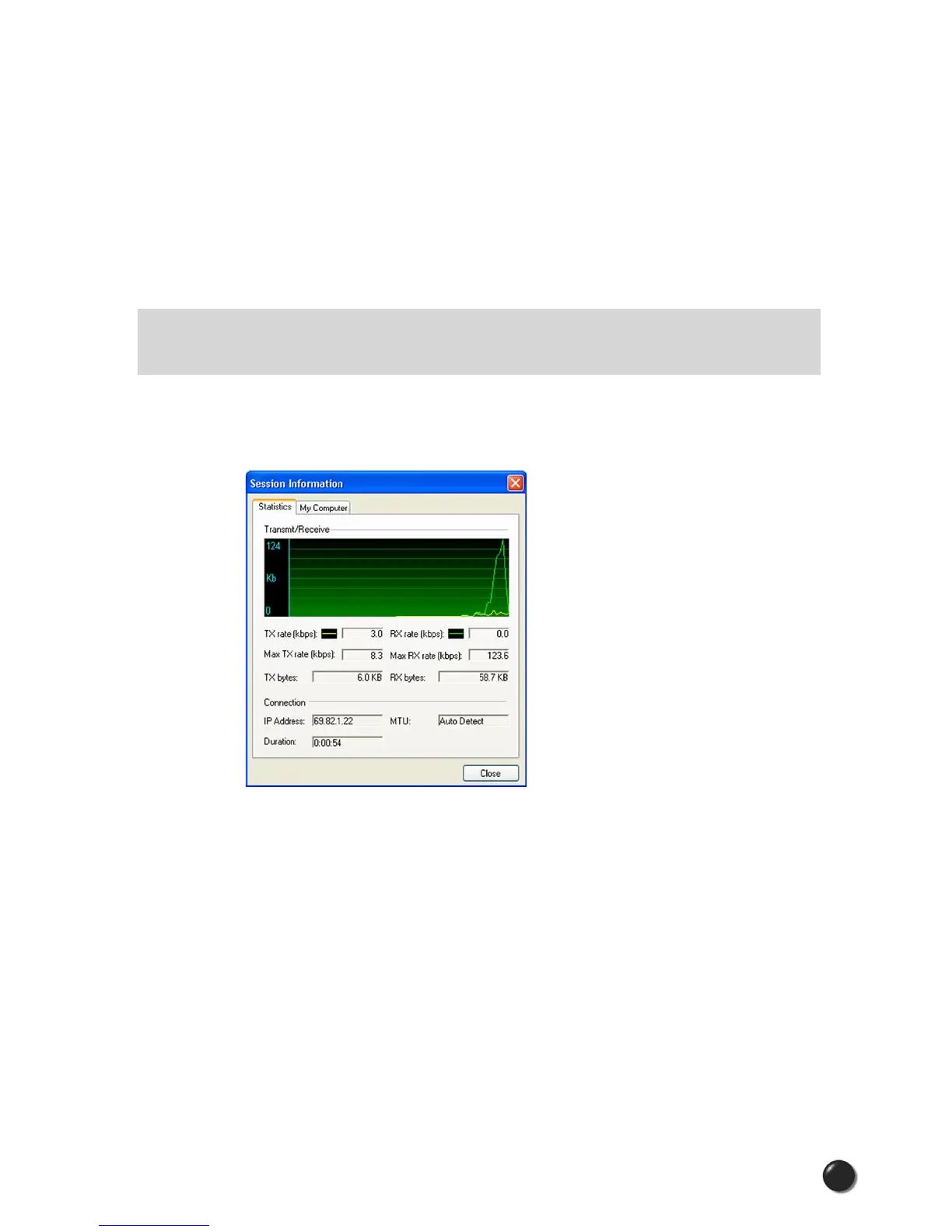
At any time during your connection you can check your current connection speed
and throughput stats in the Statistics tab of the Session Information window.
To see this window, select “Statistics” from the “Options” menu.
The Session Information window will also contain a My Computer tab and a
Statistics tab. The My Computer tab contains detailed information about your
computer. This information is helpful when troubleshooting a problem.
Additional information when using the NationalAccess connection:
By default, VZAccess Manager enables the Venturi compression software for the
BroadbandAccess and NationalAccess connections.
If you are using the BroadbandAccess or NationalAccess connection and the call
fails when you try to connect, with VZAccess Manager returning to its idle state,
you should try to connect again. If you feel you may have incorrectly entered your
wireless account number during initial setup, select “Options,” “Run Wizard.”



 To Next Page