37
UM150 User’s Manual
37
UM150 User’s Manual
Automatically close conflicting applications: With this option selected,
VZAccess Manager will automatically close any application it recognizes that is
known to prevent it from working correctly. For example, it may close the client
software that was supplied with your Wi-Fi card, if it's known to conflict with
VZAccess Manager controlling your Wi-Fi card.
3.4 Venturi Preferences
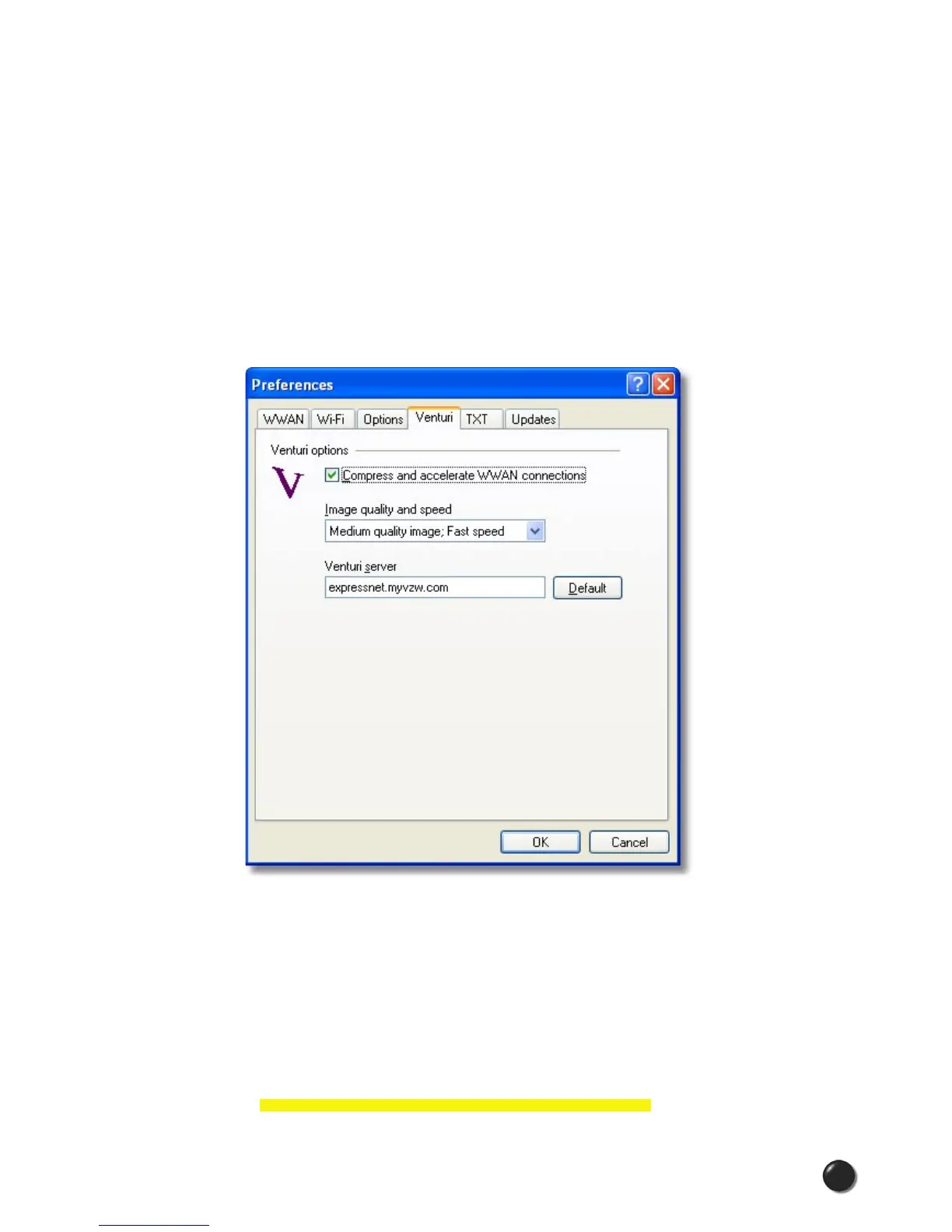
The Venturi tab will only appear if the Venturi client has been installed. To access
the Venturi preferences, click on the “Tools” menu, then “Preferences....” and select
the “Venturi” tab.
Venturi Options
The Venturi compression software (if installed) works in the background between
your computer and Venturi compression servers on the Verizon Wireless network to
improve your performance when using BroadbandAccess or NationalAccess. This
option is selected by default and allows VZAccess Manager to automatically turn
the Venturi compression software on when you use VZAccess Manager to connect
via BroadbandAccess or NationalAccess, and off when you disconnect.
Unselecting “Compress and accelerate WWAN connections” will cause
VZAccess Manager to no longer toggle the Venturi compression software on and off



 To Next Page