36
UM150 User’s Manual
36
UM150 User’s Manual
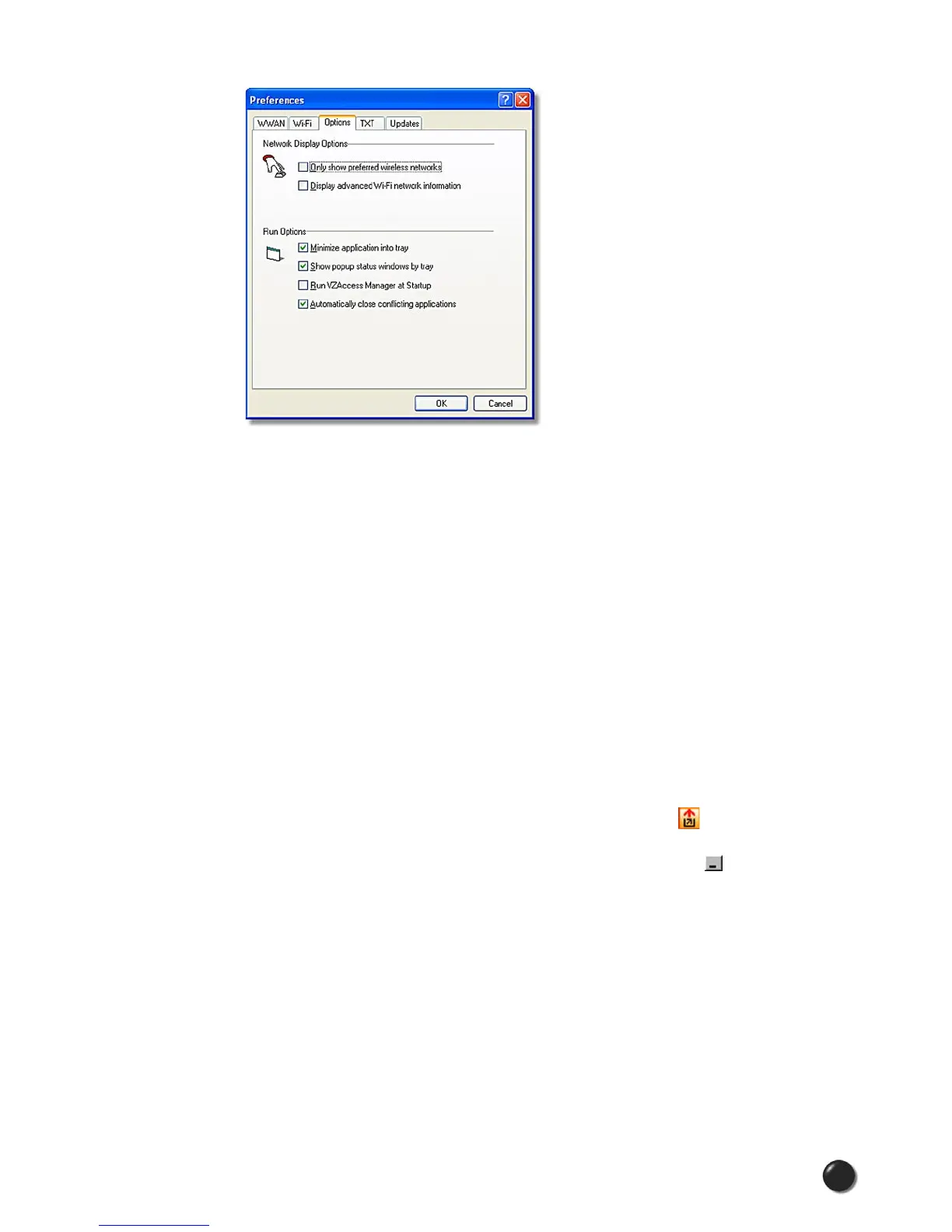
Network Display Options
Only show preferred wireless networks at start up: This only applies to Wi-Fi
networks. If checked, at startup, only networks in your Preferred list on the Wi-
Fi tab are displayed (networks you have connected to in the past) otherwise, all
detected networks are displayed.
Display advanced Wi-Fi network information: This only applies to Wi-Fi
networks. If checked, additional information will be displayed for Wi-Fi networks
such as the channel, MAC address and type of security.
Run Options
Minimize Application into tray: With this option selected, when you minimize
VZAccess Manager, instead of taking up space in your taskbar, it will just
disappear. You can get it back by double clicking on the tray icon , alternatively
you can right click in the icon and select “Show Application.” You can minimize the
main window of VZAccess Manager by selecting the minimize icon ( ) in the
upper right corner of the main window.
Show pop-up status windows by tray: Enables status notification in a pop up
window above the task bar that displays for a few seconds whenever connection
status changes.
Run VZAccess Manager at Startup: Selecting this option adds VZAccess
Manager to the Windows Startup group, unchecking it removes VZAccess Manager
from the startup group.



 To Next Page