33
UM150 User’s Manual
33
UM150 User’s Manual
NOTE: Note that with certain Wi-Fi adapters the signal strength for Wi-Fi
networks is not accurate until you connect to the network.
Edit: If you select a connection in the Preferred Network list, the Edit button will
become active. Pressing it will provide you with three additional tabs that will be
discussed below.
Remove: This will remove any other Wi-Fi networks you have added or connected
to in the past. Just select the network, then select “Remove.”
Network Tab
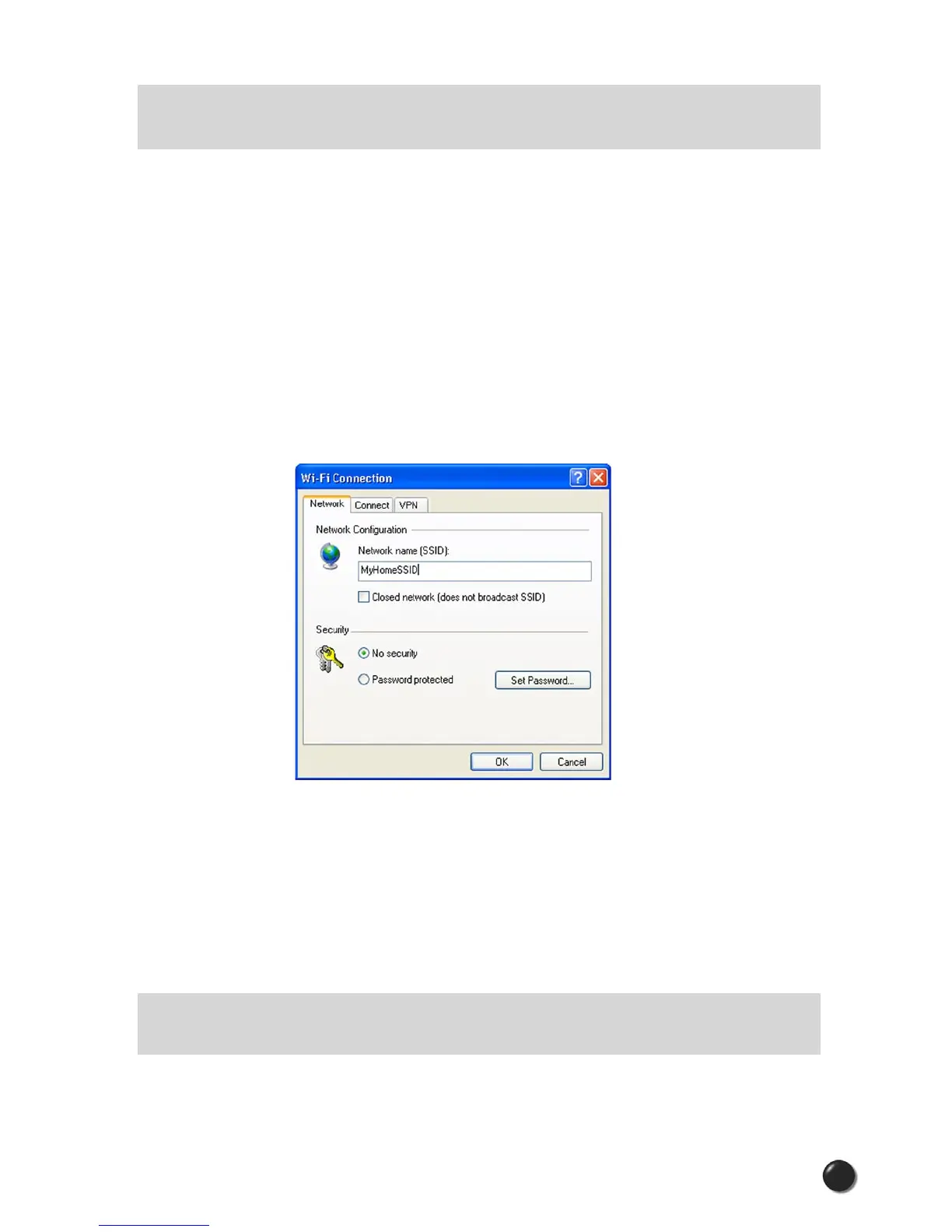
From the Wi-Fi tab (above, “Tools,” “Preferences,” “Wi-Fi” tab) if you select a network
listed under “Preferred Networks” then select the “Edit” button or if you select the
“Add” button, one of the following options will be displayed:
The following options exist on the Network tab:
Network Name: On the Network tab, for private networks you can edit or enter
the Network name and specify if it is a closed network. Note: The name has to
match the network to work. If the network broadcasts its SSID, instead of manually
adding it, select the Wi-Fi network connection when it appears, and then select
“Connect.” If it is password protected you will be prompted to enter your WEP
(Wired Equivalent Privacy) key.
NOTE: The name has to match the network to work. Note that this name is case
sensitive when entering it.
Set Password: This option allows you to modify, delete or enter your Wi-Fi WEP
keys for a private Wi-Fi network.



 To Next Page