30
UM150 User’s Manual
30
UM150 User’s Manual
3.2 Wi-Fi Preferences
To access the Wi-Fi preferences, click on the “Tools” menu, then “Preferences....”
and select the “Wi-Fi” tab.
The following options are available if you selected “Detect Wi-Fi” device during
setup. If you have added a Wi-Fi device after having installed VZAccess Manager,
you can select “Options,” “Run Wizard” to run the setup wizard again.
If you connect your Wi-Fi device after VZAccess Manager has been started and
you are in coverage of a Wi-Fi network, selecting “Options,” “Refresh Networks” will
allow VZAccess Manager to recognize your Wi-Fi device (and WWAN if connected)
and scan for available networks.
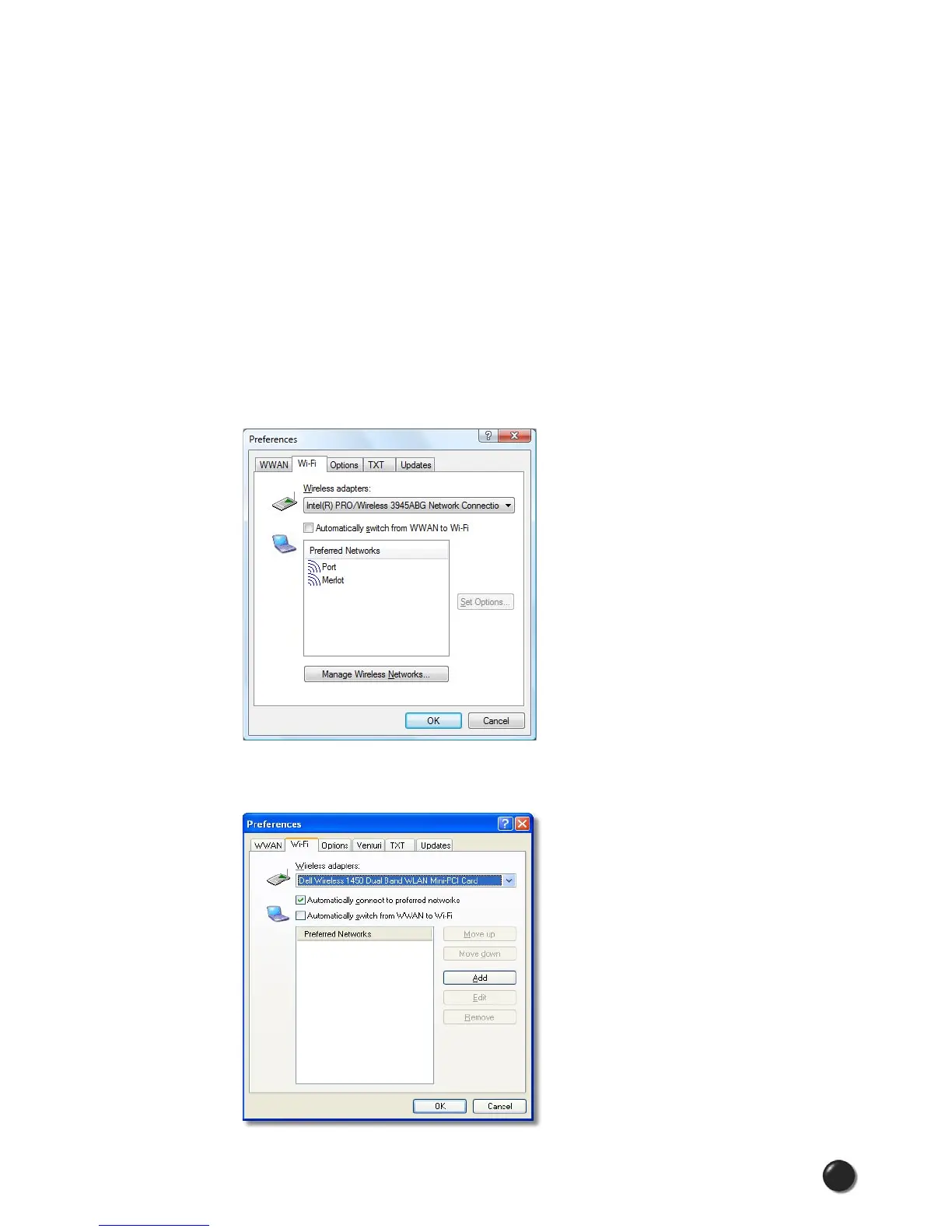
Windows Vista users will see the following Wi-Fi preferences dialog:
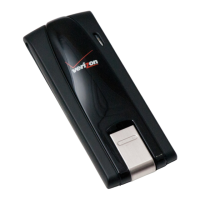
Windows 2000 & XP users will see the following Wi-Fi preferences dialog:



 To Next Page