31
UM150 User’s Manual
31
UM150 User’s Manual
Wi-Fi Preferences in Windows Vista
Wireless adapters: In the rare case you have more than one Wi-Fi adapter, you
can select the Wi-Fi adapter you are using. If your adapter does not appear, try
upgrading to the latest available drivers from the Wi-Fi device manufacturer.
Automatically switch from WWAN to Wi-Fi: Requires that “Automatically connect
to preferred networks” is selected. When you select this option to automatically
switch from WWAN to Wi-Fi, VZAccess Manager will disconnect your WWAN
connection (VZGlobal, BroadbandAccess or NationalAccess) and automatically
connect via Wi-Fi when a preferred Wi-Fi network is detected.
Preferred Networks: When you connect to or add Wi-Fi networks they will appear
in this list. If using the “Automatically connect” feature VZAccess Manager will try to
connect to the networks in the order they appear in this list.
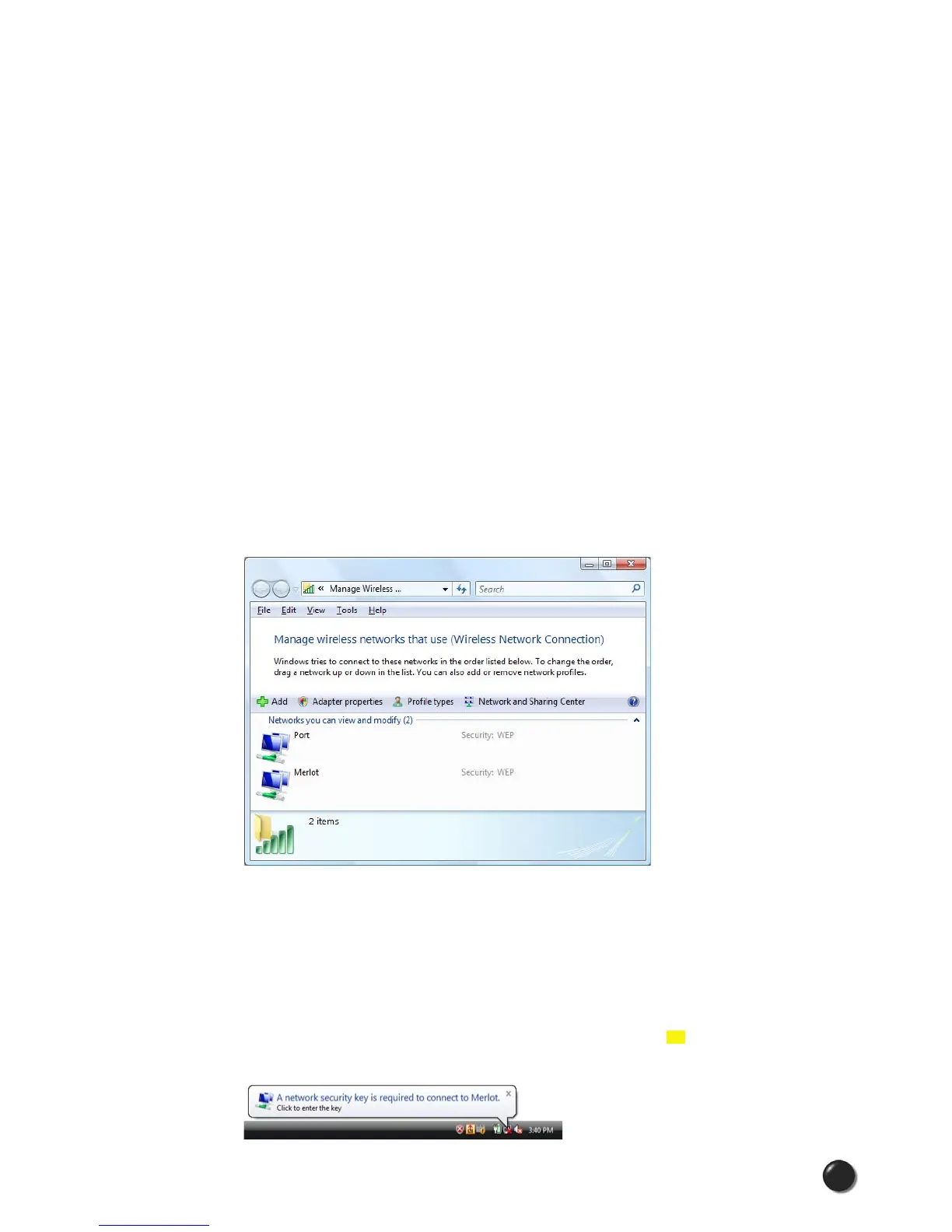
Manage Wireless Networks: Press this button to launch the following native
Windows Vista WLAN client.
You can use this Windows Vista WLAN client to manage your preferred network
options.
Set Options: Press this button after selecting a Wi-Fi network in the list to bring
up the “Wi-Fi Connection” dialog. This dialog gives you access to additional options
for each SSID beyond what is offered by the Windows Vista WLAN client pictured
above.
NOTE: If you attempt to connect to a secured Access Point for which no network
profile has yet been created, you will see a pop-up balloon such as this appear over
your system tray:



 To Next Page